
Guide
Self check-in and auto-start
Players check themselves in from their phone when they arrive. If the manager turns on auto-start, the event starts by itself at the start time once everyone is in.
For event managers and players
Three parts · Manager setup, player check-in, edge cases
Contents
Part 1 · The manager sets it up
- Open the event's Edit Event screen and expand the first section. Find Check-in and start.
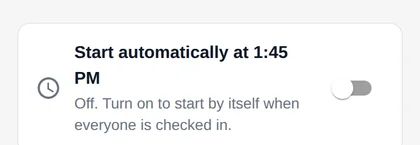
- Turn on Start automatically. Two more settings appear.
- Self check-in opens: how long before the start players can check in. Choose 30 minutes to 4 hours. The default is 60 minutes.
- Self check-in distance: how close players must be to the venue. Choose 500 ft to 4,000 ft. The default is 1,000 ft (300 m).
- Save the event with Update.
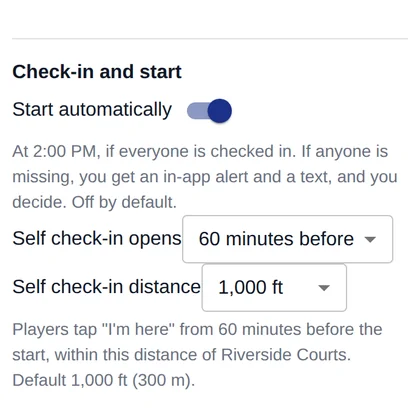
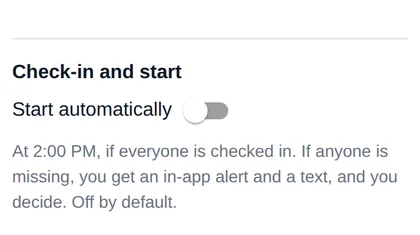
Players can still check themselves in when auto-start is off, using the default 60 minutes and 1,000 ft.
Where it is offered
Round robin and mixer formats, Crazy 8s, and single and double elimination. Automatic start is not offered for leagues, tournament divisions, King & Queen, or Open Play. Open Play keeps its own check-in.
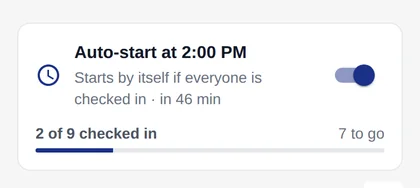
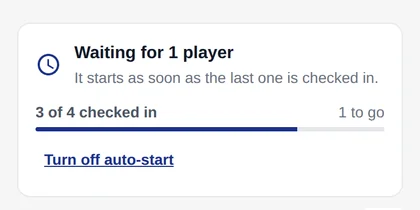
What the manager sees on the roster
Part 2 · Players check in
- Register for the event as usual.
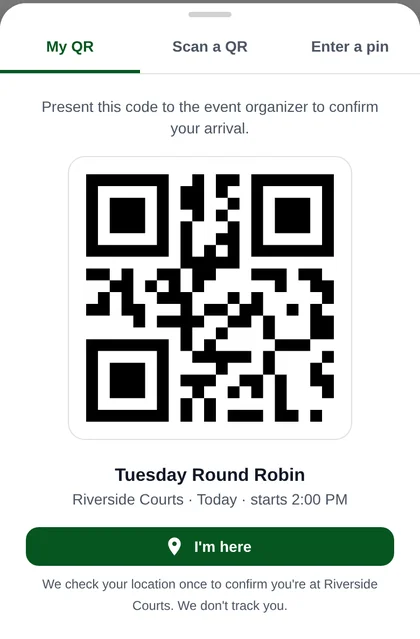
- When check-in opens, go to My PB360 and tap Check-in (it reads Check in now once check-in is open). Scanning the venue's check-in QR code works too.
- Tap I'm here and allow location. PB360 checks your location once and does not track you.
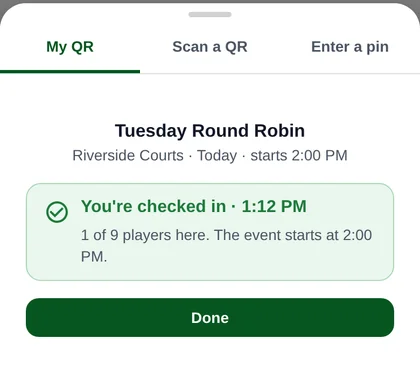
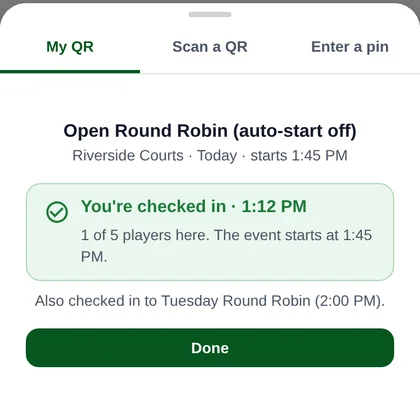
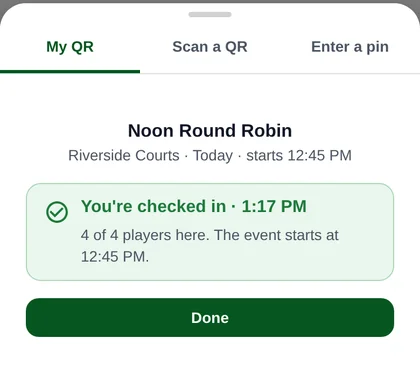
- You see You're checked in and how many players are here.
Part 3 · Edge cases
When a player cannot check in
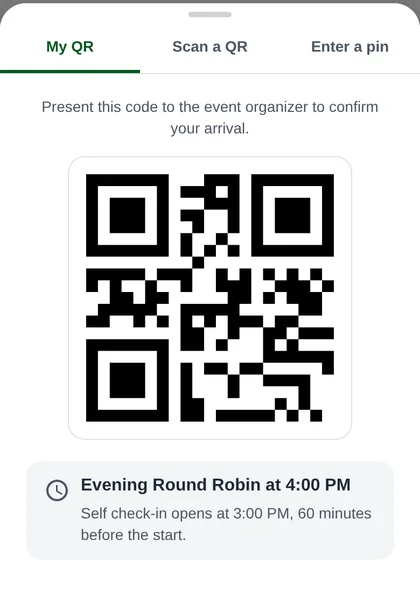
Every message below shows a Show my QR button. The organizer can always scan the QR to check the player in.
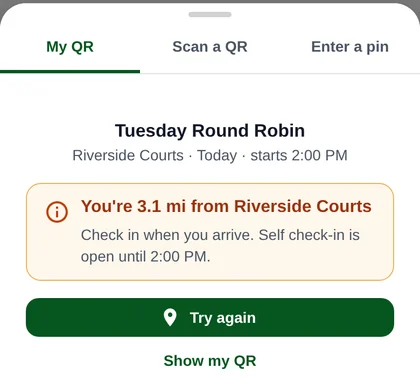
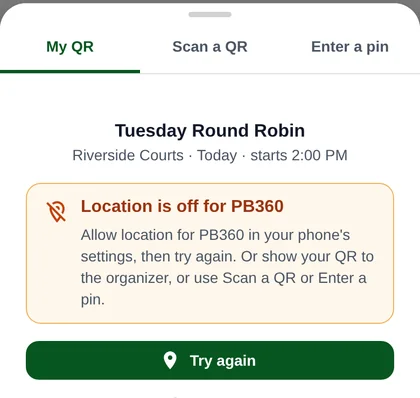
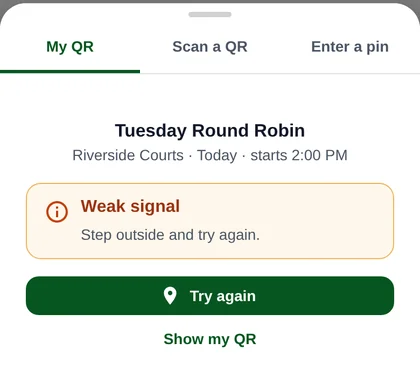
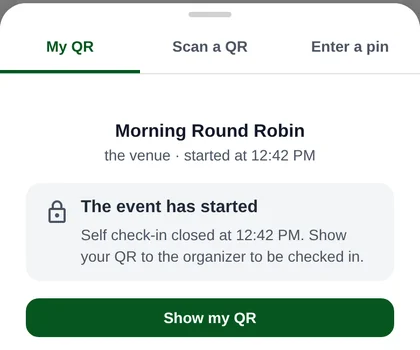
What happens | What it means |
|---|---|
Precise Location needed | The phone shares only an approximate location (off by about 0.6 mi or more). Turn on Precise Location for PB360. |
Too many tries | More than 20 attempts in a minute. Wait a minute. |
Not registered | The player is not on the event or has withdrawn. Show the QR or ask the front desk. Waitlist and substitute players can check in, but they do not count toward "everyone is in". |
Venue has no map location | Location check-in is off for this venue. Use Enter a pin or ask the front desk. |
Already checked in | Nothing changes, whether the player or the manager did it. |
When the event does not start by itself
Situation | What happens |
|---|---|
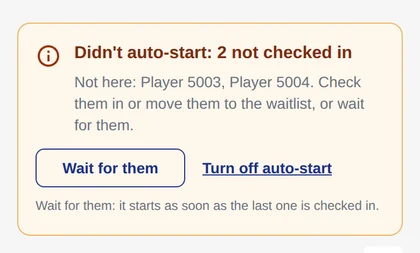
Someone is missing at the start time | The roster shows Didn't auto-start and the manager gets an alert and a text. Choose Wait for them (starts when the last player checks in, and check-in stays open past the start time), check them in by hand, move them to the waitlist, or Turn off auto-start. |
Everyone is in but the roster is not ready | The roster must be full, or groups must be set with Smart Grouping. Otherwise it is held with "the roster isn't ready". Team formats count both partners. |
A player withdraws or is added | "Everyone" updates right away. A withdrawn player no longer blocks the start. |
The start time is moved later | Auto-start re-arms for the new time. Player check-in times move with it. |
Switched on after the start time | No alert. It waits for the last player and starts when they check in. |
The manager starts the event first | Auto-start steps aside. Nothing starts twice. |
The event is a draft | It never starts by itself. Publish it first. |
Missed start window | It tries within about a minute of the start time and keeps trying for 3 hours (12 hours after Wait for them). After that, press Start Event yourself. |
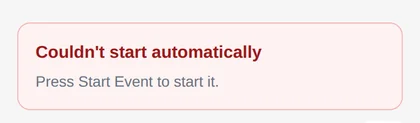
Start fails, or builds no matches | The roster shows Couldn't start automatically or Started with an empty schedule, with an alert and a text. Press Start Event. For an empty schedule, reset the event or fix the format first (for example, a doubles event with no teams). |
All times are shown in the venue's time zone. Screenshots come from a test build with sample players.