Guide
Club Administrator Guide
The complete manual for running a pickleball club, tournament, or league on PB360 — written for people who know pickleball, not software.
For club owners, tournament directors, and club staff
Eight parts · Setup, money, events, event day, reporting, troubleshooting
Contents
Part 1 — Start here
1.1 What this guide is
This is the complete manual for running a pickleball club on PB360. It assumes you know pickleball and know nothing about software. Every screen, every setting, and every button an administrator can reach is covered somewhere in here, in the order you would actually meet them.
You do not need to read it front to back. Three ways to use it:
- First time setting up? Read Part 1, then work through Part 2 in order. That gets your club live.
- About to run your first event? Read Part 4 (creating it), Part 5 (the day before), and Part 6 (the day itself).
- Something is confusing right now? Go to Part 8. It is a list of "the system did X, why?" with plain answers.
A note on wording
Software changes. Button labels and menu positions move between releases. What does not change quickly is the underlying logic — how a waitlist decides who gets in, how discounts stack, what a format actually does. This guide spends most of its words on that logic, because that is the part worth learning.
Where a label is quoted like "Add Player", that is the exact text on screen at the time of writing.
1.2 What PB360 does, in one page
PB360 is four products that happen to share one login.
It is a booking system. Players find your events, register, pay, and get a receipt. You never chase anyone for cash or keep a spreadsheet of who has paid.
It is a bracket engine. You pick a play format — round robin, ladder, king & queen, single elimination, and about fifteen others — and the system builds the matches, assigns courts, and works out the standings. It knows, for example, that Crazy 8's needs exactly eight players and that a Compass Draw needs 16, 32, or 64, and it will not let you create something that cannot be played.
It is a membership and payments business. Membership plans, prepaid Play Passes, Event Packs, promo codes, and a wallet the player can spend from. Money lands in your own Stripe, PayPal, or Venmo account.
It is a communication channel. Event chat, SMS, email, and reminders, all logged so you can prove what was sent to whom.
Around all of that sits the club: your venue and courts, your staff and what each of them is allowed to touch, your waivers, and your reports.
1.3 The words you will keep seeing
Software borrows ordinary words and gives them narrow meanings. These are the ones that trip people up.
Word | What it means here |
|---|---|
Club | Your organization. Everything else hangs off it. One person can own or help run several clubs. |
Venue | A physical place with courts. A club can have more than one venue. The venue carries the time zone — which is why an event created for a venue in Phoenix shows Phoenix times to everyone, no matter where they are sitting. |
Court | One playing surface at a venue. The system assigns matches to specific courts. |
Event | Any single scheduled thing players sign up for: a Tuesday ladder, a clinic, a social, one division of a tournament. |
Tournament | A container that holds several events. The events inside it are called divisions. |
Division | One event inside a tournament — "Mixed 3.5", "Men's 4.0+". It has its own format, its own price, and its own eligibility rules. |
League | An event that repeats over several sessions with standings carried across them. |
Format (or bracket format) | The rules of play — how matches are generated and how you win. Round Robin, Ladder, Single Elimination and so on. Covered in full in section 4.3. |
Registration | One player's place in one event. |
Main list | The players who are actually in. The people who will play. |
Waitlist | Players who registered after the event filled. They move up automatically when someone withdraws. |
Need a partner | A player registered for a doubles event who does not have a partner yet. The system keeps them visible so they can be paired. |
Check-in | Confirming a registered player has physically arrived. Separate from registration, and it matters — most formats only place checked-in players into matches. |
Invoice | The record of one payment. Created whether the event was free or paid. |
Operator (or staff) | Somebody you have given admin access to your club. Not the same as a member. |
Member | A player with a membership relationship to your club, usually a paid plan. |
Follower | A player who has followed your club to see its events. No money involved. |
DUPR | Dynamic Universal Pickleball Rating — the global rating system. PB360 can send your match results to it. |
1.4 Who can do what
PB360 has one owner per club and any number of operators. What separates them is not a job title but a set of four switches called access privileges. When you add a staff member you check the areas they may enter; everything else disappears from their menu.
Privilege | Unlocks | Give it to |
|---|---|---|
Engagement | Events and Messages — creating events, managing player lists, running brackets, messaging players. | Anyone who runs events. Your tournament directors. |
Audience | Members and Followers — the people lists, plus editing member details. | Front-desk and membership staff. |
Management | Reports, Waivers & Policies, Staff, and Payment methods. | Trusted managers only. This is the money-and-people area. |
Packages & Memberships | Membership plans, Event Packs, Play Passes, Promo codes. | Whoever prices and sells things. |
The club owner always has all four and cannot be locked out. A staff member with no privileges checked can still sign in but sees only the Overview page — which is the intended way to suspend somebody's access without deleting them.
Management is the sensitive one
"Management" includes Payment methods and Staff. Anyone holding it can change where your money lands and can add further staff. Treat it the way you would treat a key to the till.
Above all of this sits PB360's own support team, who have a Command Center that club staff never see. If support asks you to confirm something they can see and you cannot, that is why.
1.5 Finding your way around
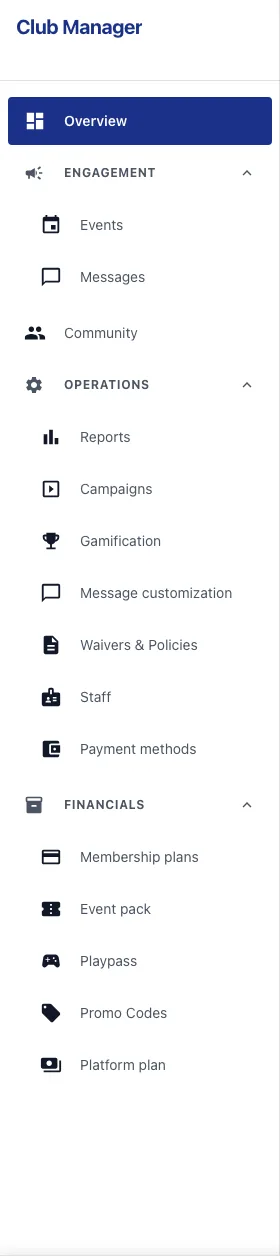
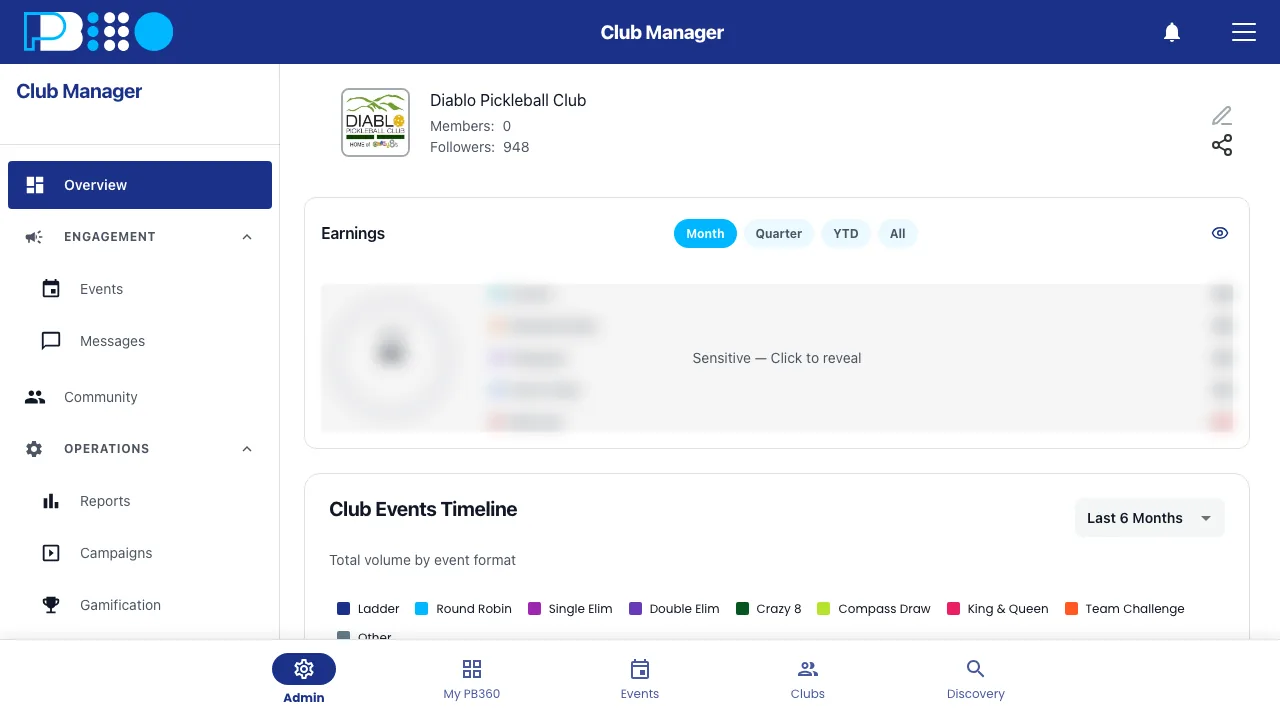
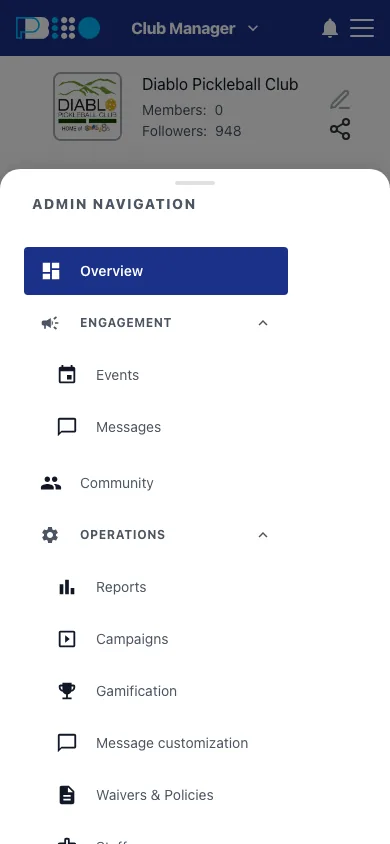
The admin area has a fixed sidebar. It never changes shape — items only appear or disappear based on your privileges. Learning it once is worth the two minutes.
Menu | Inside it | Covered in |
|---|---|---|
Overview | Your dashboard. Today's events, quick numbers, the shortcuts you use most. | — |
Engagement › Events | Every event you have ever run — upcoming and past. Creating, editing, running, and finishing events all start here. | Parts 4–6 |
Engagement › Messages | Event chat and messaging. | 7.6 |
Audience › Members | Your membership list. | 7.2 |
Audience › Followers | People following the club. | 7.2 |
Operations › Reports | Earnings, invoices, members, reminders, withdrawals. | Part 7 |
Operations › Campaigns | Outbound marketing to your members and followers. | 7.6 |
Operations › Message customization | Edit the wording of the automated messages your club sends. | 7.6 |
Operations › Waivers & Policies | The reusable legal text you attach to events. | 2.5 |
Operations › Staff | Add and remove operators, set privileges. | 2.3 |
Operations › Payment methods | Connect Stripe, PayPal, Venmo. | 2.4 |
Packages & Memberships | Membership plans, Event Packs, Play Passes, Promo Codes. | Part 3 |
Two views of the same thing
Most screens have a manager view and a player view. The manager view shows scores you can edit, players you can move, and buttons that change things. The player view is what your members see. If a screen looks oddly read-only, check which one you are on.
Part 2 — Setting up your club
This part is a one-time job. Work through it in order — later steps depend on earlier ones. Budget an hour, plus however long it takes your payment provider to verify you.
2.1 Create your club
A club is created once and is the container for everything else. You will be asked for:
- Club name — at least two characters, and it is what players see when they search. Use the name on your door, not a legal entity name.
- Description — free text. Players read this when deciding whether to follow you. Write it for a stranger.
- Logo — appears on your event cards, receipts, and the TV kiosk. Worth doing properly.
- Contact name, email, and phone — the email must be valid and is where system mail about the club goes.
- Address, country, and postal code — the postal code field renames itself (ZIP, Postcode, PIN Code) depending on the country you pick. Choose the country first.
- Opening hours.
- Agreement to the Terms & Conditions and Privacy Policy — both are required; the form will not submit without them.
You can edit all of this later under club settings. The one thing worth getting right on day one is the country, because it drives address formatting and currency defaults.
2.2 Venues and courts
A venue is a physical place. A court is one playing surface at that venue. Events are attached to a venue, and matches are assigned to specific courts, so both need to exist before you can run anything.
Add every court you actually use, and name them the way your players name them — "Court 1", "Back 3", "Bubble 2". These names appear on the TV kiosk and on players' phones telling them where to go. A name nobody recognizes causes real confusion on a Saturday morning.
Check the time zone
The venue's time zone decides what time your event says it starts, for everybody. If it is missing or wrong, times are computed as UTC and every player sees the wrong hour. Open your venue record and confirm the time zone is set before you publish your first event.
If your club plays at more than one location — a main facility plus a park, say — create both as venues. It keeps the reporting clean and lets players filter by where they actually want to play.
2.3 Add your staff
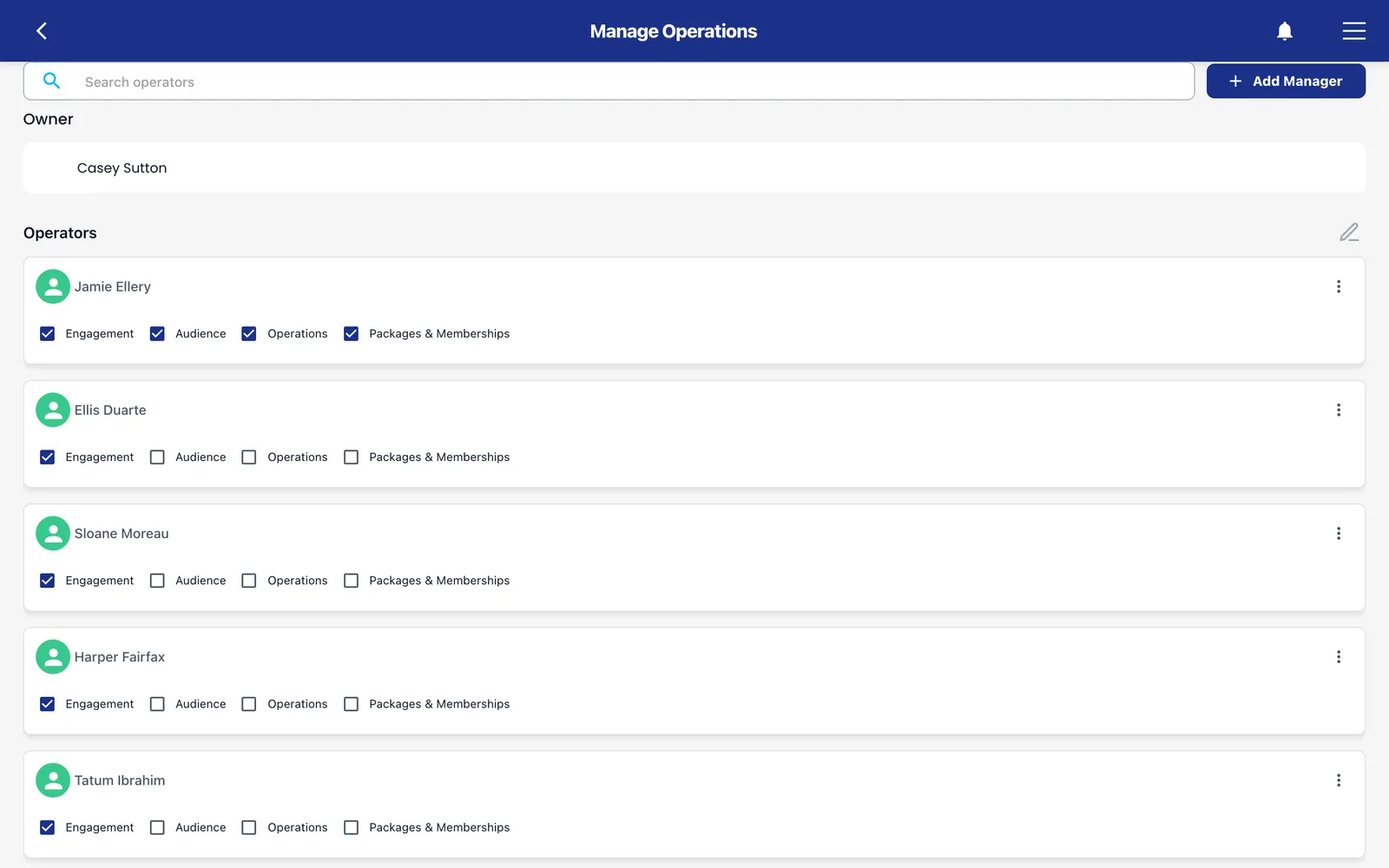
Under Operations › Staff (labeled "Manage Operations"), press Add Manager. Search by name or phone number. The person must already have a PB360 account — you are granting access to an existing player profile, not creating a new one.
Then check their privileges, using the table in section 1.4. The rule of thumb:
The person | Privileges |
|---|---|
Tournament director / event runner | Engagement |
Front desk / membership | Engagement, Audience |
General manager / assistant owner | All four |
Bookkeeper (reports only) | Management |
Someone whose access you want paused | None — leave every box empty |
Privileges can be changed any time from the same screen — select the operator, adjust the boxes, save. Removing an operator revokes their access to your club immediately but does not touch their player account; they can still register for your events as a member.
2.4 Get paid
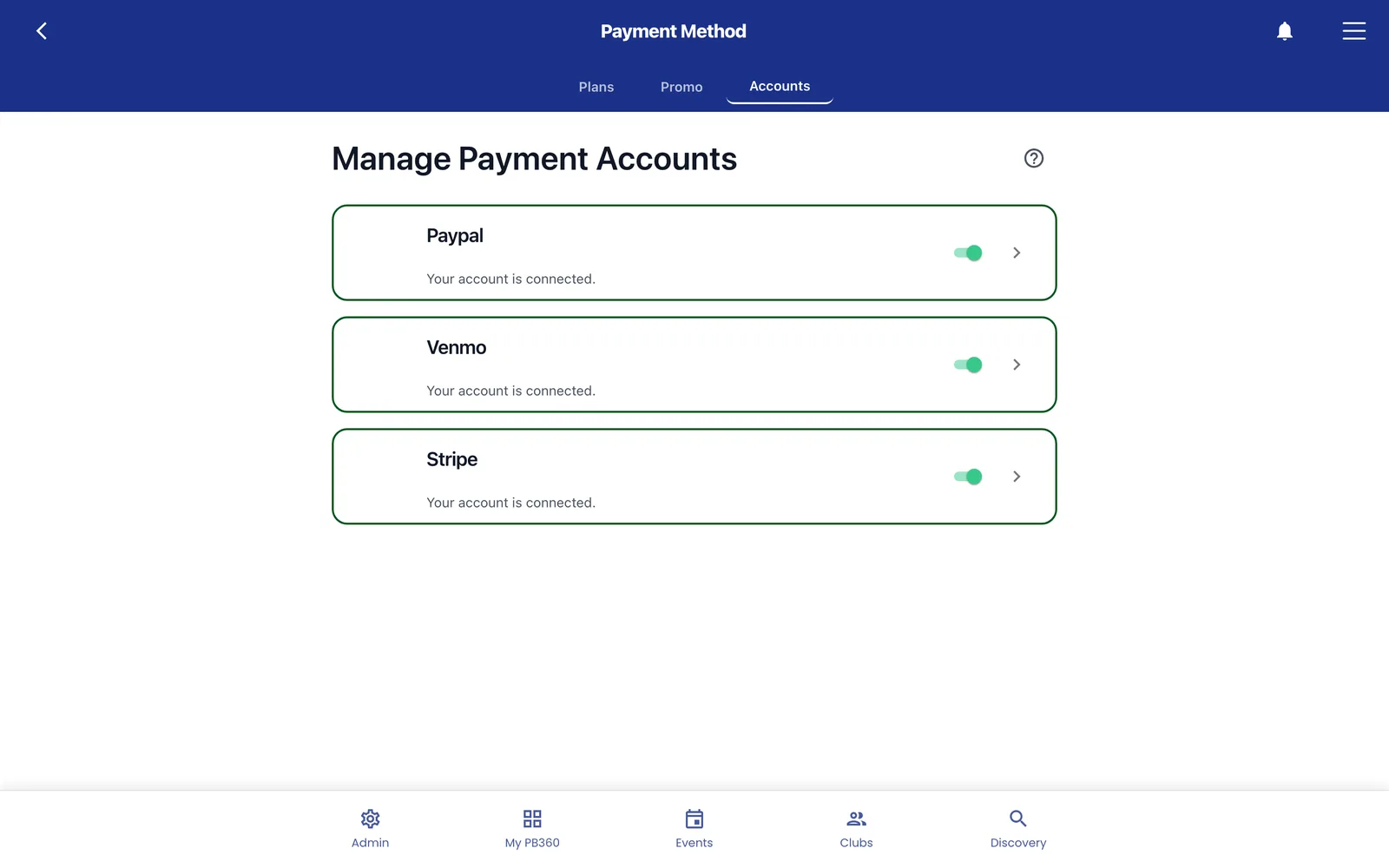
Until this step is done, you can only run free events. Go to Operations › Payment methods.
PB360 supports three ways of receiving money:
Provider | How it works | Notes |
|---|---|---|
Stripe | You connect (or create) a Stripe account through a guided flow. Card payments land in your Stripe balance and pay out on Stripe's schedule. | The default choice for most clubs. Handles cards, refunds, and disputes. |
PayPal | You connect an existing PayPal business account and are returned to PB360 when it is approved. | Useful if your members already expect to pay you by PayPal. |
Venmo | Available as a payment method for clubs set up to accept it. | Popular in US recreational clubs. |
Connection is not instant. The provider has to verify your business — bank details, tax identity, sometimes documents. Until they finish, the screen will keep telling you the account is incomplete. When it is done you will see confirmation that the account is connected and correctly configured.
Money flows to you, not through PB360
Registration money goes to your own connected account. PB360 takes a platform fee, which appears as a separate line on invoices. This matters for refunds: a refund reverses the charge through the same provider, so it is subject to that provider's rules and timing — typically several business days before the player sees it back.
If you take money at a physical desk as well, you may also see POS location settings here. Set the location so till transactions are attributed to the right place in your reports.
2.5 Waivers and participation policies
Two different documents, often confused.
A waiver is the liability agreement — the "you play at your own risk" text. A participation policy is your house rules: check-in and check-out procedure, what players must bring, what happens if they do not show up, how you will contact them.
You write each one once as a reusable template, then turn it on for individual events. Templates live under Operations › Waivers & Policies, and you can also create one on the fly while building an event.
Two pieces of advice the system itself offers, and they are good ones:
- Write the waiver so a normal person can understand it. A waiver nobody reads protects nobody. Give the terms headings and put them in a list.
- For the participation policy, cover four things: check-in and check-out procedures, what you require of participants, what happens when someone is absent, and how you will communicate with them.
Once attached to an event, players must accept the waiver as part of registering, and their acceptance is recorded against their registration.
Part 3 — Ways to take money
PB360 gives you four tools for charging players, plus per-event pricing. They overlap, and knowing which one to reach for saves a lot of grief. Read 3.1 even if you skip the rest.
3.1 The four tools at a glance
Tool | The player buys… | Use it when… |
|---|---|---|
Membership plan | An ongoing relationship — monthly, annual, or lifetime — that can carry benefits and member-only pricing. | You want recurring revenue and a defined membership base. |
Play Pass | Prepaid credit with a set value per credit, spendable against event fees. | You want players to pay up front and come back. Think a punch card. |
Event Pack | A block of N event entries, e.g. "10 events for $150". | You run a regular session and want to sell a term's worth of it. |
Promo code | Nothing — it is a discount you issue, fixed amount or percentage. | Marketing, apologies, member perks, seasonal offers. |
All four are managed under Packages & Memberships, and all four are optional. A club that only ever charges per event, with no memberships and no discounts, works perfectly well.
3.2 Membership plans
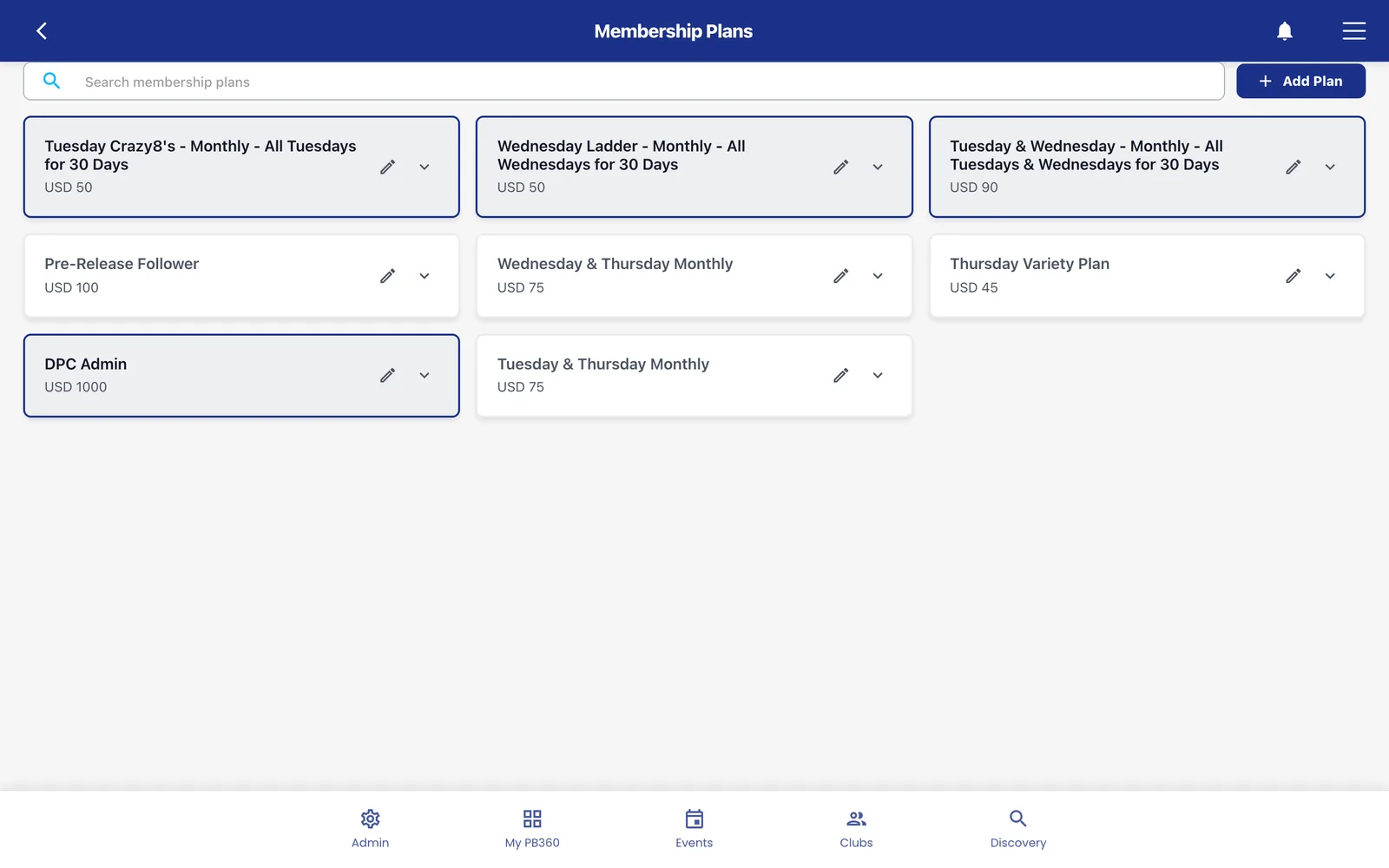
A plan is a named, priced, recurring relationship. Create one with Add Plan and set:
- Plan name — what members will see.
- Price and billing period — Monthly, Annually, or Lifetime. Lifetime is a one-off charge with no renewal.
- Benefits — free text listing what the member gets. This is display only; it does not enforce anything.
- Active or inactive — inactive plans stop being sold but existing members keep theirs.
Where plans start actually doing something is in events. When you create an event you can restrict it to members and followers rather than the public, and you can choose which specific plans qualify. That is how member-only clinics and member pricing get built.
Members manage their own plan from their account, and you can see everyone's status under Audience › Members.
3.3 Play Passes
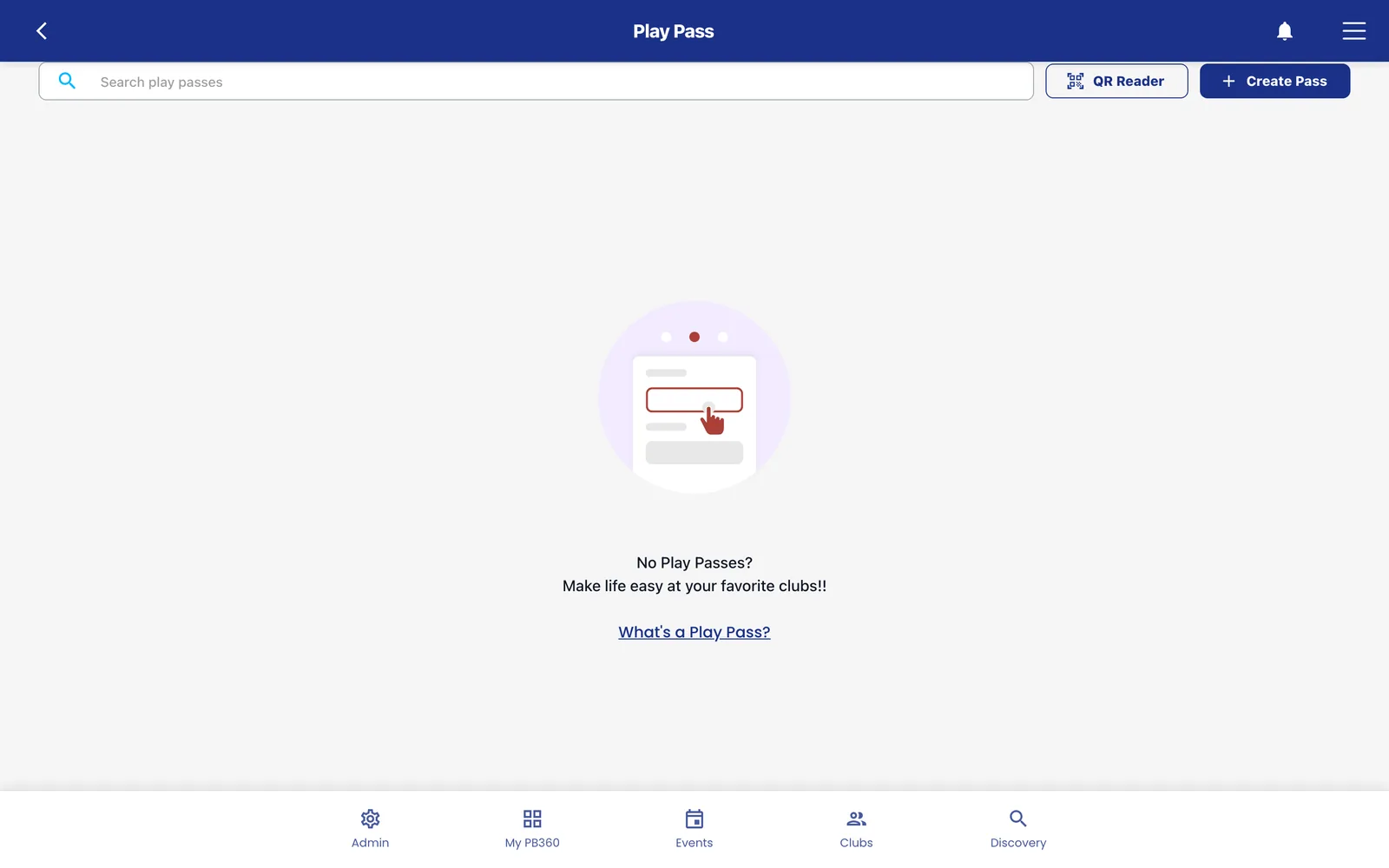
A Play Pass is prepaid credit. You define a pass; the player buys it; the value sits in their PB360 wallet and gets spent against event fees.
When creating a pass you set:
Field | What it does |
|---|---|
Pass name | What the player sees when buying and spending. |
Number of credits | How many credits the pass contains. |
Credit value | What one credit is worth in money. Two credits at $10 each will cover a $20 event. |
Public price / preferred price | What you charge for the pass. A preferred price lets you sell it cheaper to members than to the public. |
Expiration | Either a fixed expiry date, a number of days from purchase, or Never. |
Enabled / disabled | Disabling stops new sales. Passes already bought remain spendable. |
There is a second, quite different use for Play Passes: the QR scan at the door. A player shows their pass QR code on their phone, a staff member scans it, and a credit is redeemed on the spot. That turns the pass into a drop-in punch card for open play — no event registration required. You will see confirmation that the pass was scanned successfully, and the redemption is recorded.
A usage report shows who bought passes, when, what they paid, and when each was last used.
3.4 Event Packs
An Event Pack is a block of entries. "Ten Tuesday nights for $150." The player buys the pack, and each time they register for a qualifying event, one entry is consumed and the event costs them nothing further.
Set up with Create Pack:
- Pack name and number of events — how many entries are in the block.
- Price, with public and member pricing if you want them to differ.
- Expiration — a date, a number of days after purchase, or Never.
- Which events it applies to — all events, or a chosen set.
An Event Pack does not combine with anything
This is the single most common billing surprise. If a player pays with an Event Pack, any promo code and any Play Pass they had selected are ignored — not stacked, not partially applied, ignored. The pack covers 100% of the event cost and that is the whole transaction.
Promo codes and Play Passes do combine with each other. It is only Event Packs that stand alone. See 3.6.
3.5 Promo codes
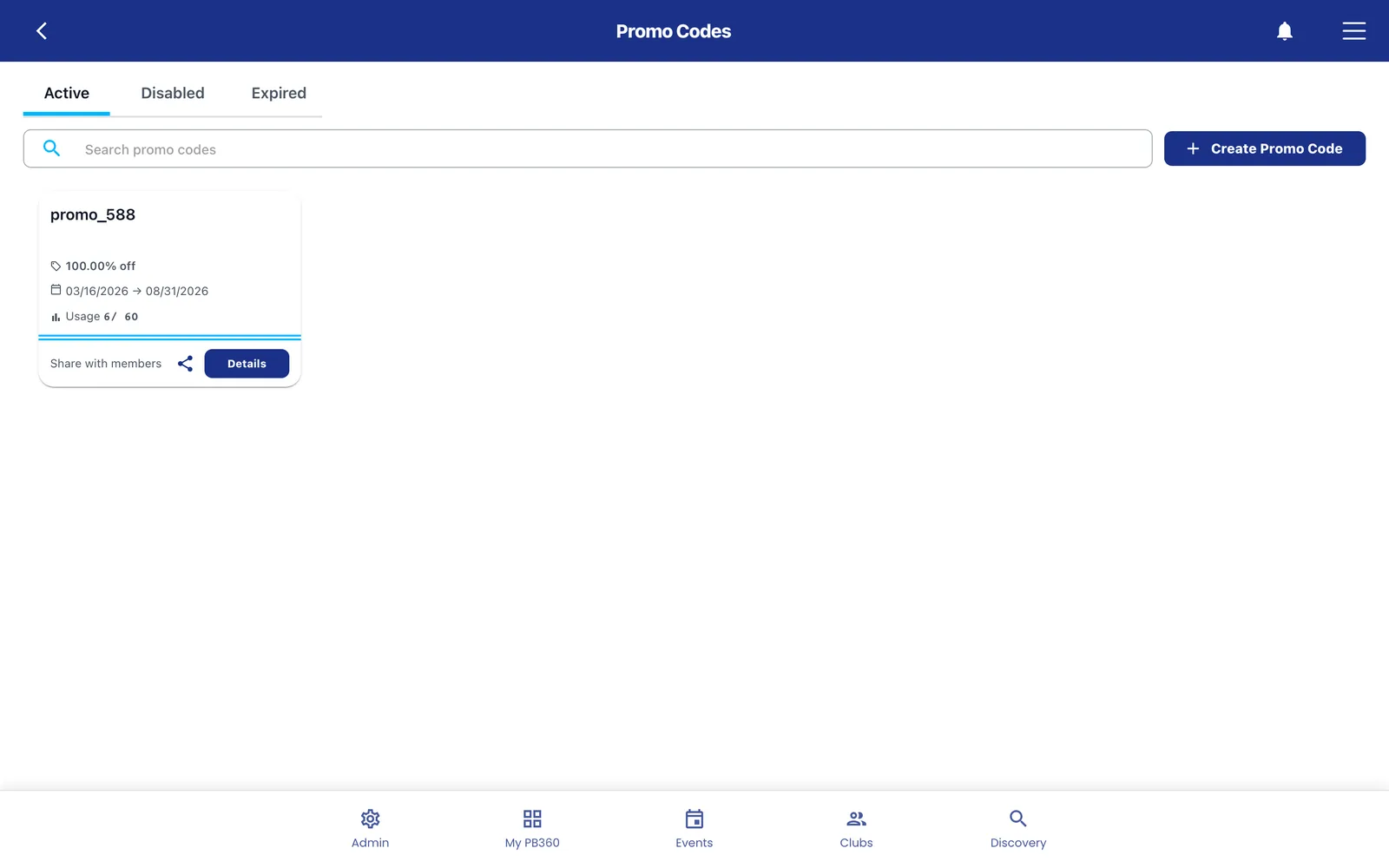
A promo code is a discount a player types at checkout. Create one under Promo Codes and set:
- The code itself — short and typeable. "SAVE20" beats "SPRING-2026-MEMBER-OFFER-A".
- Discount type — Fixed (a money amount off) or Percentage.
- Discount value — the amount or the percentage.
- Validity window — the dates between which it works.
- Which items it applies to — all events, or specific ones. Editable after creation.
- Enabled or disabled — disabling kills the code instantly without deleting its history.
You can share a code with members directly from the promo screen, and a usage view shows current usage counts so you can see whether a campaign landed.
A note on the arithmetic: a fixed discount is capped at the total, so a $30 code on a $20 event discounts $20, not $30 — it will not create a negative balance or a credit. A percentage discount is calculated on the original event price before anything else is applied.
3.6 How discounts stack
When a player has more than one thing to spend, PB360 applies them in a fixed order. It is worth understanding, because it changes what the player pays.
The order is: promo code first, then Play Pass. Event Packs replace both.
Take a $100 event, a 50%-off promo code, and a Play Pass worth $20 per credit.
What the player uses | Working | They pay |
|---|---|---|
Promo only | $100 less 50% = $50 | $50 |
Play Pass only (1 credit) | $100 less $20 = $80 | $80 |
Promo, then 1 Play Pass credit | $100 less 50% = $50, then less $20 = $30 | $30 |
Promo, then 2 Play Pass credits | $100 less 50% = $50, then less $40 = $10 | $10 |
Event Pack | Pack covers the entry; promo and pass ignored | $0 |
The key point is that the Play Pass is applied to the post-promo amount, not the original price. In the third row the credit is worth its full $20 against a $50 balance — the player gets the full value. But it means a generous promo makes each credit cover proportionally more of what is left.
The system protects credits
If a promo code covers the entire cost on its own, PB360 removes the Play Pass from the payment rather than spending a credit on a bill that is already zero. If the player then removes the promo, the original price comes back. This is deliberate — players should not burn credits for nothing.
3.7 Refunds and withdrawals
When a player withdraws from an event, two separate things happen: their place is released, and their money may or may not come back. You control the second one through the event's refund policy, set when you create the event.
There are two shapes of refund policy:
- Fixed refund — one percentage, applied whenever they withdraw. "80% back, always."
- Tiered refund — different percentages before different dates. "100% until two weeks out, 50% until three days out, nothing after that." Each tier is a percentage and a cut-off date.
There is also a force majeure setting for the case where you cancel — weather, facility closure — as distinct from the player choosing to withdraw.
When a place is released, the waitlist moves up automatically. The next player in line is promoted to the main list without you doing anything.
Refunds take days, not seconds
The refund is processed through Stripe, PayPal, or Venmo, and their timelines apply — commonly five to ten business days before it appears on the player's statement. Tell the player this at the time. Most "where is my refund" messages are simply impatience with the card network.
Every refund is recorded and appears in the withdrawals report (7.5), with the invoice it relates to, the amount, and the date. Partial refunds are supported — if some of an invoice has already been refunded, only the remainder can be refunded again, so you cannot accidentally pay a player twice.
Part 4 — Creating an event
This is the core skill. Everything else in PB360 exists to support it.
4.1 The six panels
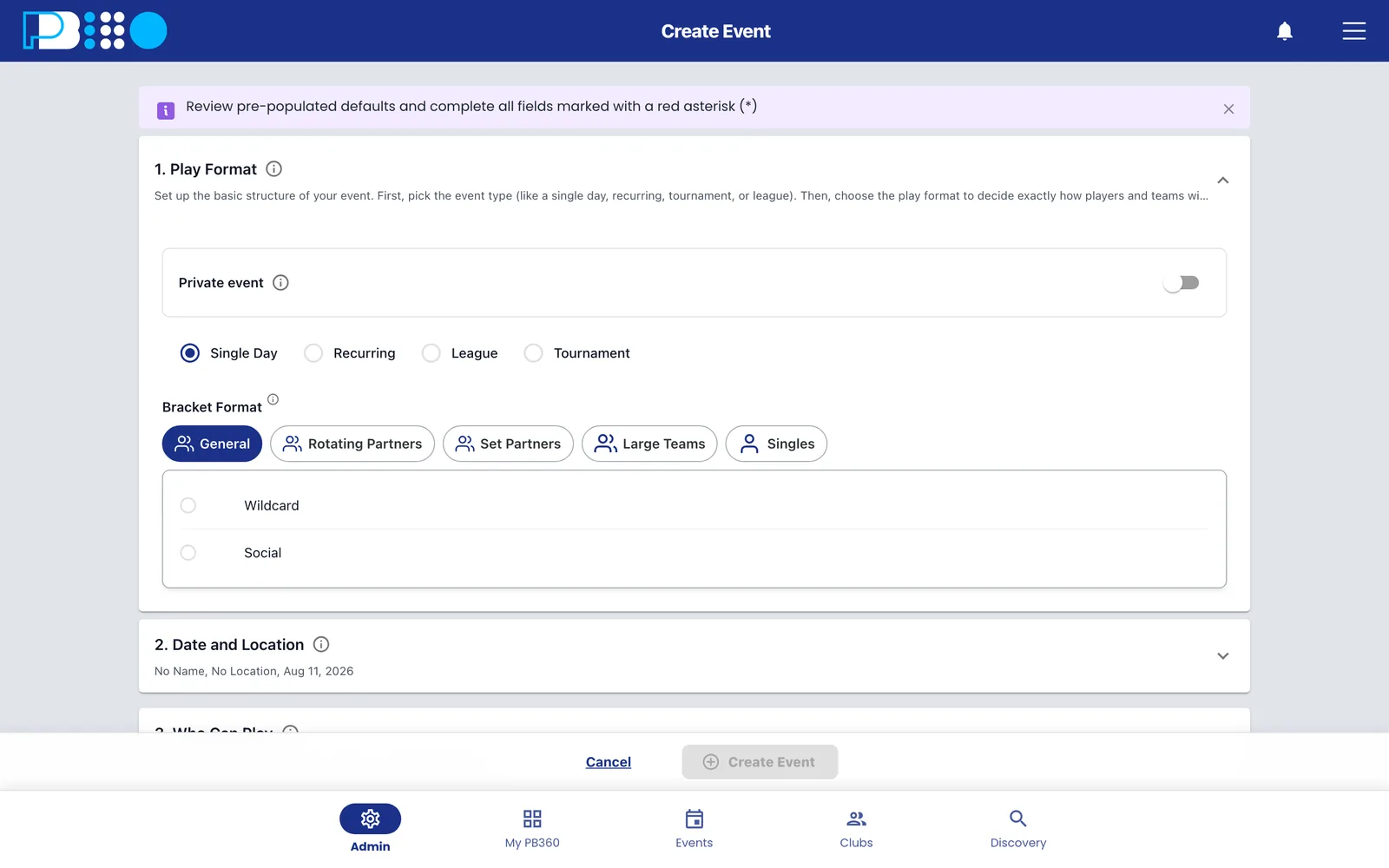
Creating an event is one long form divided into six collapsible panels. You can open them in any order and the form remembers what you have done. When a panel is closed it shows a one-line summary of your choices, so you can review the whole event at a glance before publishing.
Panel | What it decides | Section |
|---|---|---|
1. Play Format | How the event is played. The single most consequential choice. | 4.2–4.3 |
2. Date and Location | When and where. Also the registration deadline. | 4.4 |
3. Who Can Play | Eligibility — age, skill, gender, public or member-only — and capacity. | 4.5 |
4. Pricing & Add-ons | What it costs and what happens on a withdrawal. | 4.6 |
5. Advanced setup | Score entry, DUPR, waiver, policy, currency. | 4.7 |
6. Organizer | Who players contact. | 4.8 |
Choose the format first, and think about it
Panel 1 changes what the other five panels offer you. Formats have hard player-count rules — Crazy 8's needs exactly eight players, a Compass Draw needs 16, 32, or 64 — so the capacity options in panel 3 depend on it. Some formats also add their own settings (number of rounds, promotion rules, playoff size) that no other format has.
Changing format after you have set everything else means redoing work. Decide first.
4.2 Panel 1 — Play Format
Formats are grouped by how partners work, which is the distinction that matters most to players.
Group | What it means for the player |
|---|---|
General | Loose formats where the competitive structure is undecided or deliberately absent. |
Rotating Partners | You sign up alone and play with a different partner each round. Sociable. The mainstay of club nights. |
Set Partners | You sign up as a fixed pair and stay together all event. Competitive. |
Singles | One against one. |
Large Teams | Clubs or squads of many players competing as one entity. |
Tournaments | A container for several divisions. See 4.9. |
In the same panel you also choose whether the event is private. A private event is visible only to your members and followers; a public one appears in general event searches. Note that turning on private forces the event to be a single-day, non-tournament event.
4.3 The complete format catalog
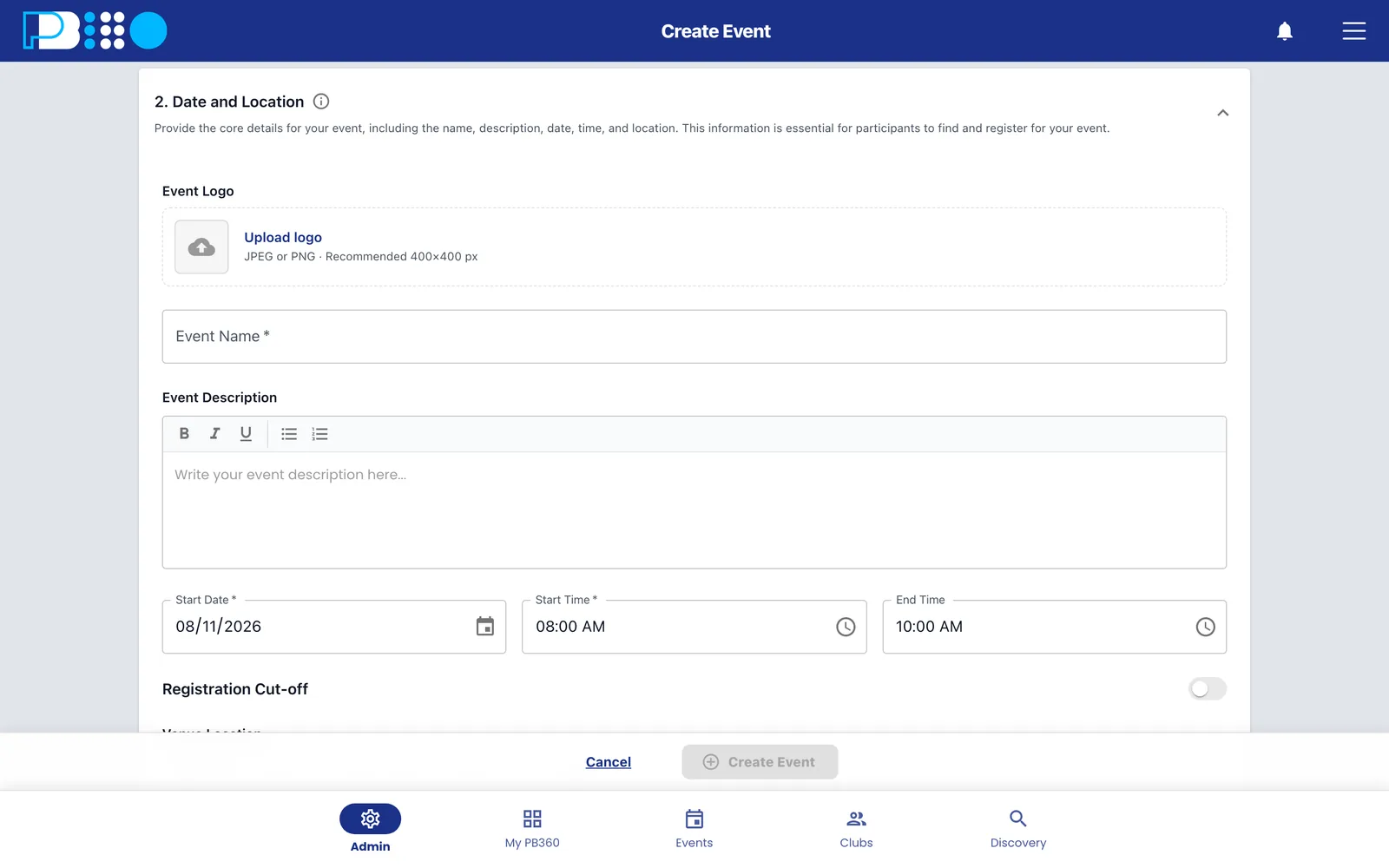
Every format PB360 offers, what it actually does, and when to use it. This is the reference section — skim it once, come back when you need it.
General
Format | What it does | Use it when |
|---|---|---|
Wildcard | An open format with the competitive structure left undecided. | You want registrations open now and will pick the real format later, once you see who signed up and at what level. |
Social | A casual, unranked event focused on open play and community rather than scoring. | Potlucks, parties, mixers with no competition. You can convert it to a competitive format at any point. |
Rotating Partners — sign up alone, play with everyone
Format | What it does | Use it when |
|---|---|---|
Round Robin | Every player competes against every other player in their pool, accumulating points. | The default club night. Fair, predictable, easy to explain. |
Rotating Mixer | One group, partners rotate every round, and a random subset of the full round robin is played. | You have more players than a full round robin has time for, but you still want maximum social mixing. |
Ladder | Players move up or down courts based on how they did last round, continuously mixing with players of similar level. | A wide spread of abilities. The format sorts itself out — strong players drift up, everyone ends up in competitive games. |
King & Queen | A split-court format. Winners move up toward the King/Queen court and split as partners; losers move down and split. | You want the drama of a top court and a clear champion, with constant partner changes. |
Crazy 8's | Exactly 8 players over 2 courts. Every player partners every other player exactly once across 7 fast rounds. | You have precisely eight players and ninety minutes. Mathematically perfect and genuinely fun. |
Set Partners — sign up as a pair
Format | What it does | Use it when |
|---|---|---|
Round Robin | Fixed pairs play every other team in their pool. | Standard doubles competition. Everybody gets the same number of games. |
Doubles Mixer | Fixed pairs in one group play a random subset of the round robin, facing as many different teams as possible. | Too many teams for a full round robin in the time available. |
Round Robin with Playoffs | A round robin pool stage, then the top teams advance to a single-elimination playoff. | You want guaranteed games for everyone plus a proper final. The best of both. |
Single Elimination | A knockout bracket. Lose once and you are out. | A short, sharp tournament. Be aware half your field goes home after one match. |
Double Elimination | A double knockout. You are out after two losses, not one. | A serious competition where one bad match should not end somebody's day. |
Compass Draw | Everyone keeps playing regardless of results. Winners advance East; losers drop into North, South, or West consolation brackets. | You want knockout structure but guaranteed multiple games for every entrant. Excellent value for players who traveled. |
Flex | A self-scheduled league — fixed teams get assigned opponents and arrange their own match times and scores. | Currently unavailable for selection. |
Singles
Format | What it does | Use it when |
|---|---|---|
Round Robin | Every player plays every other player in the pool. | Singles club night or a small singles competition. |
Singles Mixer | One group, a random subset of the round robin, facing as many different opponents as possible. | A large singles field and limited time. |
Round Robin with Playoffs | Pool stage, then the top players advance to a knockout. | A singles event that needs a real final. |
Single Elimination | Classic individual knockout. One loss and out. | Short singles tournaments. |
Double Elimination | Individual double knockout. Out after two losses. | Singles competition where a single upset should not decide someone's day. |
Large Teams
Format | What it does | Use it when |
|---|---|---|
Team Challenge | Large teams compete, compiling points from individual singles, doubles, and mixed matches into one overall team result. | Club-versus-club or squad-versus-squad events in the MLP style. |
Inter-Clubs | Built for when your facility's team travels to, or hosts, a team from a different club. | Currently unavailable for selection. |
Flex | A self-scheduled league for large rosters, with captains arranging their own matches. | Currently unavailable for selection. |
Player-count rules you cannot break
Some formats only work at certain sizes. The system enforces these — if the option you want is greyed out, this table is usually why.
Format | Requirement |
|---|---|
Crazy 8's | A multiple of 8. The format is built on exactly eight players per group. |
Ladder | A multiple of 4. |
Compass Draw | 16, 32, or 64. Nothing in between — the four-way bracket needs a clean power of two. |
Single Elimination (doubles) | At least 4 teams. |
Single Elimination (singles) | At least 4 players. |
Round Robin (singles) | Between 3 and 128 players. |
Round Robin with set teams, and Round Robin with Playoffs | At least 3 teams. |
If you are short a player
You have three ways out. Add a club member or a guest yourself from the player list (5.3). Change the format to one with a looser count. Or let the system handle it with a bye — an odd player sits out a round, and the system rotates fairly so it is not always the same person.
4.4 Panel 2 — Date and Location
Set the date, start time, end time, and venue. The venue supplies the time zone, so everybody sees the correct local time regardless of where they are.
The important field here is the registration cut-off — the moment registration closes. After it passes the event stops accepting new players and the listing shows as closed.
Registration cut-offs are decided on the server
The cut-off is evaluated in the venue's time zone, not the player's and not yours. A player in a different state sees the deadline converted to their own clock. This is correct behavior, but it does mean you should set the cut-off thinking in venue-local time.
For a tournament division, the cut-off comes from the parent tournament, not the division.
Multi-session events — leagues especially — set up a series of dates here rather than one. When you later edit one, you will be asked whether the change applies to this session, or this and all following sessions. Read that prompt carefully; it is easy to change eight weeks of a league when you meant to change one night.
4.5 Panel 3 — Who Can Play
This panel decides who is allowed to register, and how many of them.
Eligibility
Setting | Options and effect |
|---|---|
Visibility | Public (anyone can find and register), Members & followers (restricted to your people), or a combination. Member-only events can be further limited to specific membership plans. |
Player group | Open / Coed, Women, Men, Mixed, or Traditional (2 Men & 2 Women) for formats that pair by gender. |
Player format | Singles, Doubles, or Mini Singles. |
Age range | A minimum and maximum age. The floor the platform supports is 13. |
Skill range | A minimum and maximum DUPR-scale rating, from 2.00 to 8.00. Players outside the band cannot register. |
Guest registration | Whether someone without a full PB360 account may be signed up. Turn it on for open, welcoming events; off when you need every player verified. |
Be deliberate about skill bands. Set them too narrow and you will spend the week before the event manually admitting people. Too wide and you get mismatched games and unhappy players. For a first event, err wide and tighten later once you know your field.
Capacity and the waitlist
Set the maximum number of players or teams, depending on the format. The options offered respect the format's rules from 4.3.
Then decide whether to enable the waitlist. With it on, once the event fills, further registrations join a queue instead of being refused. When somebody withdraws, the next person is promoted to the main list automatically.
Turn the waitlist on. There is almost no reason not to — it costs you nothing and it means a withdrawal at 8pm the night before does not leave you a court short.
4.6 Panel 4 — Pricing & Add-ons
Pricing
Two models:
- Fixed pricing — one entry price for everyone.
- Tiered pricing — the price changes with time. Typically Early, Regular, and Late, each with its own price and its own cut-off date. Early-bird pricing that closes automatically.
Leave the price at zero for a free event. The system understands zero properly and will show the event as "Free" rather than "$0".
Refund policy
Covered in 3.7. In summary: choose Fixed refund (one percentage, always) or Tiered refund (different percentages before different dates), and configure the force majeure setting for cancellations you initiate.
Add-ons
If you sell merchandise or extras alongside entry — a shirt, a lunch, a ball pack — this is where they are attached, so they are paid for in the same transaction and appear on the same invoice.
4.7 Panel 5 — Advanced setup
Four groups of settings that are easy to skip and occasionally important.
Player score entry
A switch. When on, players can enter their own match scores from their phones. When off, only staff can. Turn it on for casual club play where chasing every score yourself is impractical; turn it off for anything competitive or rated, where you want a single source of truth.
DUPR reporting
A switch that determines whether this event's results are sent to DUPR, the global pickleball rating system that rates every player on one scale from 2.00 to 8.00 regardless of age, gender, or location.
Turn it on and your players' ratings move based on what happens at your club — a genuine draw for competitive players. Turn it off for socials, clinics, and anything where results should not count. Once the event is finished you upload the results; see 6.8.
Waiver and participation policy
Check either or both and choose from your saved templates, or create a new one right here with + Add. Covered in 2.5.
Preferred currency
The currency this event is priced in. Set it if you run events in more than one country.
There is also an external services area here for connecting the event to outside systems where relevant.
4.8 Panel 6 — Organizer
The contact name, email, and phone shown to players. Default to a club address rather than a personal one — organizers change, and this information ends up in players' inboxes and calendars where it lives a long time.
4.9 Tournaments with divisions
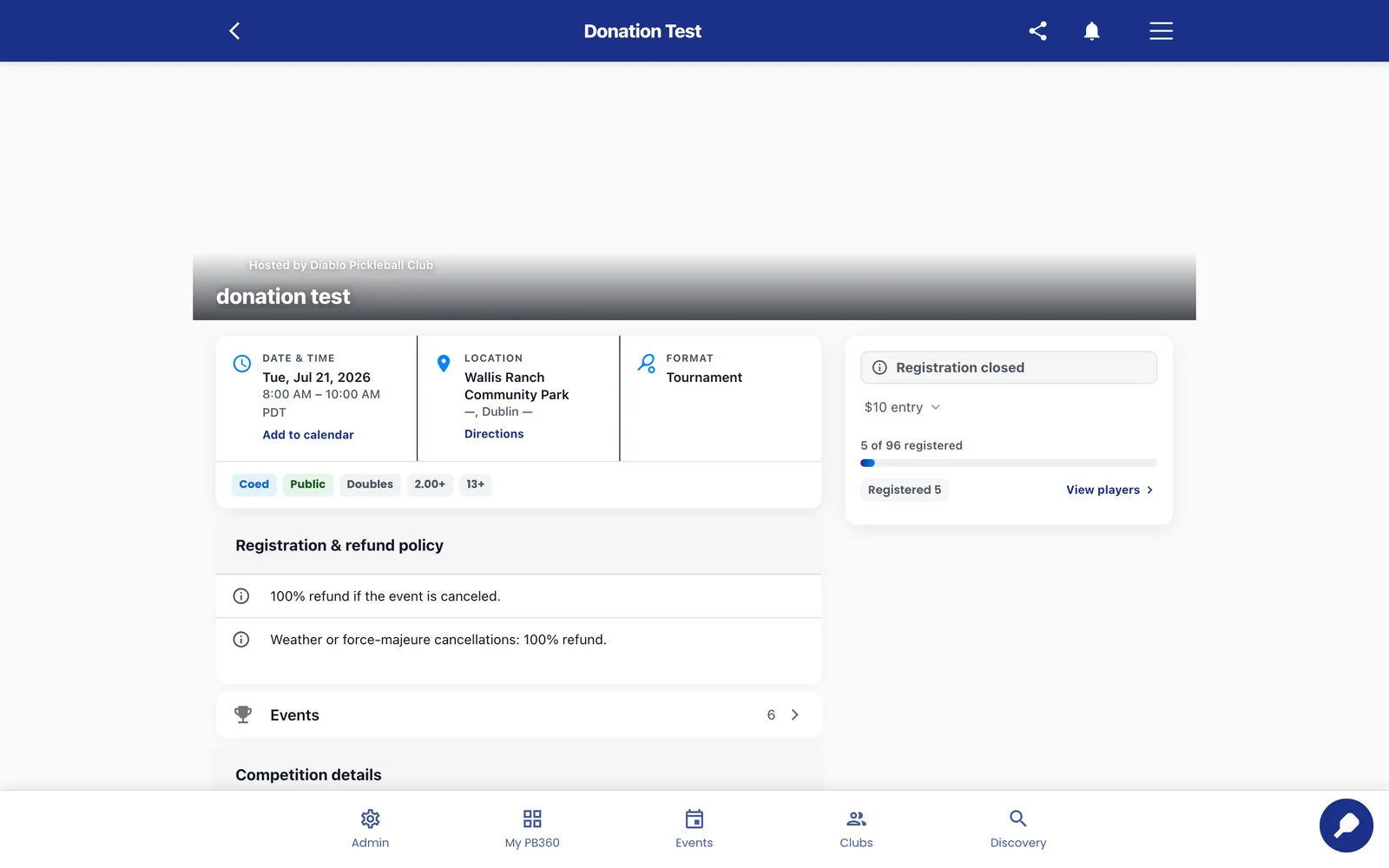
A tournament in PB360 is not itself a playable event. It is a container. You create the tournament, then create divisions inside it, and each division is a real event with its own format, price, and eligibility.
So a Saturday tournament might be one tournament holding six divisions: Men's 3.0, Men's 3.5, Men's 4.0+, Women's 3.0, Women's 3.5, Mixed Open. A player registers for a division, not for the tournament.
Which formats can be a division
Not every format can live inside a tournament. Rotating-partner formats, the general formats, and the three Mixers (Rotating, Doubles, and Singles) cannot — they are club-night formats, not bracket formats. These can:
- Doubles: Compass Draw, Round Robin, Round Robin with Playoffs, Single Elimination, Double Elimination
- Singles: Round Robin, Round Robin with Playoffs, Single Elimination, Double Elimination
- Large teams: Team Challenge
A tournament cannot contain another tournament.
What divisions inherit
Divisions take their registration cut-off from the parent tournament, so you set the deadline once. Each division sets its own eligibility — that is the entire point of dividing — and its own format and price.
Divisions are where merging and splitting earn their keep
Tournaments rarely fill the way you predicted. Two divisions come in thin and one is oversubscribed. Merging and splitting (5.4 and 5.5) let you reshape the field in the last few days without canceling anything or asking anyone to re-register. It is the single most valuable operational feature for tournament directors.
4.10 Leagues and multi-session events
A league is an event that runs across several sessions with standings carried through. You define the sessions when creating it, and players register once for the whole thing.
When editing anything about a league you will be asked for a scope: this session or this and following sessions. The same prompt appears for other recurring events. Getting it wrong is one of the more common ways to create work for yourself.
4.11 Editing, cloning, and canceling
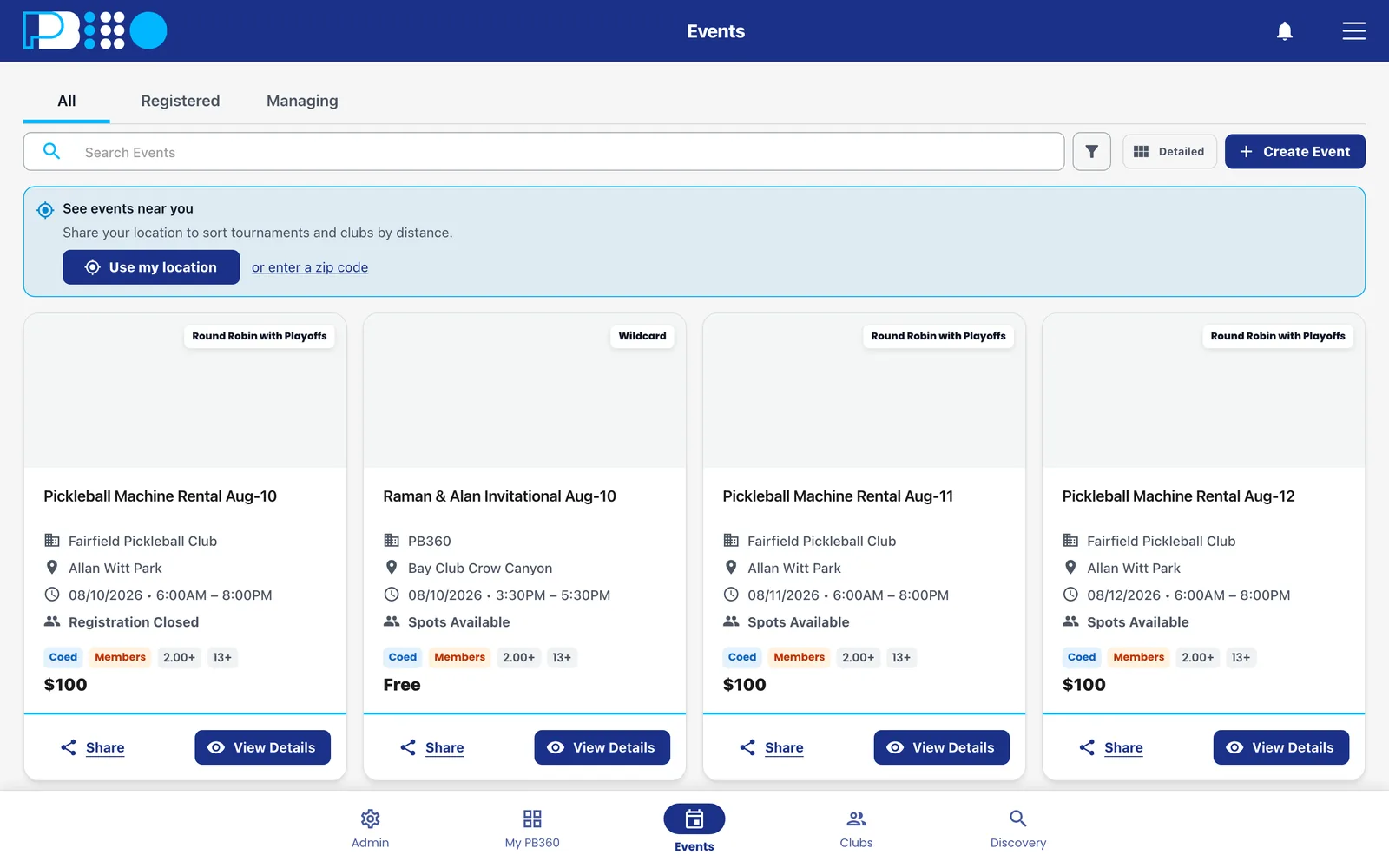
Everything except the format can be edited after publishing. Find the event under Engagement › Events, open it, and edit. Players already registered are not disturbed by most edits, but changing eligibility or capacity can affect who is on the main list.
Cloning an existing event is much faster than building one from scratch, and it is how most clubs handle weekly sessions. Clone, change the date, publish.
Canceling sets the event to Cancelled and stops all registration. Handle refunds separately according to your policy, and message the players — cancellation does not automatically write to everybody, and "nobody told me" is a fair complaint.
Part 5 — Between publishing and play
The days between an event going live and the first serve. This is where most administrator time actually goes.
5.1 The player list
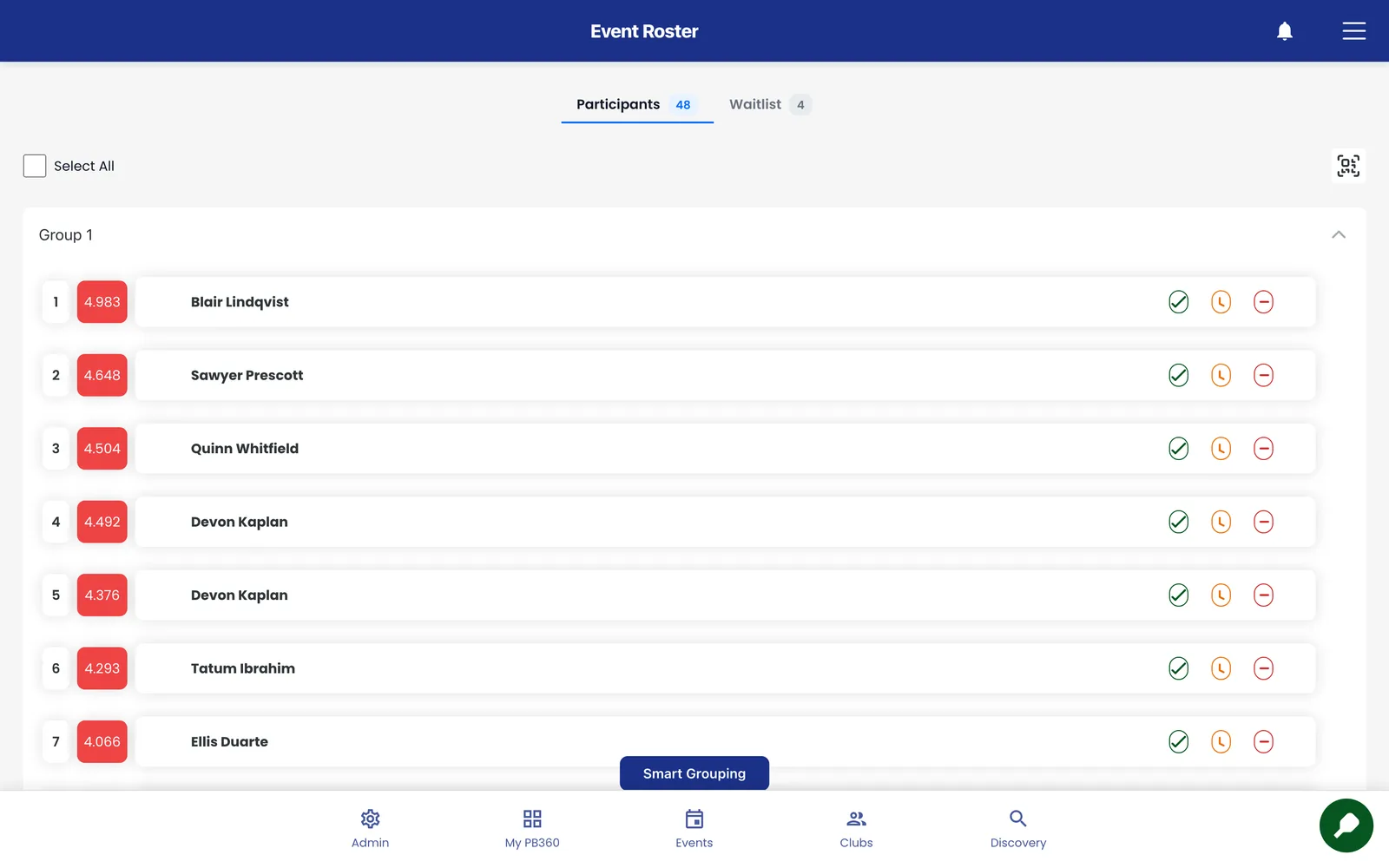
Every event has a player list — the screen where you see who has registered and do something about it. From here you can add players, move them between lists, check them in, and start the event.
It is the screen you will spend the most time on. Learn it well.
Captains and co-captains. In a team event’s roster, tap the menu next to a player and choose Select as captain or Add as co-captain. Choose the captain first: selecting a captain replaces the team’s captains, including co-captains. Captains run their team’s matches in the app — see 4.4 in the Player Guide.
5.2 The four statuses a player can hold
Status | Means | How they got there |
|---|---|---|
Main list | They are in. They will play. | Registered while there was space, or promoted from the waitlist. |
Waitlist | Queued. Not playing unless someone drops. | Registered after the event filled. Promoted automatically when a place opens. |
Need a partner | Registered for a doubles event with nobody to play with. | Signed up alone, or their partner withdrew and left them stranded. |
Withdrawn | Out. Their place has been released. | They withdrew, or you removed them. |
You can move players between statuses by hand. Promoting somebody from the waitlist ahead of the queue is sometimes the right call — a coach, a fourth for a group that would otherwise not play — and the system allows it.
Need a partner deserves attention in the days before a doubles event. These players want to play and cannot. Pair them up yourself, or nudge them to find each other through the event chat. An unpaired player who gets no help does not come back.
5.3 Adding players yourself
Press Add Player. You get a search box and, depending on your setup, tabs for different sources:
- Club Members — search your existing membership by name.
- Club Automation — if your club syncs with Club Automation, search that membership directly.
- Guest — create a walk-in on the spot with a name, email, and phone.
Type at least part of the name, wait a moment for results, pick the player, then choose:
- Direct Add — puts them on the list without checking them in.
- Add & Check-in — puts them on the list and marks them present. This is the one you want on event day when someone walks up to the desk.
If the event is full, the player goes to the waitlist rather than the main list, and you will be told. Adding a player to a doubles event may prompt you to place them on a team or leave them needing a partner.
5.4 Merging divisions
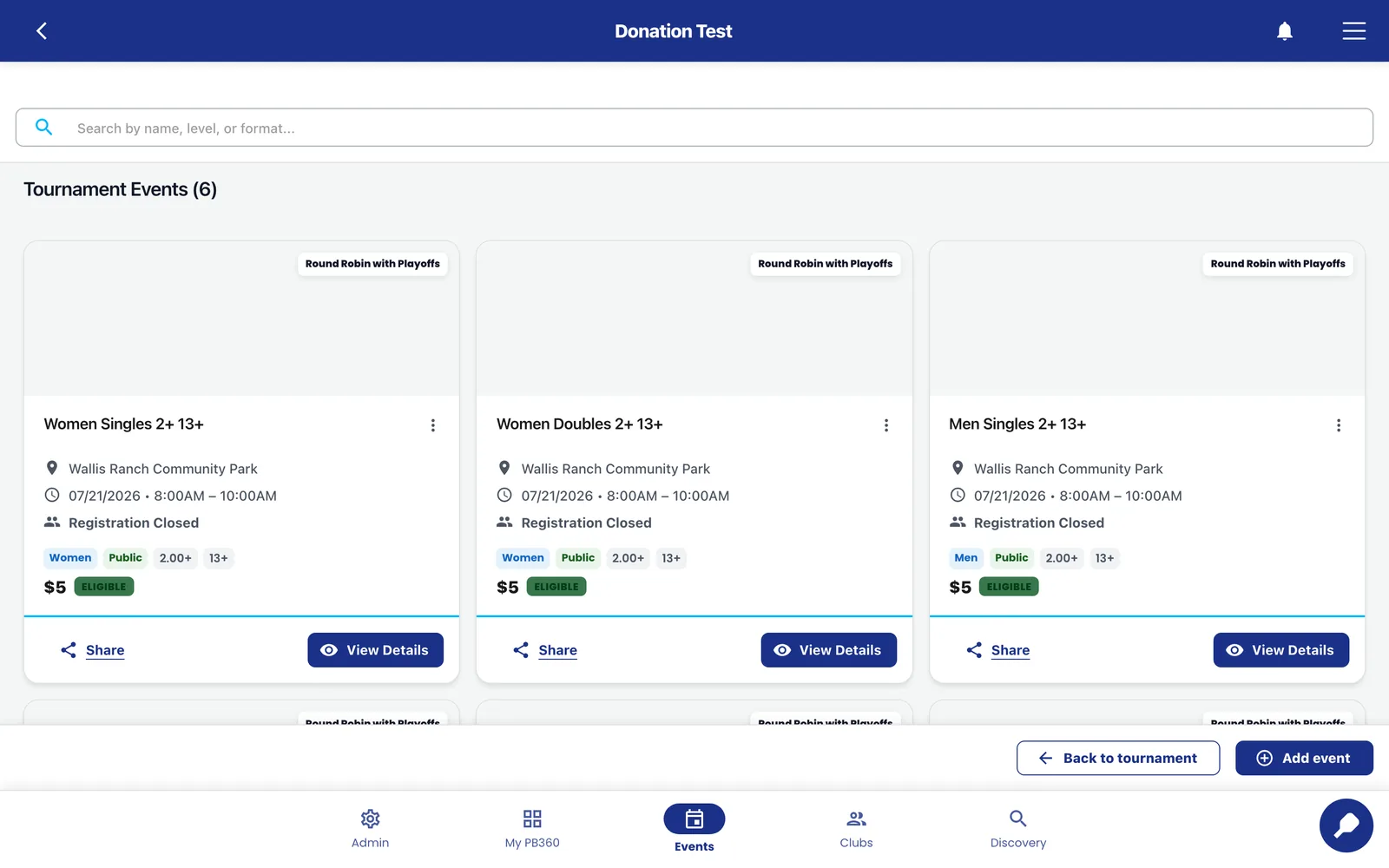
Merging combines two or more events into one. The classic case: your Men's 3.0 has five entries and your Men's 3.5 has six. Neither runs well. Merged, you have a healthy eleven-player 3.0–3.5 division.
How it works:
- Open the merge screen and choose the events to combine. Only divisions using the same format can be merged — you cannot merge a round robin into a knockout.
- Name the merged event.
- Review the preview. It shows exactly what the combined event will look like before anything happens.
- Confirm.
What the system does for you:
- Capacity is summed, then rounded to a multiple of four so the bracket still works.
- Eligibility is widened to cover everybody — the merged event takes the widest age range, skill range, and gender setting of its parts, so nobody is accidentally made ineligible for an event they had already paid for.
- Statuses are preserved. Main list stays main list, waitlist stays waitlist, need-a-partner stays need-a-partner.
- Orphaned players are caught. If a merge leaves somebody on a team with no teammate, they are moved to need-a-partner and the empty team is removed, rather than being left in a broken half-team.
5.5 Splitting a division
The reverse. One division has thirty entries across too wide a skill range; split it into two. You name each half and confirm, with a preview before it commits.
Splitting is most useful when a division has been oversubscribed by players of genuinely different levels — the situation where running it as one event would give you a first round of 11–2 scorelines.
5.6 Smart grouping
For pool-based formats, smart grouping decides how many groups to make and how big each one is. You can increase or decrease the number of groups and see how the players distribute — "three groups of 4", "two groups of 5", and so on.
More, smaller groups means more matches per player and shorter waits, but a less complete comparison between players. Fewer, larger groups means a fairer result and more sitting around. For a two-hour club night, groups of four or five are the sweet spot.
Grouping is set before the event starts.
5.7 Check-in
Check-in is confirming a registered player has arrived. It is separate from registration and it matters: most formats only place checked-in players into matches. A registered player who never checks in can end up left out of the draw.
There are several ways in, and clubs usually use more than one:
Method | How it works | Best for |
|---|---|---|
Player QR scan | The player shows their PB360 QR code; a staff member scans it and they are checked in. | A staffed desk. Fast and unambiguous. |
Manual, from the player list | Find the player and check them in by hand. | Handling exceptions, and anyone whose phone has died. |
Add & Check-in | Add a walk-in and check them in in one action. | Walk-ups on the day. |
Multi-event check-in | One screen covering several events at once. | Busy mornings when a tournament has six divisions arriving together. |
TV kiosk | A screen shows a QR code and a PIN. Players scan or type it from their own phones and check themselves in. | Self-service. No staff required. See 5.8. |
If a scan fails you will get a clear message — an invalid code, a player not registered for this event, or somebody already checked in. "Not registered" usually means they registered for a different division; check before turning them away.
5.8 The TV kiosk
The kiosk turns any screen — a TV in your lobby, a tablet on the desk — into a self-service check-in point and information display.
Setting it up: open the kiosk page on the screen, and it shows a six-digit PIN and a QR code. Pair it from your manager account, and it is bound to your club. Players then scan the QR with their own phone, or type the PIN into their app, and check themselves in.
The critical design point is that the camera is on the player's phone, not on the kiosk. The kiosk only ever displays. There is nothing to focus, nothing to clean, and no line at a scanner.
Once running, the kiosk rotates through what is happening: current matches, court assignments, and standings. It answers "which court am I on?" without anyone having to ask.
It keeps working when the network wobbles
The kiosk updates live, and if the live connection drops it falls back to polling on its own. A brief network hiccup will not leave a stale screen in your lobby.
Part 6 — Running the event
Event day. From here on the system is doing the arithmetic and you are making the judgment calls.
6.1 The event lifecycle
Every event moves through a fixed sequence of states. Knowing which one you are in explains most of what the system will and will not let you do.
State | What it means | What you can do |
|---|---|---|
Accepting registration | Live and open. Players can sign up. | Edit almost anything. Add and remove players freely. |
Accepting waitlist | Full, but queueing. | Same, plus manage the queue. |
Registration closed | Past the cut-off. No new self-registrations. | You can still add players by hand. Last chance to merge, split, or group. |
Started | The bracket is generated and matches exist. | Enter scores, allocate courts, add rounds. Structural changes are now restricted. |
Finished | Play is over. | Review standings, upload to DUPR, run reports. |
Cancelled | Called off. | Nothing further. Handle refunds separately. |
Starting an event is the point of no return
Starting generates the matches, assigns courts, and locks the structure. Smart grouping, merging, and splitting are all gated before this point — once matches exist, they cannot be reshaped without discarding results.
Before you press start: is everyone checked in who is going to be? Are the groups right? Is anyone still stranded on need-a-partner?
6.2 Starting the event
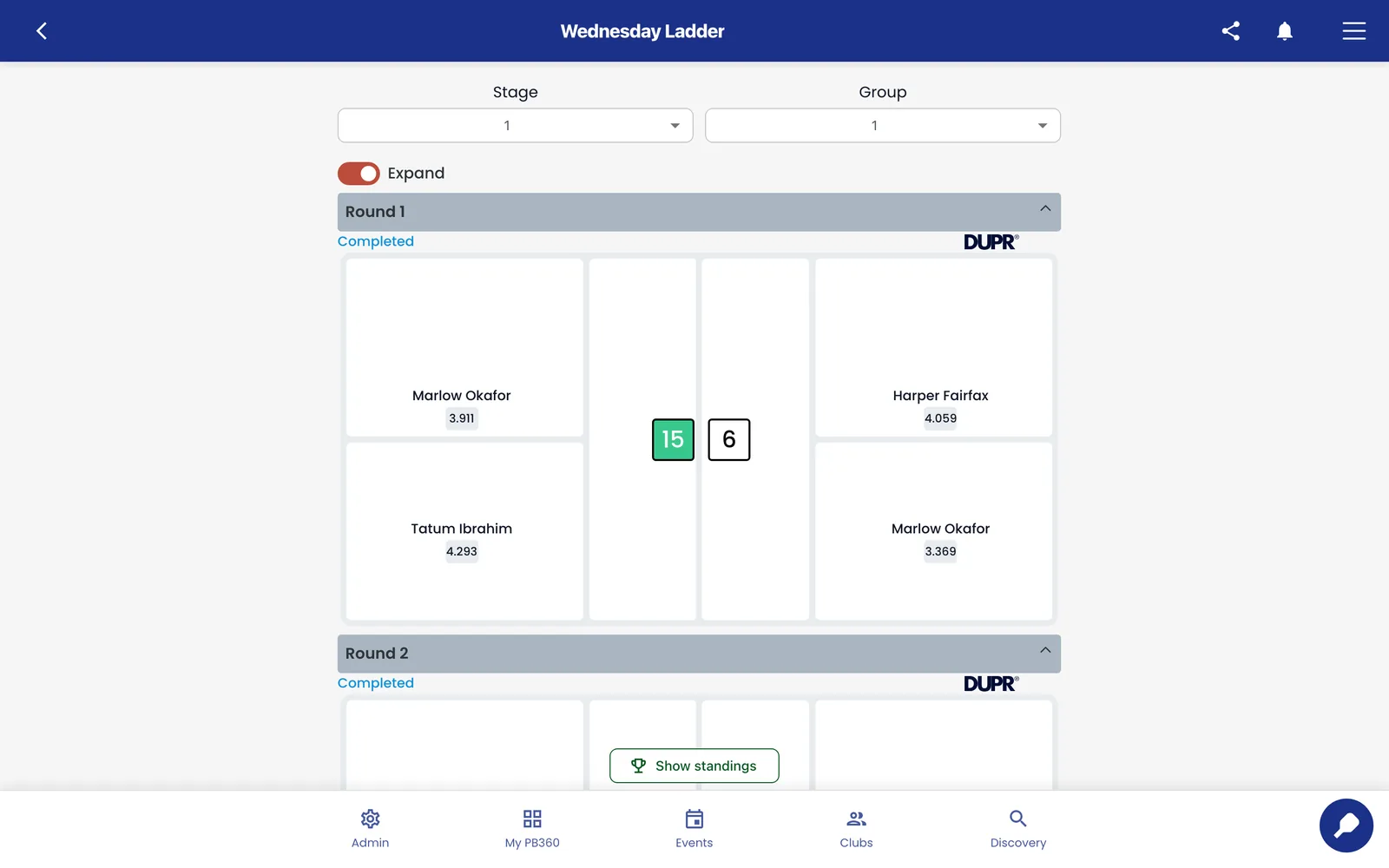
Press Start Event from the player list. The system generates the matches for your chosen format, allocates them to courts, and moves the event to started. Leagues use Start League, which does the same thing for the first session.
You land on the manager view for your format. Every format has its own, because a ladder and a knockout bracket genuinely need different screens, but they share the same furniture: the schedule of matches, the score entry, the standings, and the court assignments.
6.3 Court allocation
The tournament dashboard is your view of the physical facility: which courts exist, what is on each one now, and what is waiting to go on.
Matches queue on a waiting list and are assigned to courts as they free up. You can:
- Drag a match onto a court to assign it. Dragging onto an occupied court will ask you what you want to do with what is already there.
- Drag between courts to move a match that has not started.
- Finish Match to close out a match on court and release it for the next one.
- Move back to waitlist to pull a match off court and re-queue it.
- Clean selected courts to clear several at once — the fastest way to reset between rounds.
When a match finishes the court is released automatically and the next match in the queue can go on. In practice you will spend most of the event on this screen, and mostly watching it rather than touching it.
6.4 Entering scores
Scores are entered from the match card, either by staff or — if you enabled player score entry in 4.7 — by the players themselves.
The scoring rules were set when you created the event:
- Points to win — 11, 15, or 21.
- Win by — 1 or 2.
- Match length — a single game, best of 3, or best of 5.
Enter the score, confirm, and the standings update immediately. Corrections are possible — find the match and edit it — and the standings recalculate. Do corrections promptly; a wrong score three rounds back is much harder to unpick once players have moved on.
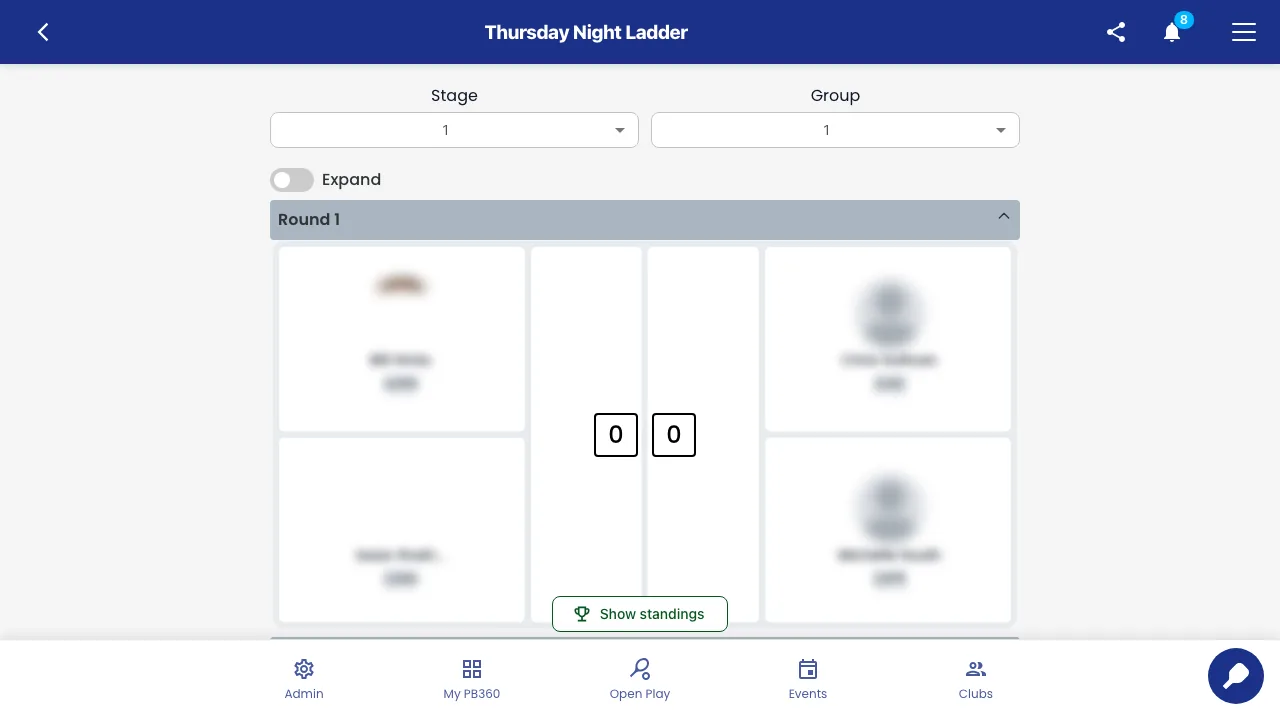
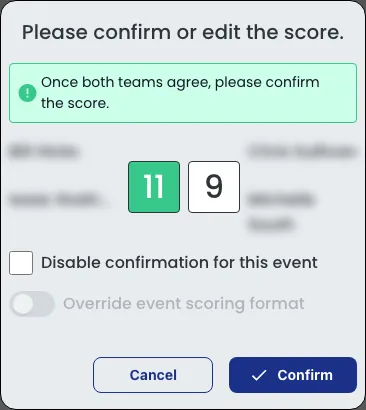
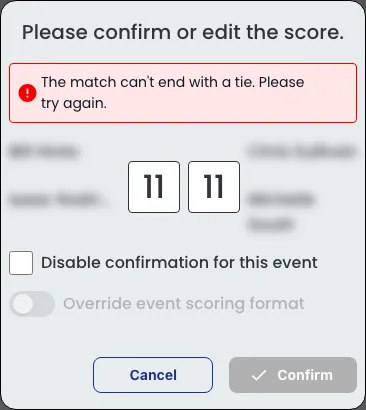
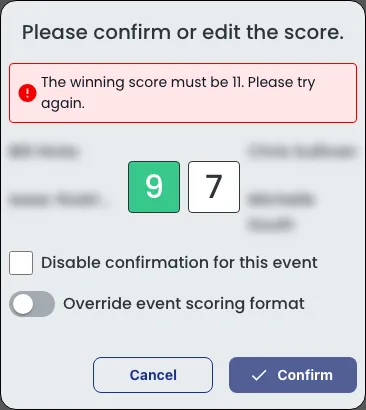
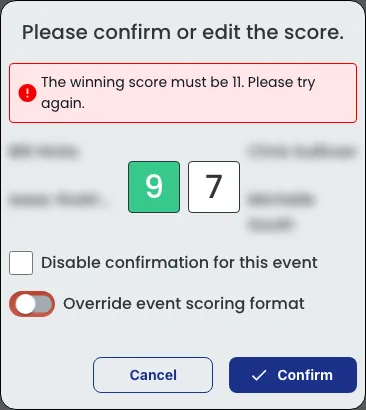
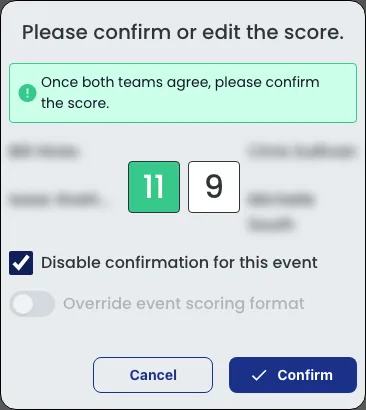
Correcting a score after the next round is drawn. In a format that draws each round from the last one — Kings & Queens, elimination brackets, Compass, Crazy 8 — the rounds after a match were drawn from its result. Change that result and PB360 asks what to do about them.
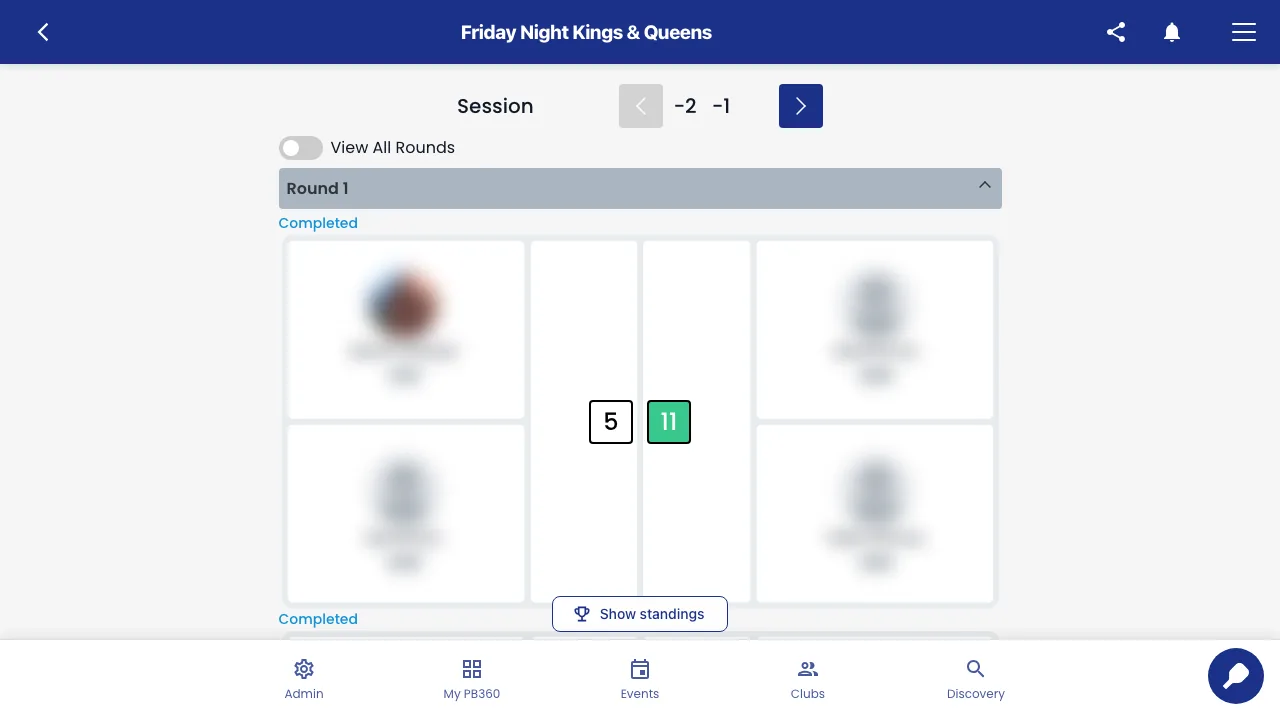
- Open the event's schedule and tap the round with the score you need to fix.
- Type the correct score into the match's two score boxes and tap Submit.
- Check the score in the confirmation window and tap Confirm.
- If later rounds were drawn from this result, the window asks how to go on. Tap Keep Current to save the corrected score and update the standings, leaving the rounds already drawn exactly as they are. Tap Regenerate to draw the affected rounds again from the corrected result; PB360 first downloads a backup file of the current results to your device.
- Open the next round to check the courts and matchups.
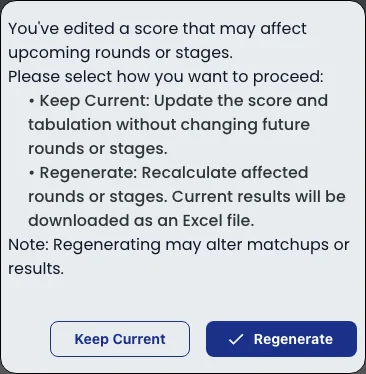
Keep Current or Regenerate?
Regenerate can change who plays whom, and the matches it redraws start again with no scores. If the next round is already under way, Keep Current is usually the safer choice. If you regenerate, tell your players first and keep the backup file that downloads.
6.5 Standings and tie-breakers
Standings are computed from a ranked list of criteria you set when creating the event. The system works down the list until the tie is broken.
Criterion | What it measures |
|---|---|
Number of Wins | How many matches the player or team won. The usual first criterion. |
Point Differential | Points scored minus points conceded. Rewards winning convincingly. |
Total Points | Raw points scored. Rewards volume rather than margin. |
Head to Head | Who beat whom, when two are still level. Only ever a tie-breaker. |
Most formats default to Number of Wins, then Point Differential, then Total Points, with Head to Head appended last. Ladder is the exception: it defaults to Number of Wins, then Total Points, then Point Differential, which suits a format where players move between courts of differing difficulty.
You can reorder the list when creating the event by dragging the criteria. One rule the system enforces: Head to Head can never be first. It is meaningless as a primary criterion, because in a pool where everybody has played everybody it either says nothing or contradicts itself in a three-way tie.
For formats with playoffs, this same list also decides who is promoted out of the pool stage into the knockout — so it is worth setting deliberately, not accepting by default.
In a team league, reading the standings works the same way — see 4.4 for the captain’s walkthrough.
6.6 Byes, forfeits, and adding rounds
Byes
When the numbers do not divide evenly, somebody sits out a round. That is a bye. The system rotates byes fairly so the same person is not always the one sitting, and a bye does not count against them in the standings.
Forfeits
When a match cannot be played — an injury, a no-show, a team that has left — you can forfeit it. The match is voided with a credited winner. Forfeited matches are automatically excluded from DUPR uploads, which is correct: a walkover is not evidence of anything about either player's level.
Adding rounds
Several formats let you add a round mid-event with Add Round. Useful when you are running ahead of schedule or when players want more play. One condition: every match in the current round must be finished first. The button will not work until the round is complete, because the next round's pairings depend on the current results.
6.7 Finishing the event
Press Finish Event when play is over. The event moves to finished, final standings are locked, and the results become available to players and to your reports.
Before you press it, check three things: every match has a score, no match is still sitting on a court, and the standings look like what actually happened. Fixing a score after finishing is more work than fixing it before.
6.8 Sending results to DUPR
If you turned on DUPR reporting when creating the event, the results can be uploaded to DUPR once the event is finished. Your players' global ratings then move based on what happened at your club.
What is excluded automatically:
- Forfeited matches — a walkover is not a result.
- Events with DUPR reporting switched off — nothing is sent at all.
Each match shows its DUPR status, and if an upload fails you can clear the failed record and try again. You can also remove a specific match from DUPR if it should not have been included.
DUPR is a selling point
Competitive players choose where to play partly on whether it counts. If your club runs DUPR-rated events consistently, say so in your event descriptions — it measurably affects turnout at the higher levels.
Part 7 — After the event
7.1 Reports
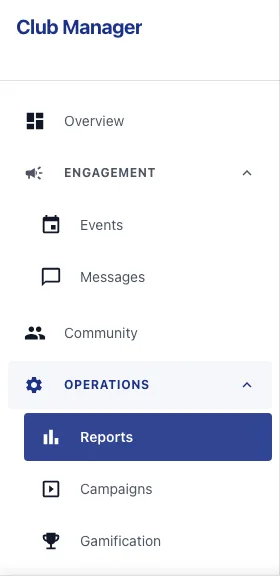
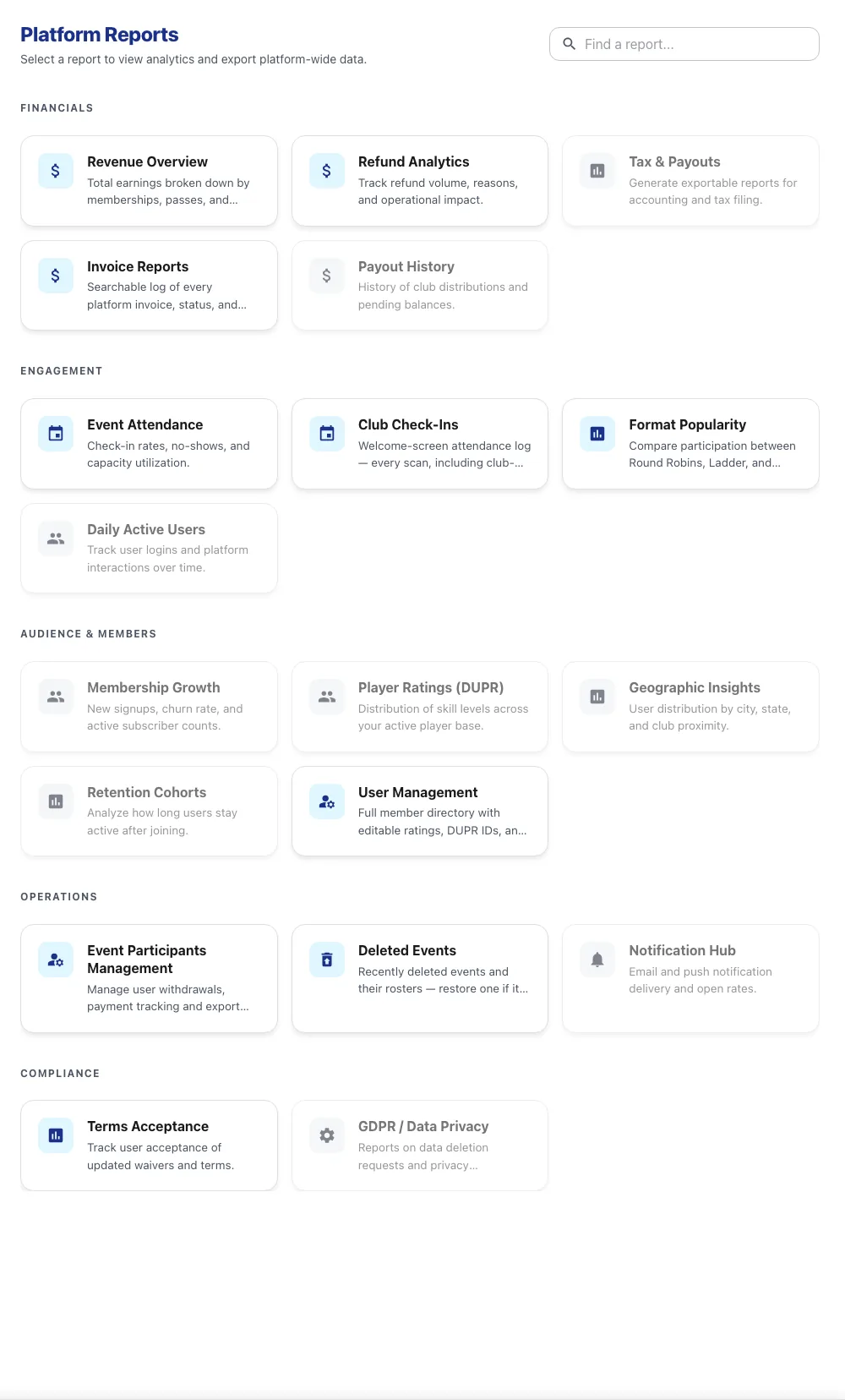
Reports live under Operations › Reports. There are four you will use regularly and several that exist for specific situations.
Report | Answers | Who can see it |
|---|---|---|
Members & Followers | Who belongs to my club, and how engaged are they? | Club managers and above |
Invoices | What have I been paid, by whom, for what? | Club managers and above |
Reminders | What payment and event reminders have gone out? | Club managers and above |
Withdrawals | Who pulled out, and what was refunded? | Club managers and above |
SMS and Email Logs | What messages were sent, to whom, and did they arrive? | PB360 operations and administrators |
Bulk User Upload, All Users | Importing members in bulk; platform-wide user search. | PB360 administrators |
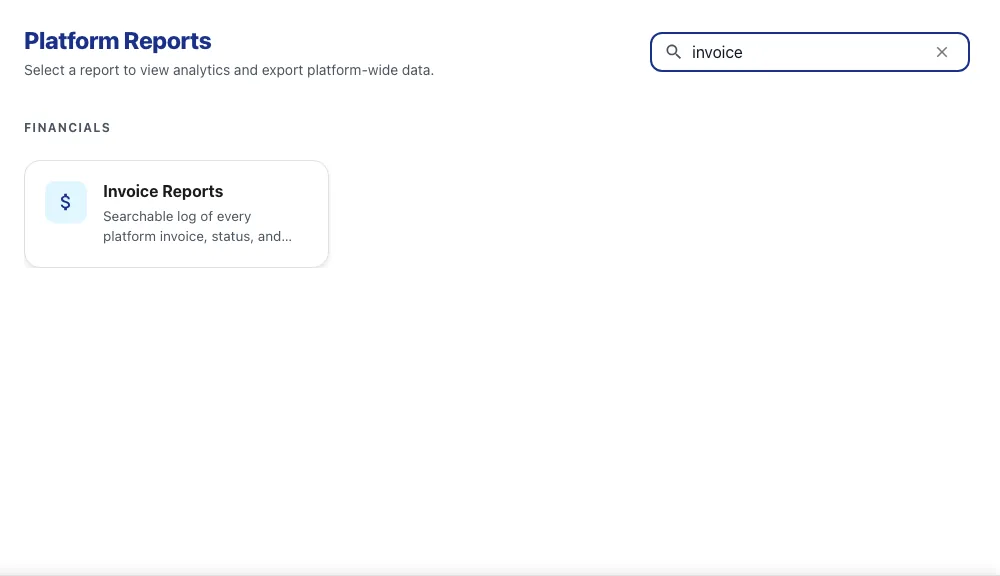
Most reports can be filtered by date range and exported, and some can be emailed on request. If a report you expect to see is not in your menu, it is a privileges question — see 1.4.
7.2 Members and followers
Two different relationships. A member has a membership with your club, usually paid. A follower has simply chosen to see your events. Both appear under Audience, and both matter — followers are the pool your members come from.
The members list shows name, contact details, member type, DUPR ID and rating, birth date, gender, and last activity. You can edit member details from here, which is the fastest way to fix a wrong email or a missing phone number that is causing a player to miss notifications.
Last activity is the column worth watching. A member who has not played in three months is a member about to lapse, and a message before they cancel is worth ten after.
7.3 Invoices
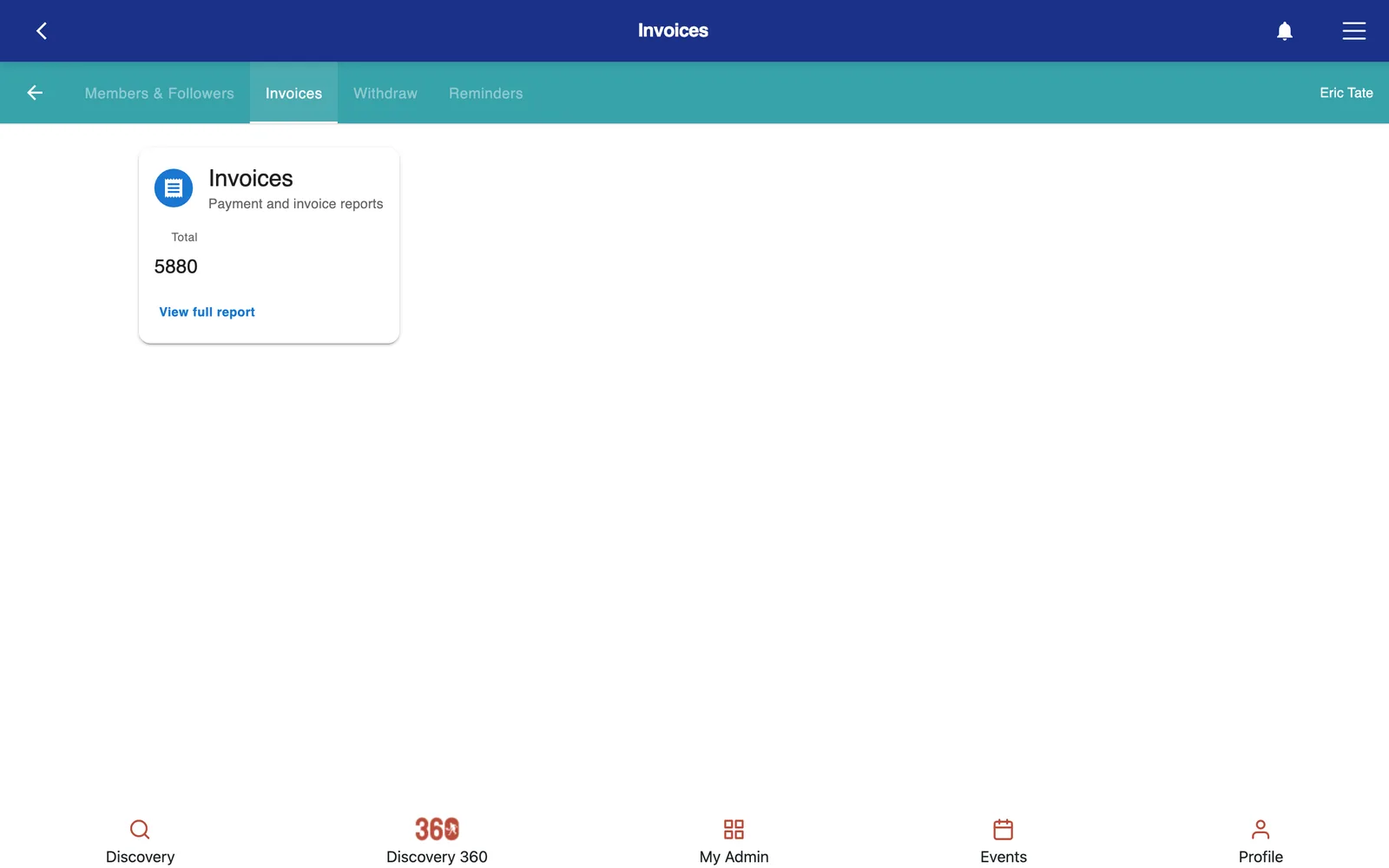
One invoice per transaction, created whether or not money changed hands — free events produce a zero invoice, which is how attendance stays traceable.
Each invoice shows the customer, the invoice total, the amount actually paid, discounts applied, any promo code used, the payment method, and the payment date. Where a refund has been issued it appears against the original invoice.
This is your reconciliation record. When your Stripe balance and your expectations disagree, this is the report that explains why — usually a partial refund or a platform fee somebody forgot about.
7.4 Reminders
A log of the automated payment and event reminders the system has sent. Use it to confirm a player really was told about something before you take their word that they were not.
7.5 Withdrawals
Who withdrew from what, when, and what came back to them. Cross-reference with invoices when a player disputes a refund amount — between the two you can reconstruct exactly what happened.
7.6 Talking to your players
PB360 has several channels, each suited to a different job.
Channel | Good for | Notes |
|---|---|---|
Event chat | Players coordinating with each other — finding partners, arranging rides, sorting out who is bringing the balls. | A channel per event. Low effort for you, high value for them. |
SMS | Time-critical: cancellations, weather calls, court changes. | Reaches people who do not have the app open. Logged. |
Detail: confirmations, receipts, instructions, results. | Logged. | |
Push notifications | In-app nudges. | Only reaches players who have the app installed. |
Automated reminders | Upcoming events and outstanding payments. | Runs without you. Check the reminders report to see what went. |
The rule that saves the most trouble: when you cancel or move an event, send an SMS. Do not rely on the app notification alone. The players who most need to know are the ones least likely to be looking at their phone for the right reason.
Part 8 — When things go wrong
8.1 Common problems
What you are seeing | Why | What to do |
|---|---|---|
A player says the event shows the wrong time. | The venue's time zone is missing or wrong. Times fall back to UTC. | Open the venue record and set the correct time zone. Then check any events already created for it. |
Registration closed earlier than you expected. | The cut-off is evaluated in the venue's time zone. For a tournament division it comes from the parent tournament, not the division. | Check the cut-off on the parent. Adjust it there. |
The capacity number you want is greyed out. | The format has a hard player-count rule — Crazy 8's needs multiples of 8, Ladder multiples of 4, Compass Draw 16/32/64. | Pick an allowed number, or change to a format with looser rules. See 4.3. |
Two divisions cannot be merged. | They use different formats. Only same-format divisions merge. | Change one division's format before merging, or merge a different pair. |
A player paid but shows as unpaid. | The payment is still settling with the provider, or it failed after authorization. | Check the invoice. If it shows paid, the display will catch up. If not, the payment did not complete. |
A promo code did not apply. | Outside its validity window, disabled, not applicable to this event, or the player used an Event Pack, which overrides everything. | Check the code's dates and applicable items. See 3.6. |
A Play Pass credit was not spent. | A promo code already covered the full amount, so the system deliberately kept the credit. | Working as intended. Explain it to the player — they still have the credit. |
The refund has not arrived. | Card networks take five to ten business days. | Confirm the refund is recorded in the withdrawals report, then tell the player to wait. |
A staff member cannot see a menu. | They lack the privilege for it. | Operations › Staff, check the right box. See 1.4. |
"Add Round" does nothing. | Not every match in the current round has a result yet. | Finish the outstanding matches. The button will work. |
A registered player is not in any match. | They were never checked in. Most formats only draw from checked-in players. | Check them in, then regenerate or place them manually. |
A QR scan says "not registered". | They registered for a different event or division. | Check which division they are on before turning them away. |
A player is stuck on "need a partner". | They signed up alone, or their partner withdrew. | Pair them from the player list, or prompt the event chat. Do not leave it to the day. |
8.2 Rules the system will not let you break
These are not bugs. Each exists to stop a worse outcome.
- A tournament cannot contain another tournament. Divisions only.
- Only same-format divisions can be merged. Combining a round robin with a knockout has no sensible meaning.
- Head to Head cannot be the primary standings criterion. It is a tie-breaker; as a primary it is either empty or self-contradictory.
- Smart grouping, merging, and splitting are all pre-start only. Once matches exist, reshaping the field would discard results.
- Add Round requires the current round to be complete. The next round's pairings depend on the current results.
- Event Packs never combine with promo codes or Play Passes. The pack covers the entry outright.
- Forfeited matches are excluded from DUPR. A walkover is not evidence of anybody's level.
- Format player-count rules are enforced. The bracket mathematics genuinely requires them.
8.3 Before you publish an event
Ten seconds each, and they prevent most of Part 8.
- Format matches what you actually intend to run, and the player count is legal for it.
- Venue is right and its time zone is set.
- Registration cut-off is the date you meant, in venue-local time.
- Eligibility is wide enough that your regulars qualify. Check the skill band against two or three real members.
- Capacity is set and the waitlist is on.
- Price is right, and the refund policy is one you are willing to honor.
- Waiver attached if you need one.
- DUPR reporting on or off, deliberately.
- Organizer contact is a club address, not a personal one.
8.4 On the day
- An hour before: confirm courts are available, the kiosk is paired and showing, and nobody is still stranded on need-a-partner.
- As players arrive: check them in. Every method in 5.7 works; use whichever is fastest for your desk.
- Before starting: confirm the check-in count against who is physically present, and confirm the groups. This is the last moment to change anything structural.
- Press Start Event.
- During: watch the court dashboard. Enter scores as they come in. Clean courts between rounds.
- At the end: every match scored, every court cleared, then Finish Event.
- Afterwards: upload to DUPR if the event was rated. Glance at the invoice report. Message anyone who was owed a refund.
8.5 Where to get help
If something in this guide does not match what you see on screen, the software has moved on and the guide has not. The underlying logic — the discount waterfall, the format rules, the lifecycle states, the privilege model — changes far more slowly than the labels, and that is what this guide is really for.
For anything you cannot resolve, PB360 support can see things club staff cannot, including the system logs behind a failed payment or a message that did not arrive. Give them the event name, the player's name, and roughly when it happened; that is almost always enough for them to find it.