
Guide
Player Guide
How to find games, sign up, pay, check in, and play — written for people who know pickleball, not software. Includes everything guest users need.
For players, guests, and anyone signing up a family
Eight parts · Your account, finding games, signing up, paying, match day
Contents
Part 1 — Getting started
1.1 What this guide is
This is the complete guide to using PB360 as a player. It assumes you know pickleball and nothing about apps. Everything you can do — finding games, signing up, paying, bringing a partner, checking in, entering scores, getting a refund — is in here.
You do not need to read it all. Pick your situation:
- Never used PB360 before? Read Part 1, then 2.1 and 2.2 to get an account, then Part 3 to find a game.
- Somebody signed you up and sent you a link? Go straight to 2.3 and 2.4.
- Playing tomorrow and want to be ready? Read Part 6.
- Something has gone wrong? Section 8.4 is a list of common problems and what they actually mean.
You do not always need an account
If a club has allowed it, you can join an event as a guest — just a name, an email, and a phone number. No password, no setup. Section 2.3 covers exactly what that gets you and what it does not.
1.2 What PB360 does for you
PB360 is how a lot of pickleball clubs now run their sessions. From your side it does four things.
It shows you where the games are. A map and a list of events near you — club nights, ladders, socials, tournaments, leagues — with the level, the price, and how many spots are left.
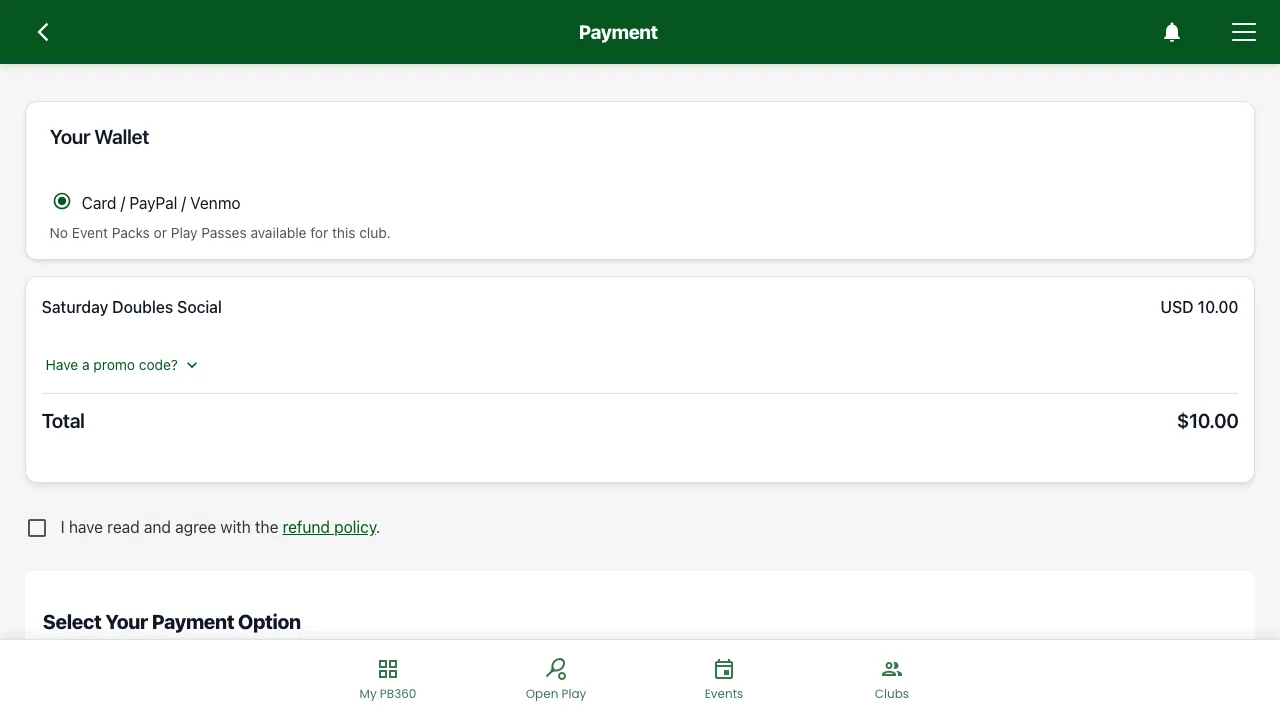
It signs you up and takes the money. One flow: check you are eligible, take your payment, send a receipt. No cash at the door, no "I'll pay you next week".
It runs the event while you are there. It tells you which court you are on, who you are playing, and what the score was. It keeps the standings live.
It keeps your record. Every event you have played, every invoice, your stats, and — if the event was rated — your results go to DUPR, the global pickleball rating.
1.3 The five places in the app
There is a row of buttons along the bottom of the screen. That is the whole navigation. Everything lives in one of these.
Where | What is there |
|---|---|
My PB360 | Your own corner: your events, your stats, your wallet, your QR code, your invites. |
Open Play | Drop-in play at your clubs: see what is on, tell friends you are free, and join a game without registering for an event. |
Events | Every event near you — a map at the top, and a searchable, filterable list below. Where you go to find something to play. |
Clubs | Clubs you follow, clubs you belong to, and clubs you can discover. |
Admin | Only appears if you help run a club. Ignore it otherwise. |
If you remember one thing: My PB360 is your home base. Your QR code for checking in, your Play Passes, your receipts and your history are all there.
1.4 The words you will see
Word | What it means |
|---|---|
Event | Any single session you can sign up for — a club night, a clinic, a social, one part of a tournament. |
Division | One event inside a tournament, like "Mixed 3.5". You sign up for a division, not for the whole tournament. |
Format | The rules of play — round robin, ladder, knockout, and so on. The event page explains the one you are looking at. |
Main list | You are in. You will play. |
Waitlist | The event was full when you signed up. You are queued and move up automatically if somebody drops out. |
Need a partner | You signed up for a doubles event without a partner. You are visible to other players and to the organizer so you can be paired. |
Check-in | Confirming you have actually arrived. Separate from signing up, and it matters — see 6.4. |
Club | The organization running the event. |
Follower | Someone who follows a club to see its events. Free, no commitment. |
Member | Someone with a paid membership at a club. Often gets cheaper entry and access to member-only events. |
DUPR | Dynamic Universal Pickleball Rating — the worldwide rating system. Every player sits somewhere between 2.00 and 8.00 on the same scale, whatever their age or where they play. |
Guest | A lightweight account created so you can play without signing up properly. See 2.3. |
Part 2 — Your account
2.1 Five ways to sign in
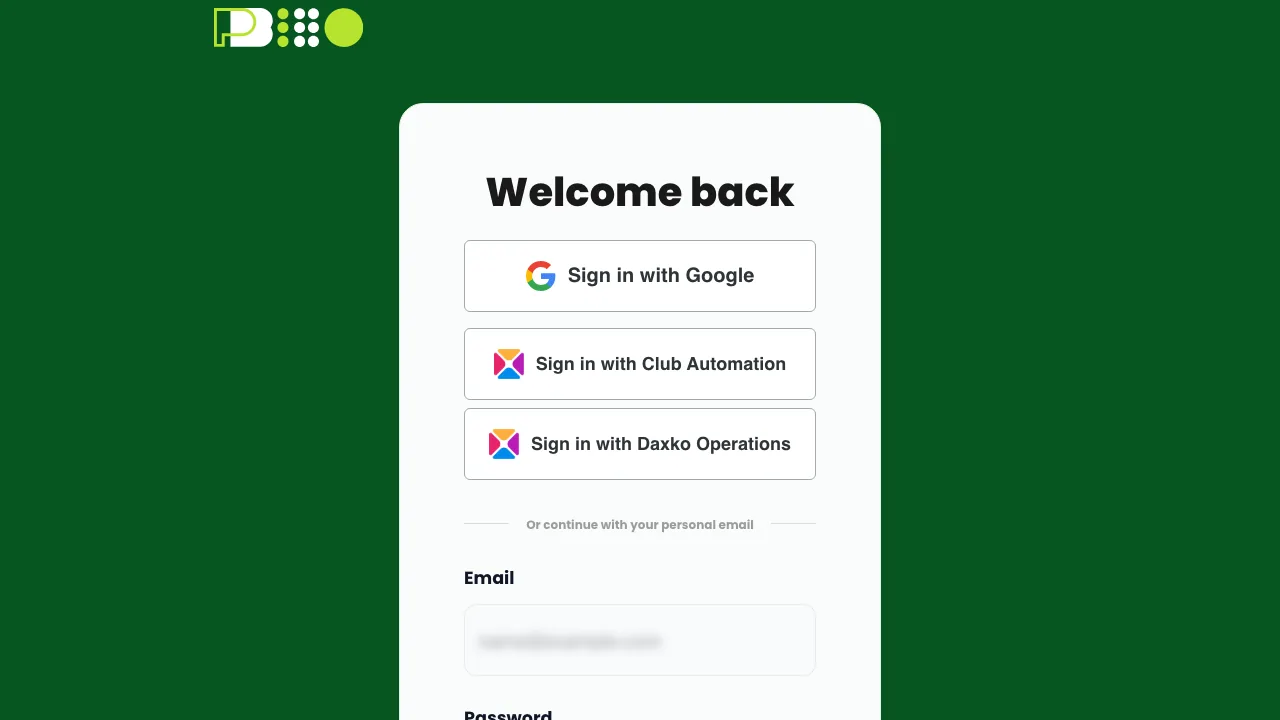
PB360 does not insist on a password. Pick whichever suits you.
Method | How it works | Good for |
|---|---|---|
Email and password | The traditional way. Type both, you are in. | People who use a password manager. |
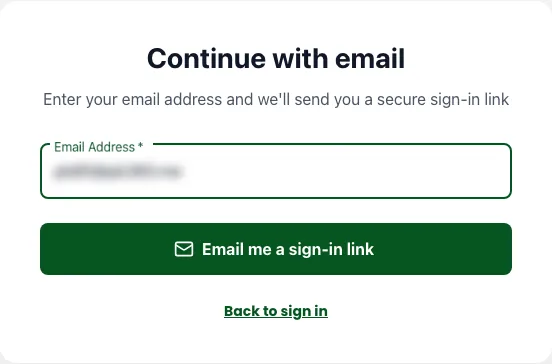
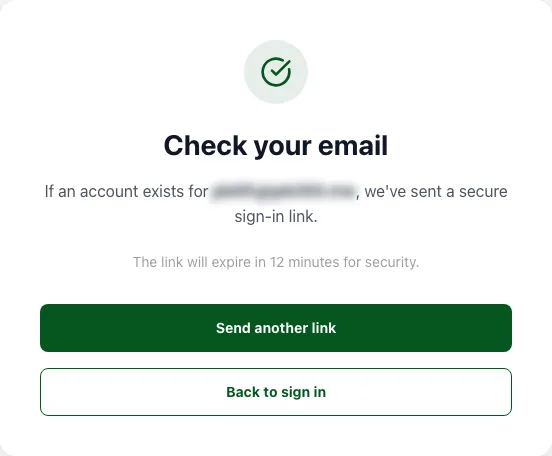
Magic link | Tap Trouble signing in? Request Magic link, enter your email, tap Email me a sign-in link, and open the link in the message. No password at all. | Anyone who cannot remember passwords. Genuinely the easiest option. |
Tap Sign in with Google and pick your account. | One tap if you already use Gmail on your phone. | |
Club Automation | If your club uses Club Automation, tap Sign in with Club Automation and sign in with your existing club login. | Members of clubs on Club Automation — your club membership carries across. |
Daxko Operations | If your club uses Daxko Operations, tap Sign in with Daxko Operations and sign in with your existing club login. | Members of clubs on Daxko Operations — your club membership carries across. |
Magic links expire
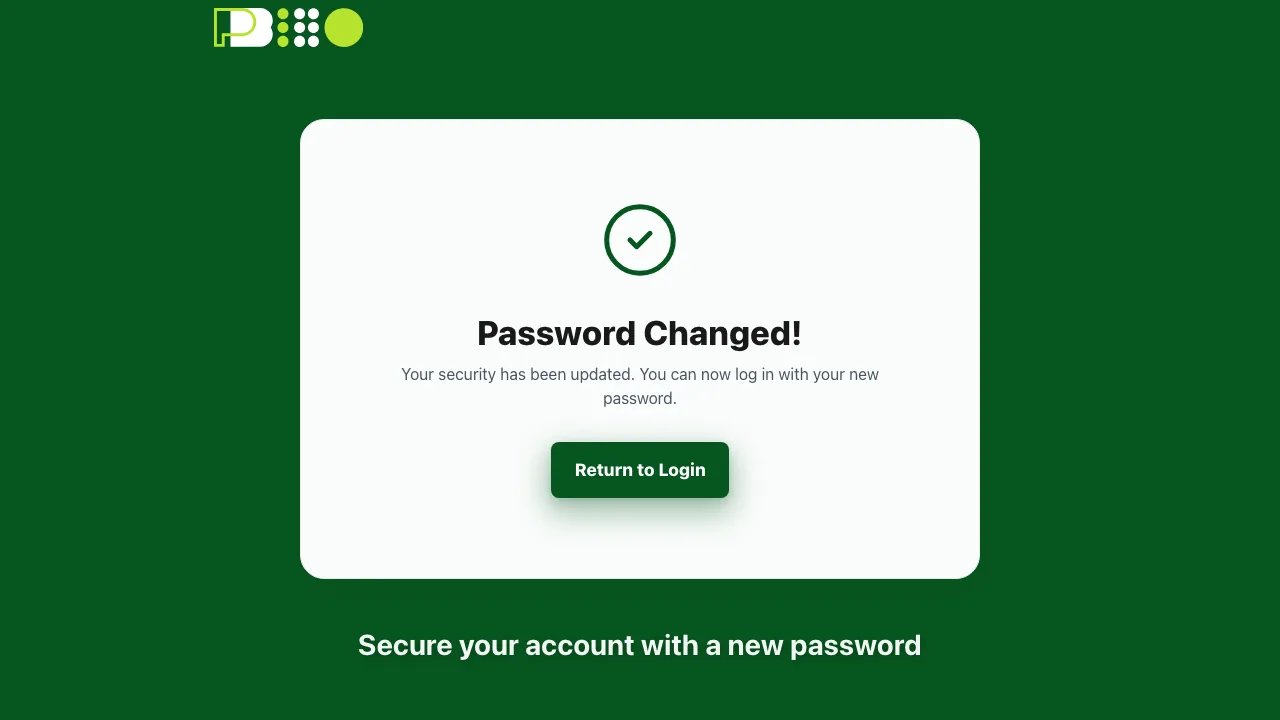
A sign-in link is good for a short time and one use only. If you get "Magic link authentication failed or expired", just ask for a fresh one — nothing is wrong with your account. And if you request several in a row you may be told to wait a moment; that is a spam protection, not a fault.
Email and password. Enter your email address and password, then tap Sign in.
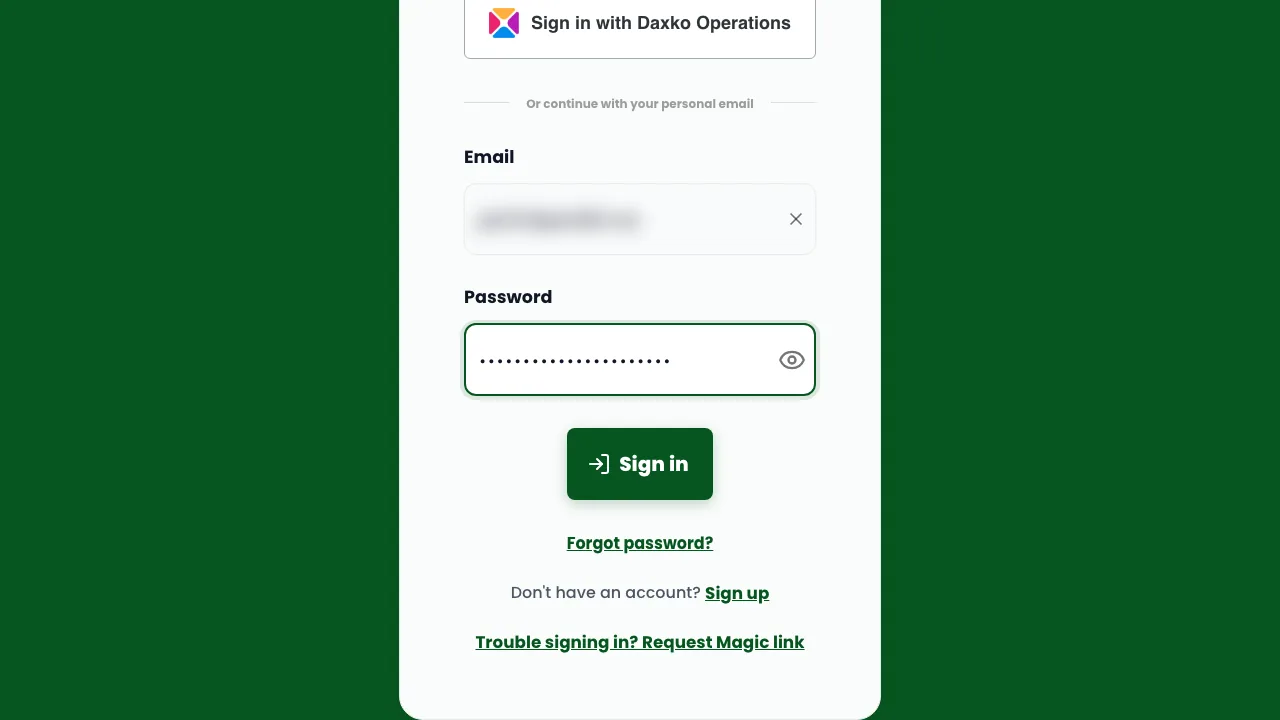
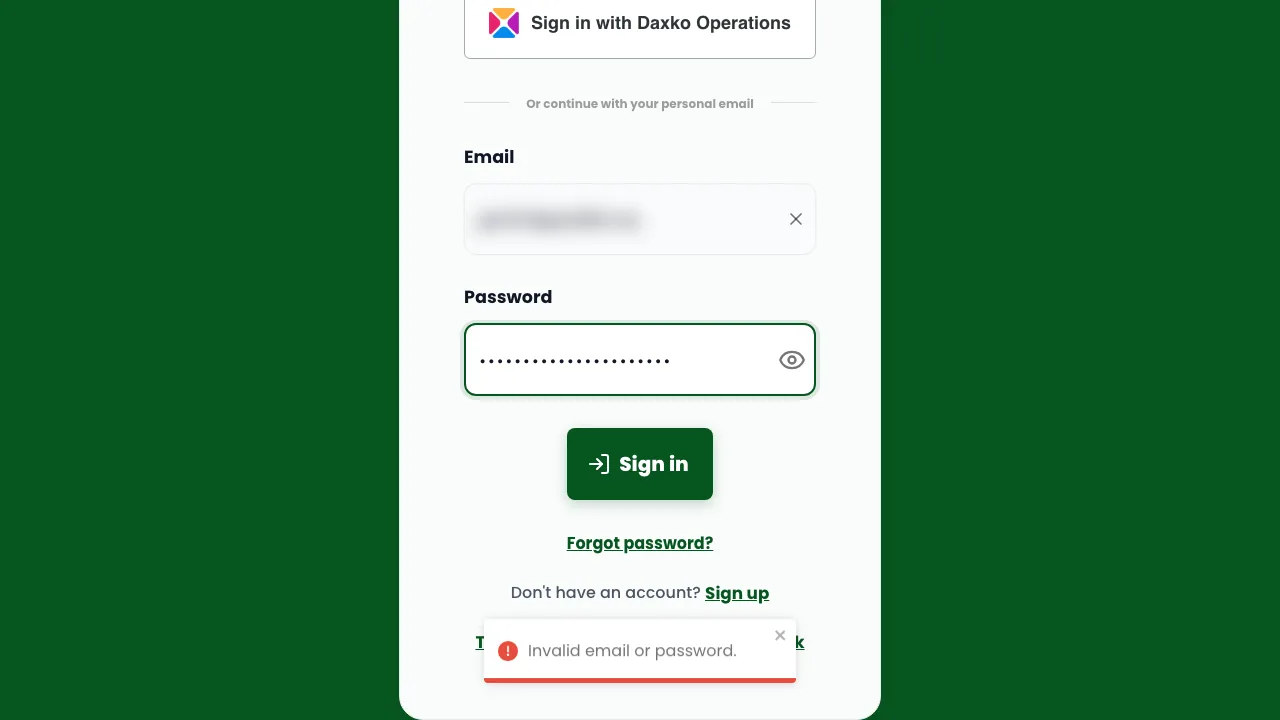
Magic link. At the bottom of the sign-in screen, tap Trouble signing in? Request Magic link (Figure 2.1a).
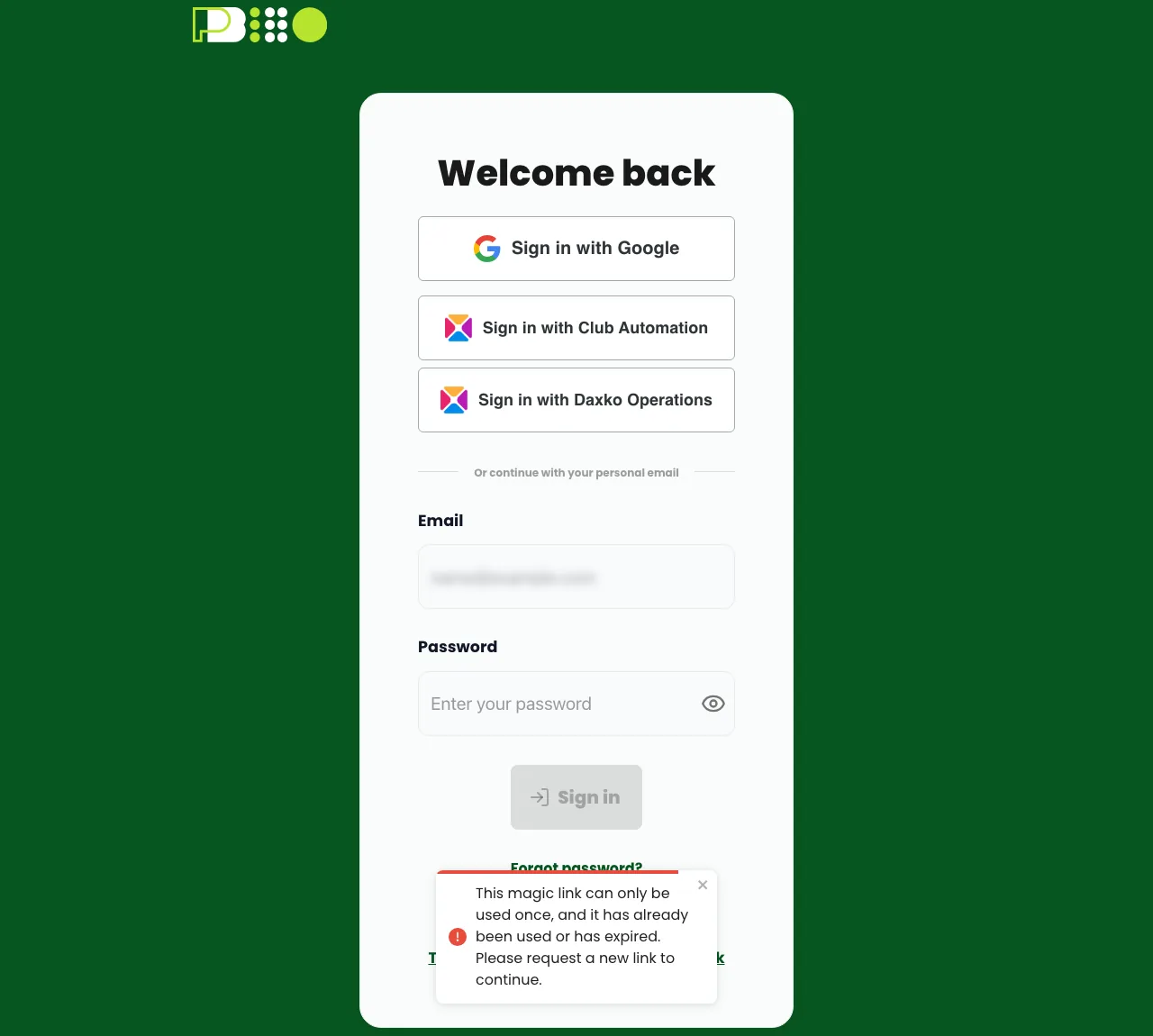
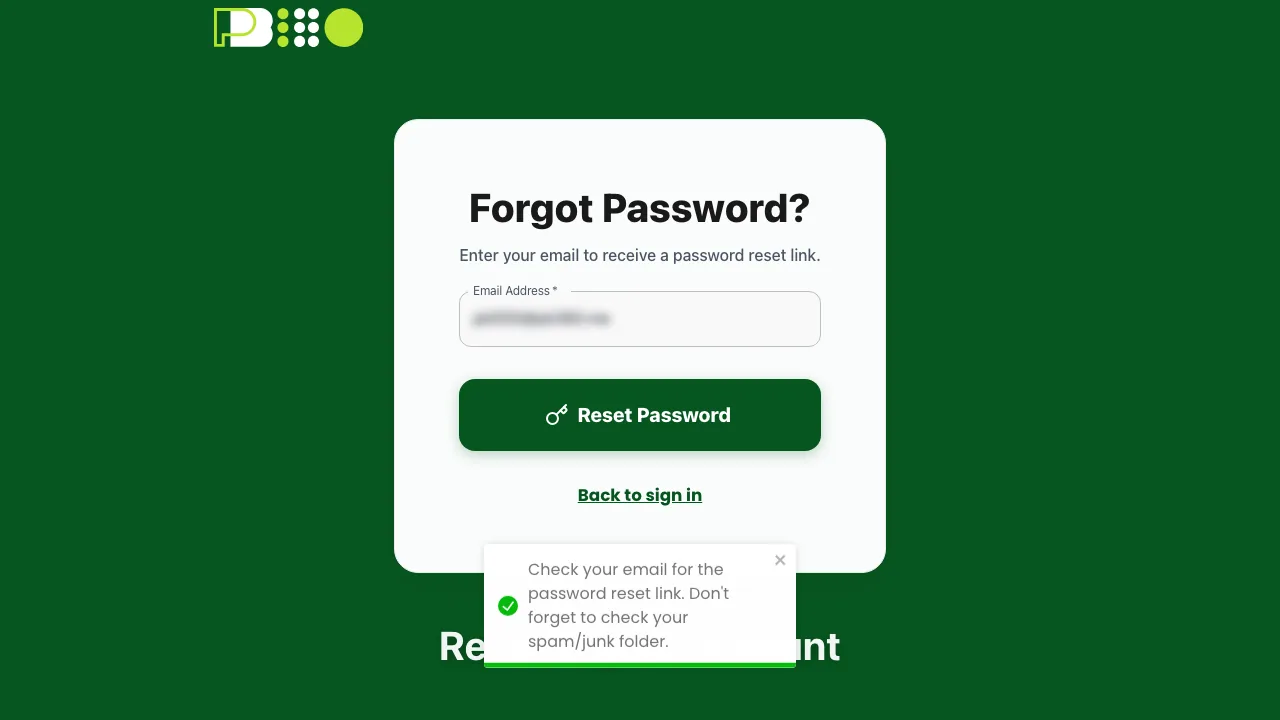
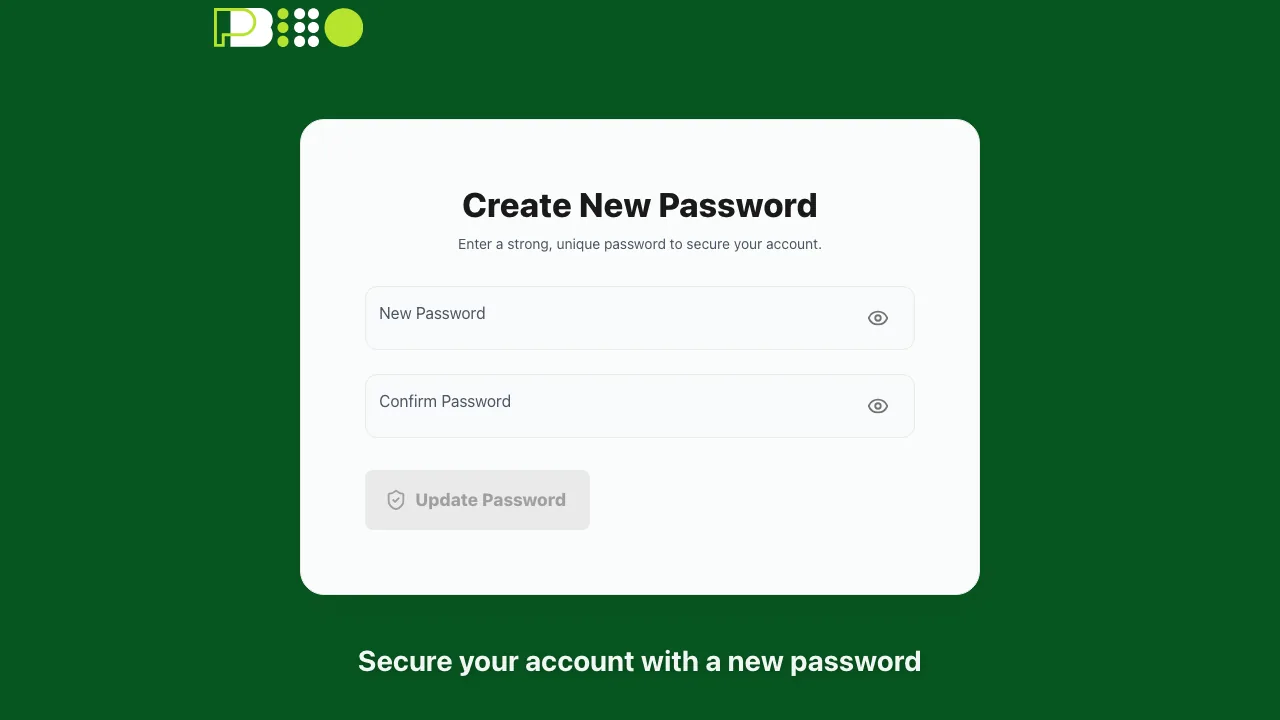
Forgot your password? Tap Forgot password? under the Sign in button (Figure 2.1a).
2.2 Creating an account
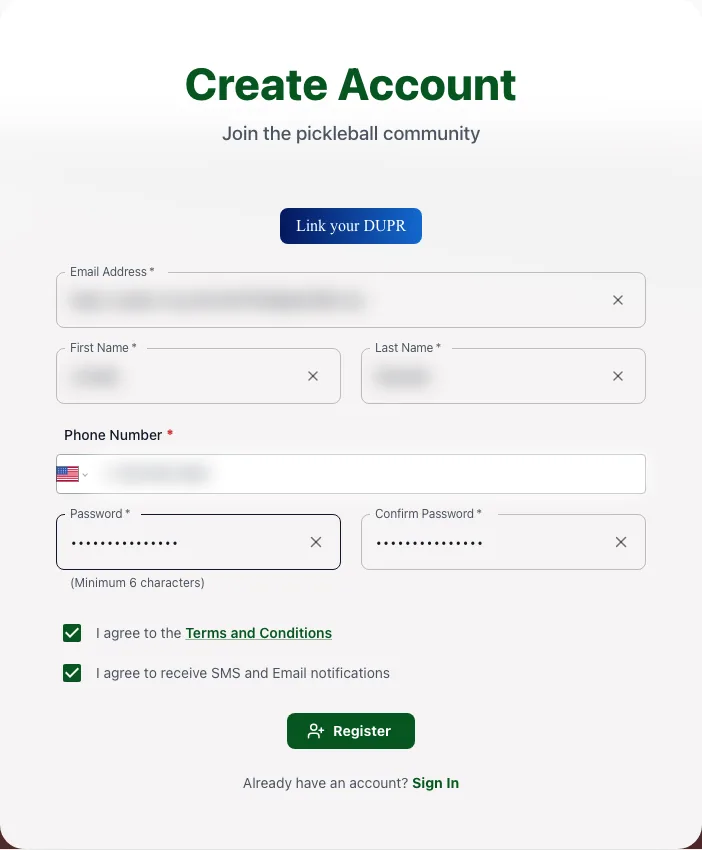
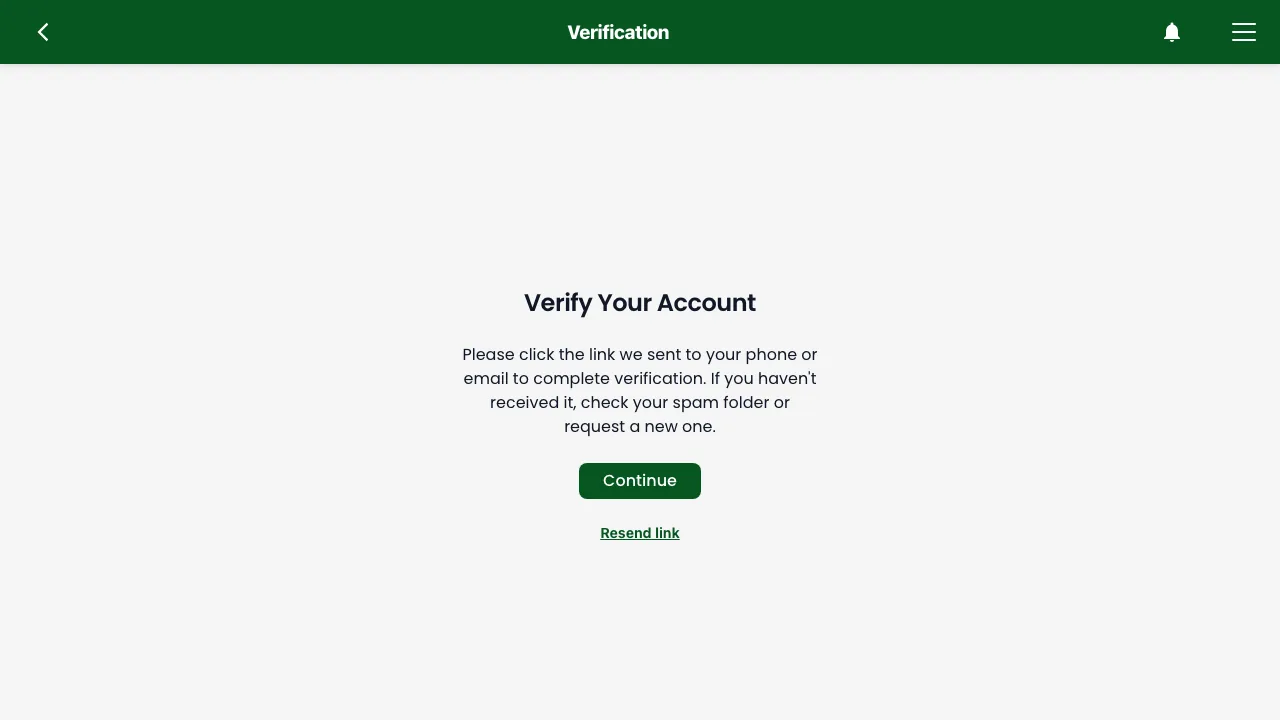
On the sign-in screen, tap Sign up and give your email address, a password, and your name. You will be sent a verification email — open it and follow the link. Until you do, some things will not work.
If the verification email does not arrive, check spam first, then use the resend option. Verification links, like magic links, expire; an old one will not work and you simply need a new one.
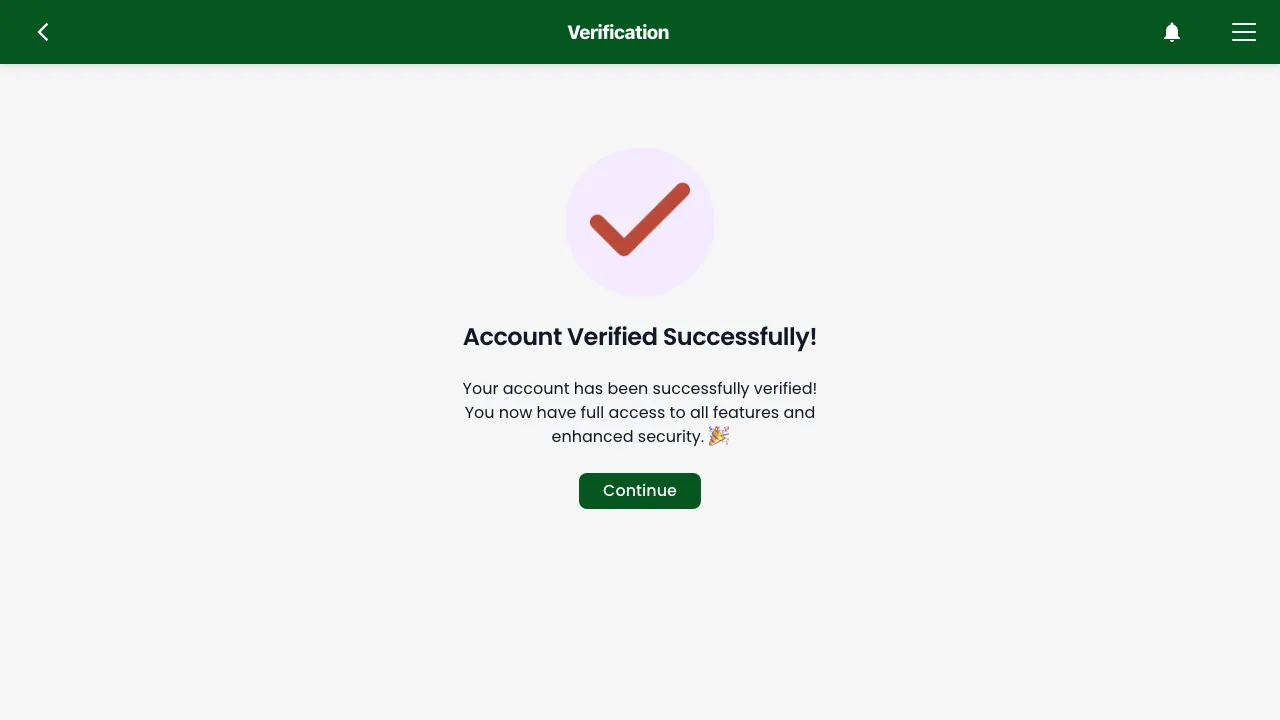
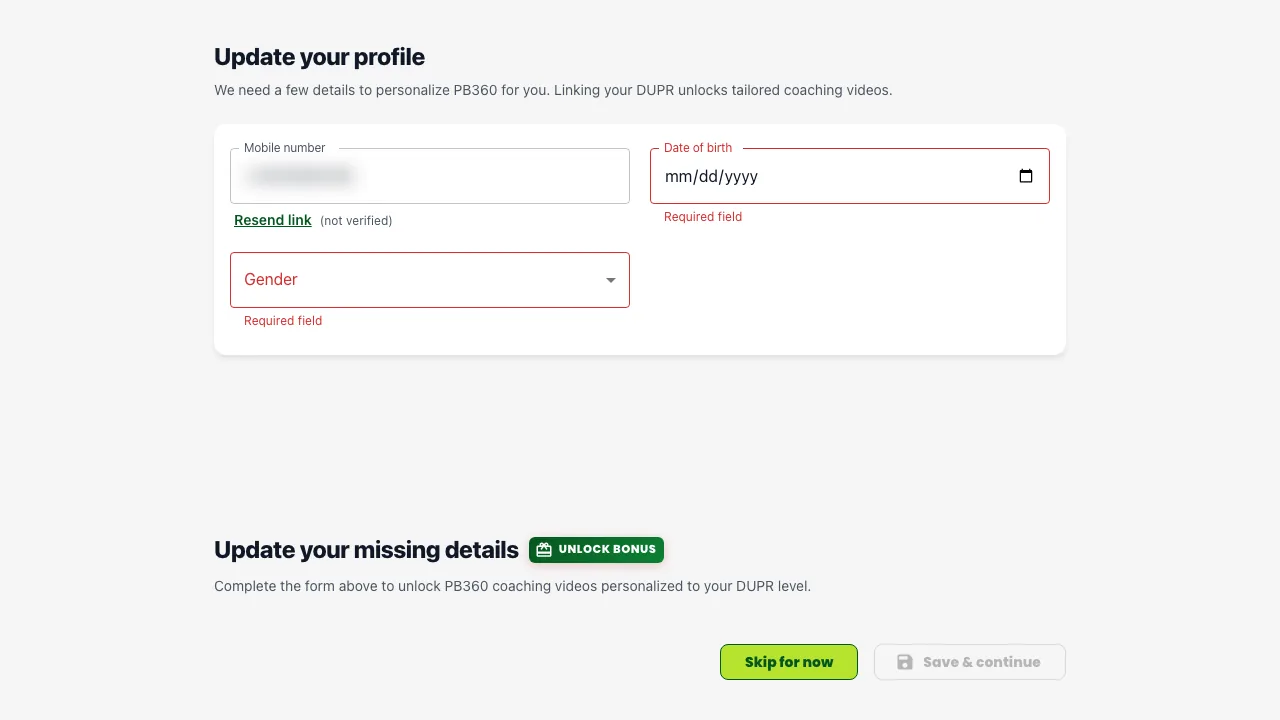
After verifying, you will be walked through setting up your profile. You can skip it and come back, but see 2.5 for why it is worth doing properly.
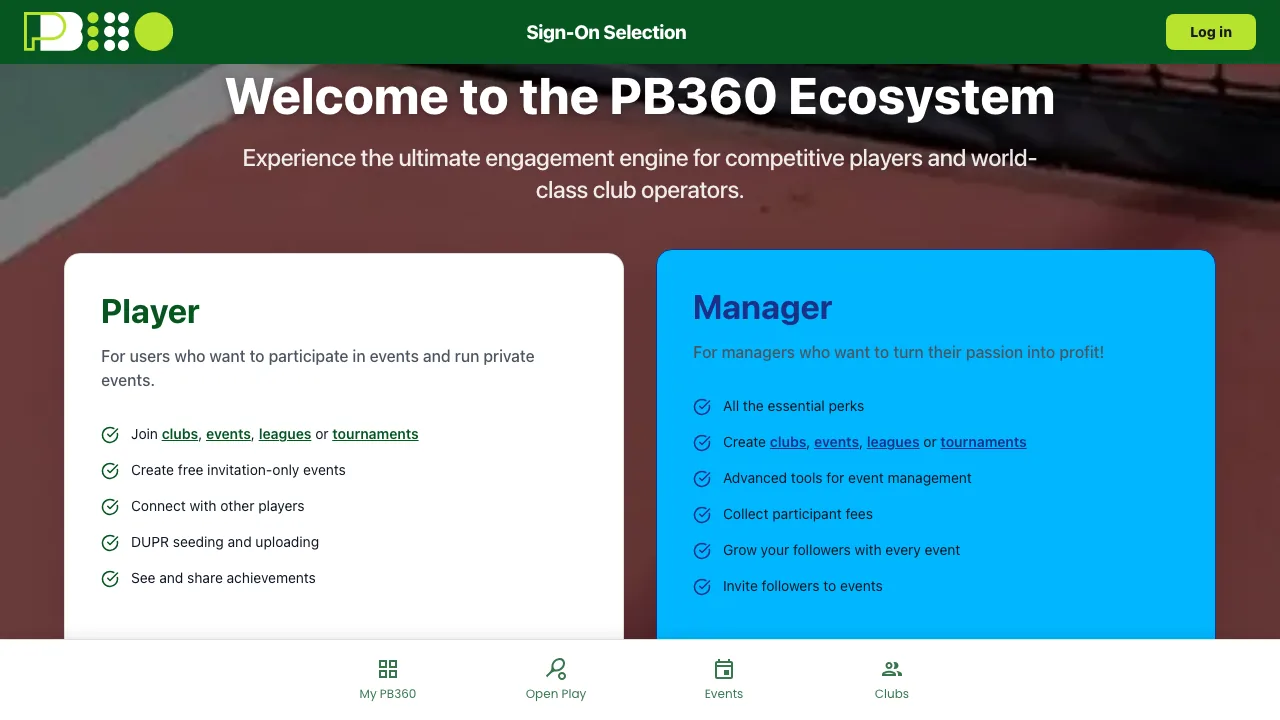
Step by step. Tap Sign up on the sign-in screen, choose Continue as Player (Figure 2), then tap Create Account. Google, Club Automation and Daxko Operations are one tap each if you use them.
2.3 Playing as a guest
You do not always need an account. If the club has turned on guest registration for an event, you can join with just your first name, last name, email address, and phone number. No password, no verification email, no profile.
This creates a lightweight guest account behind the scenes so the club knows who you are, the organizer can put you in the draw, and you get a receipt. It is designed for the walk-in on a Tuesday night who does not want to fill in forms.
What a guest can do
- Register for events that allow guests, and pay for them.
- Be placed in the draw, appear on the player list, and be checked in.
- Play, have scores recorded, and appear in the standings.
- Receive an invoice and event communications.
What a guest cannot do
Some things need a full account. If you try one, you will be told the feature requires a full account and offered an upgrade.
Blocked for guests | Why it matters to you |
|---|---|
Club memberships | You cannot buy a membership plan or join a club as a member — so no member pricing. |
Creating teams | You cannot form a team, which rules you out of team events. |
Advanced profile settings | No DUPR link, no ratings on your profile, limited personalization. |
Payment management | You cannot manage saved payment details. |
Organizing events | You cannot create or run events. |
Club staff and admin tools | Not available. |
Two things a guest should know
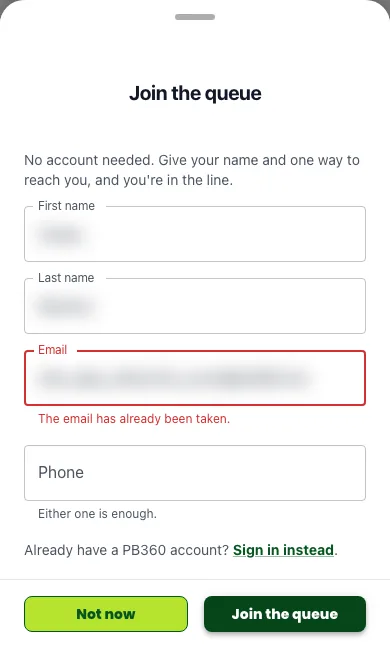
Your email and phone must not already belong to an account. If they do, you will be told the address is taken — which usually means you already have a PB360 account and should sign in instead. There is an option on that screen to have a claim link sent to you.
Guest registration is per-event and up to the club. An event with guests switched off will require an account, and there is nothing the club can do about that from your side.
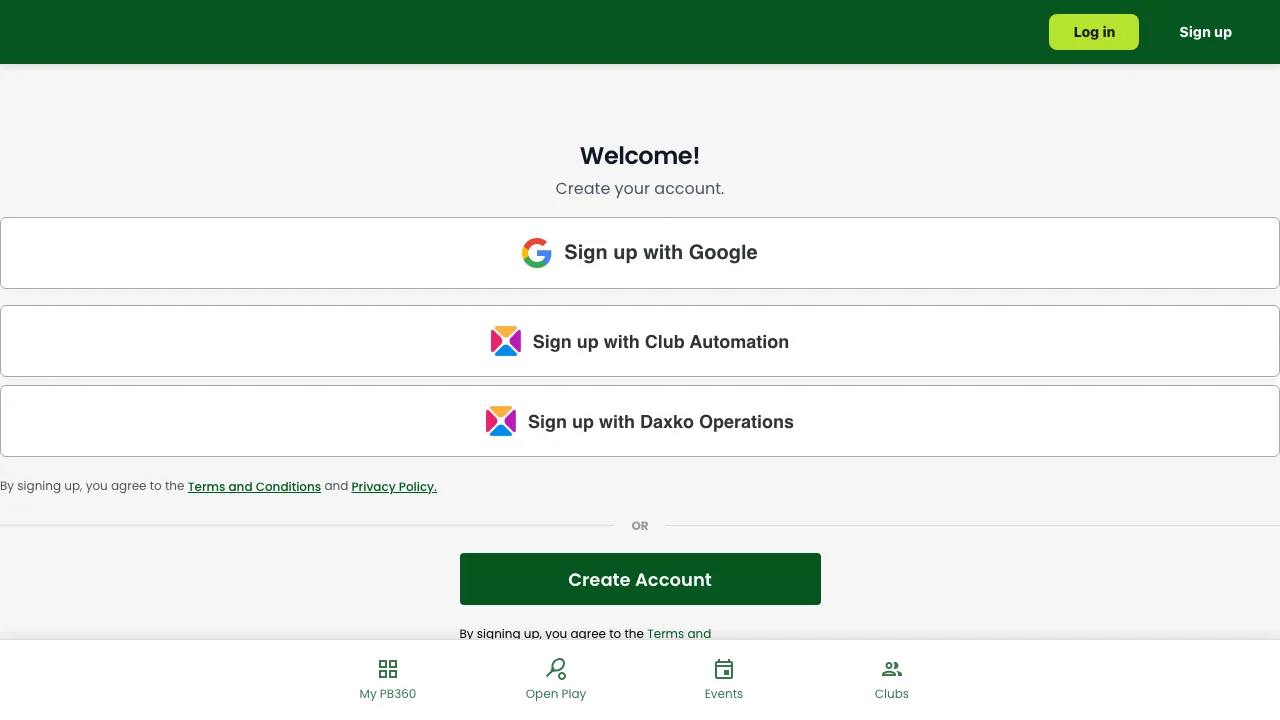
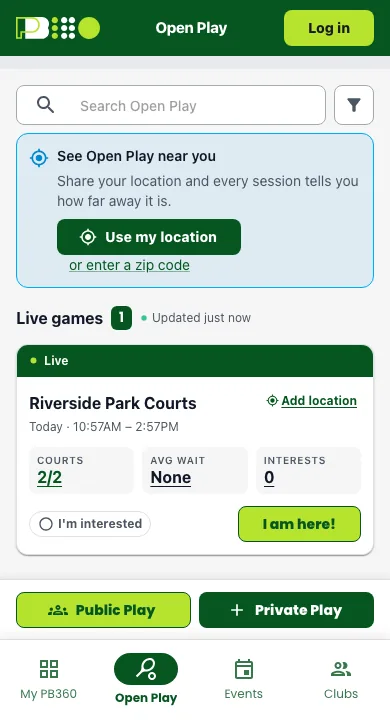
Find a session without an account. Tap Open Play in the bar at the bottom to see the sessions near you. You do not need to sign in to look.
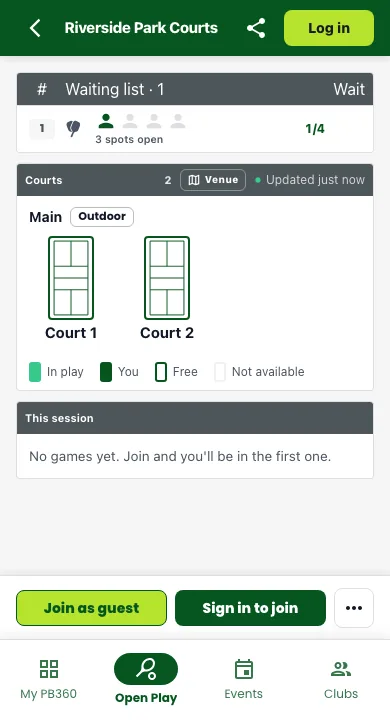
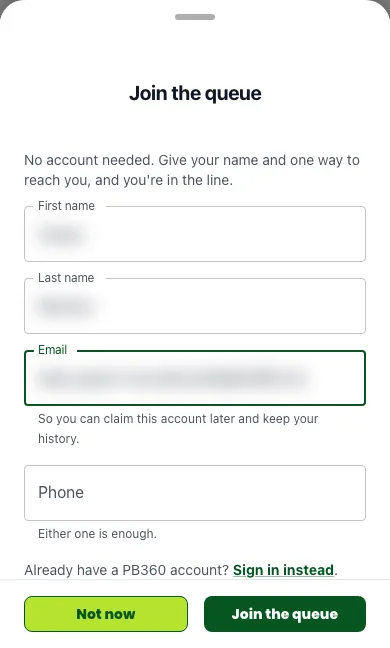
Join as a guest. Tap Join as guest, give your name and an email address or phone number, and tap Join the queue.

2.4 Turning a guest into a real account
Whenever you want more than a guest can do, you upgrade. Nothing is lost — your events, your history, and your invoices all carry over. The guest record is marked as upgraded rather than replaced.
There are two routes in.
- A claim link. The club, or the app, sends you a link — by email or text — that identifies you. Open it, confirm your details, set a password, and you are done. This is the usual route.
- From inside the app. Try to do something a guest cannot and you will be offered the upgrade there and then, and returned to what you were doing afterwards.
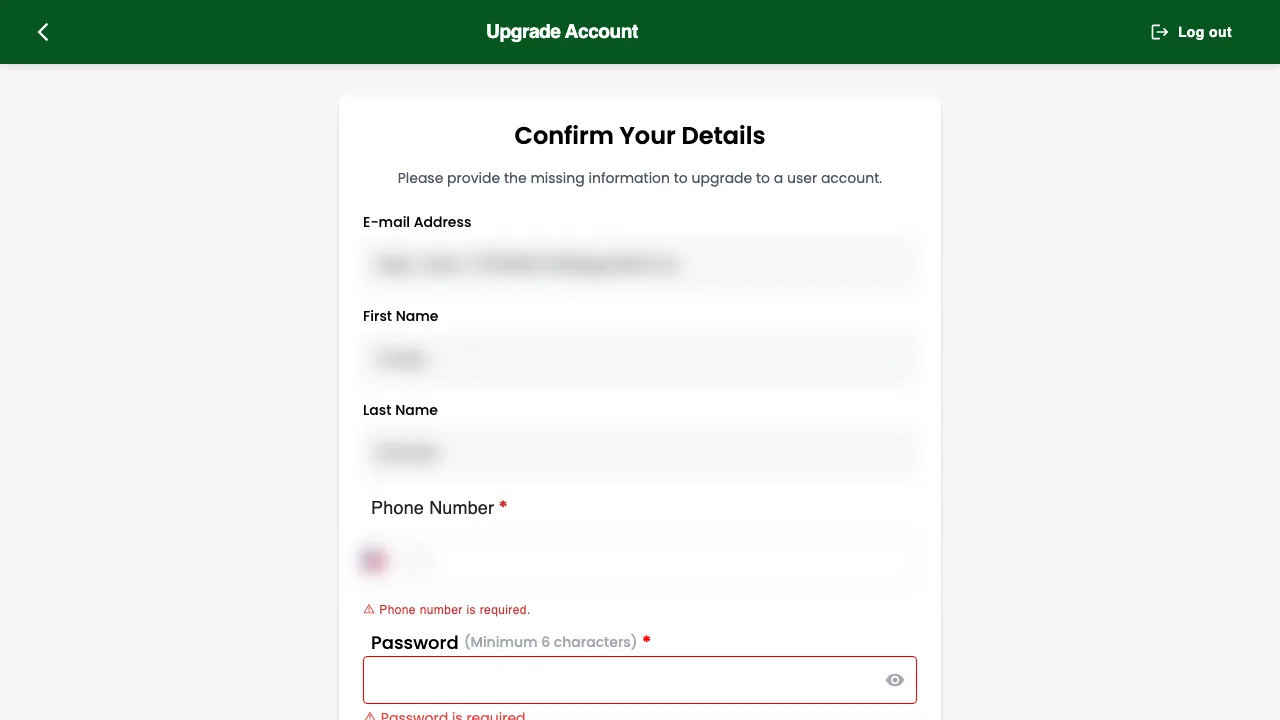
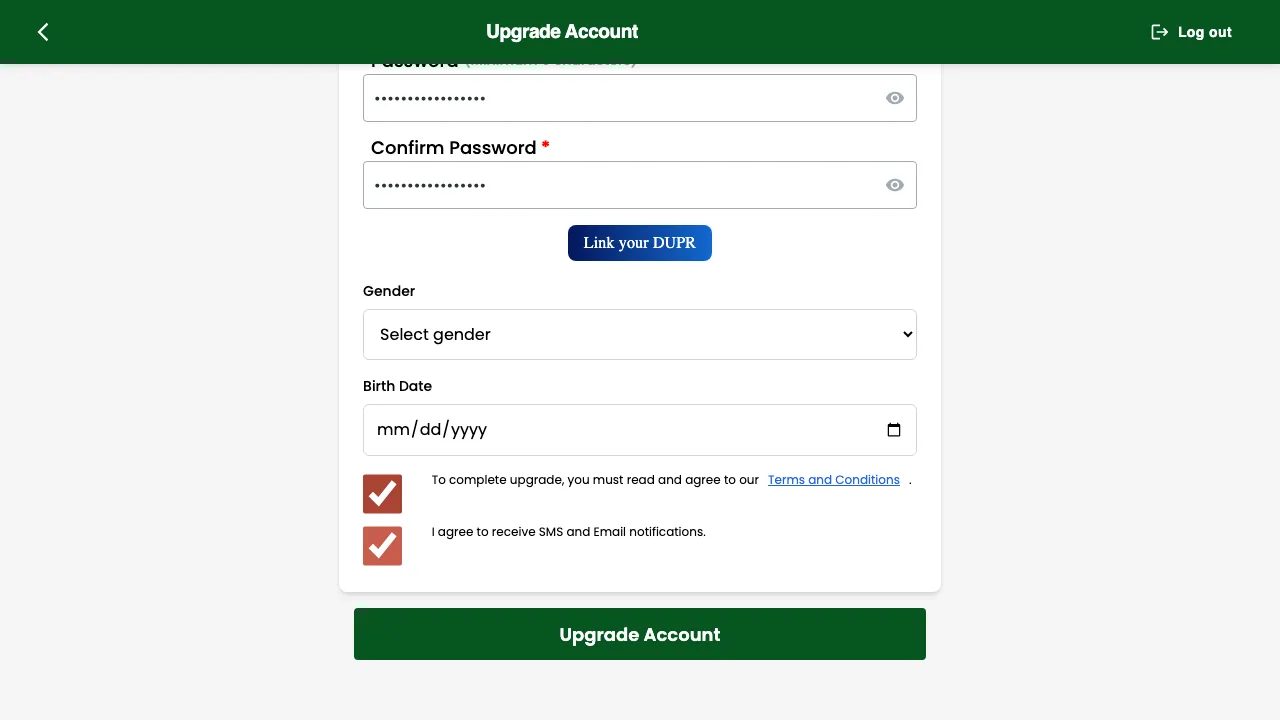
Either way you will land on a Confirm Your Details screen asking for anything missing — first name, last name, email, phone, date of birth, gender — plus a new password. Save, and you have a full account.
Already have an account and got a claim link anyway?
That happens when a club adds you as a walk-in using an email you already registered with. Sign in normally instead. If your events look like they are on the wrong account, tell the club — they can see both records and sort it out.
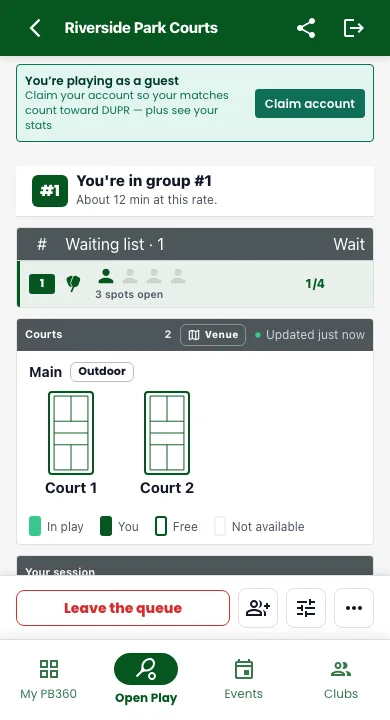
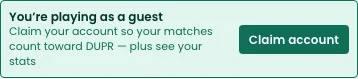
Claim from the guest banner. While you play as a guest, a banner under the header offers Claim account. Tap it to turn your guest account into a full one.
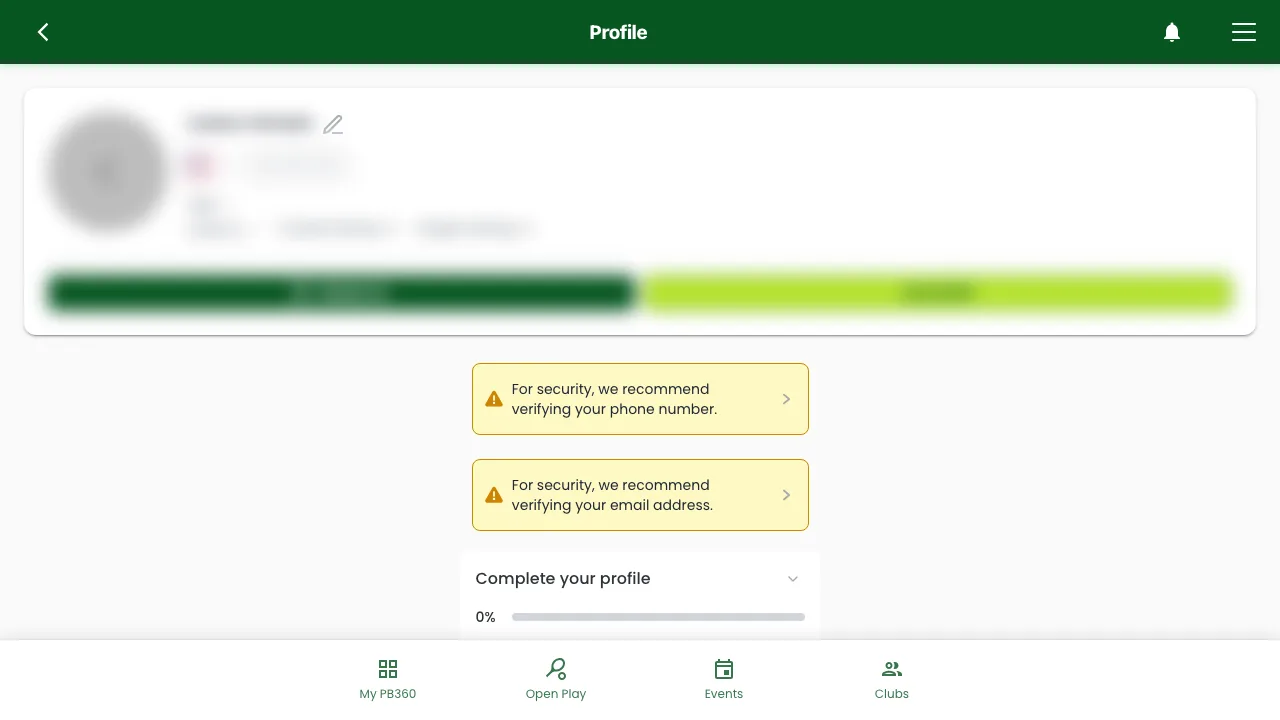
2.5 Your profile
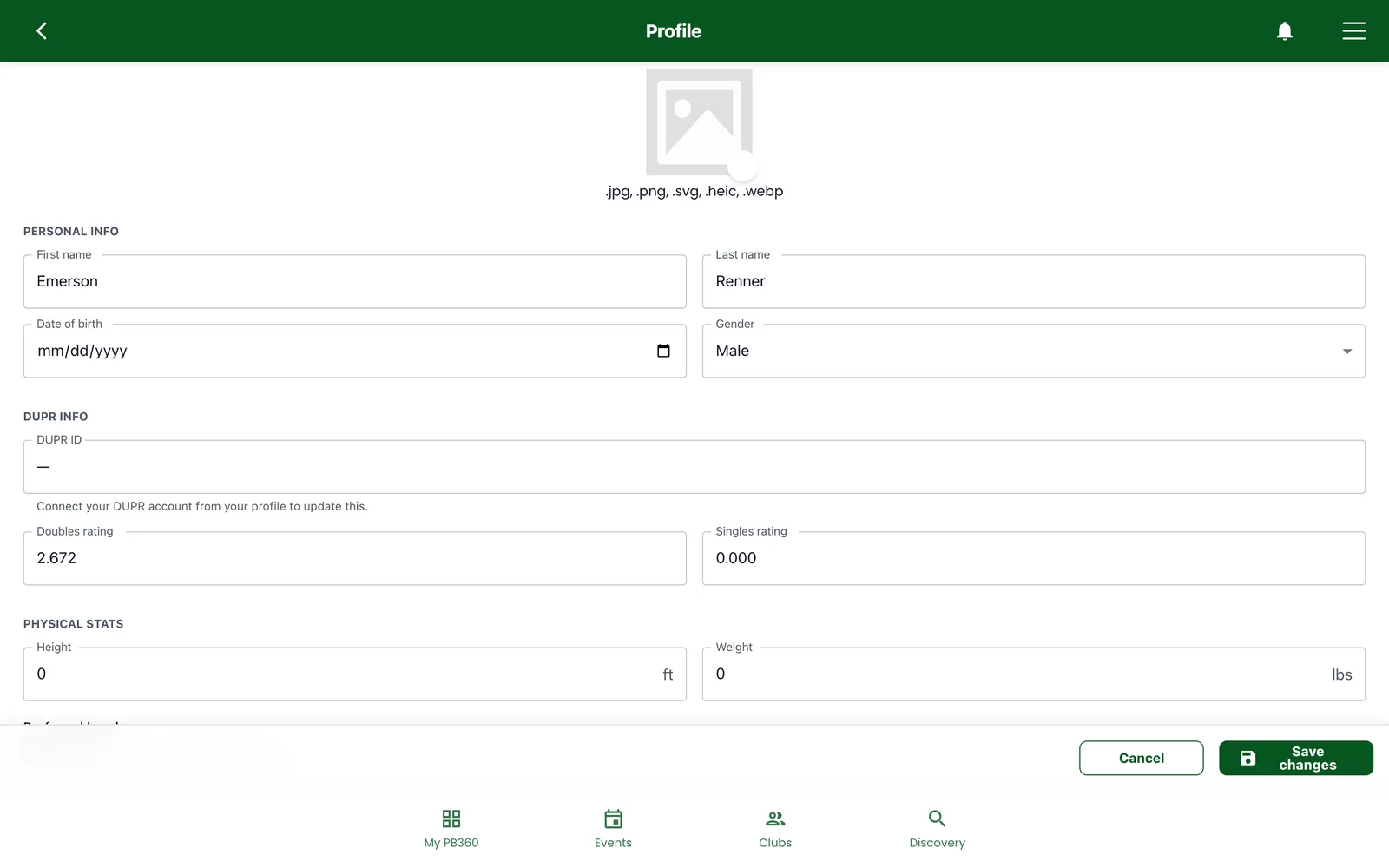
Your profile is what other players and organizers see, and several features read from it. Fill in:
- Name, date of birth, gender — used to check whether you are eligible for events. An event limited to 50+ or to women needs these to be right or it will refuse you.
- Email and mobile number — where confirmations, reminders, and cancellation notices go. Wrong number, missed cancellation.
- Profile picture — helps people find you at a venue. Keep it under 128 KB; the app will compress it and tell you if it cannot.
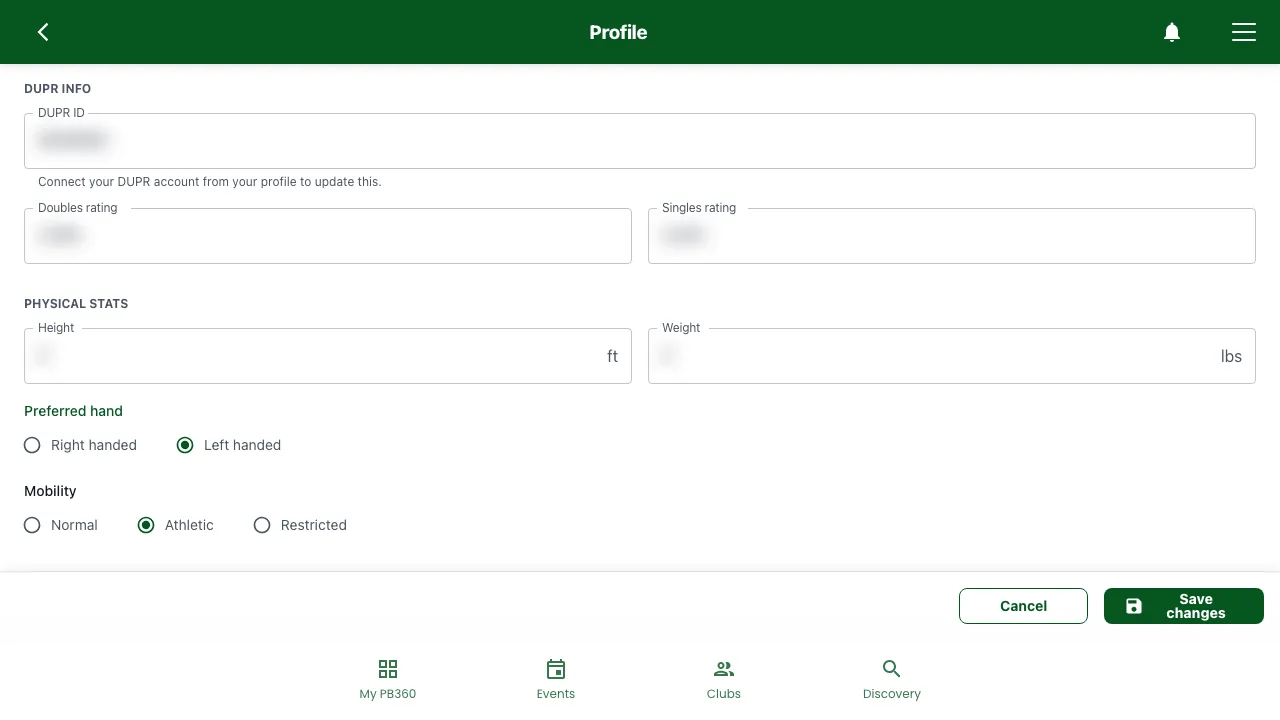
- Physical stats — height, and whether you are left or right handed. Optional.
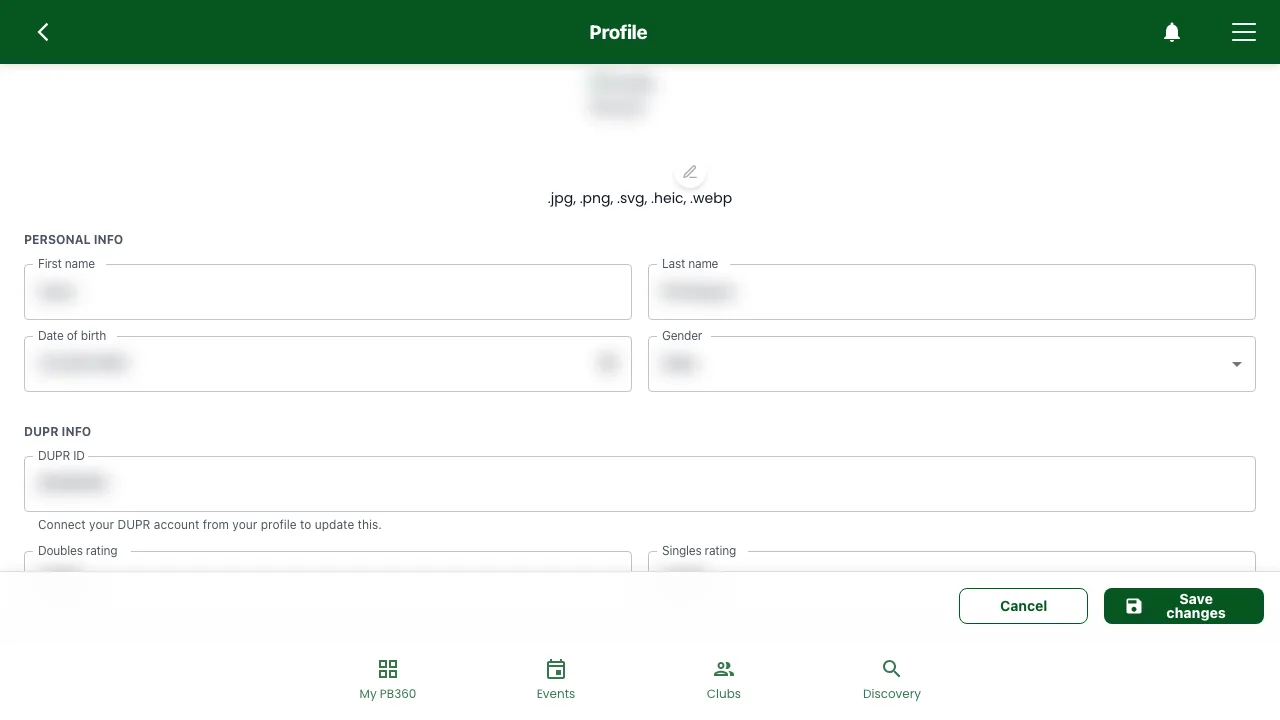
- DUPR ID and ratings — see 2.6.
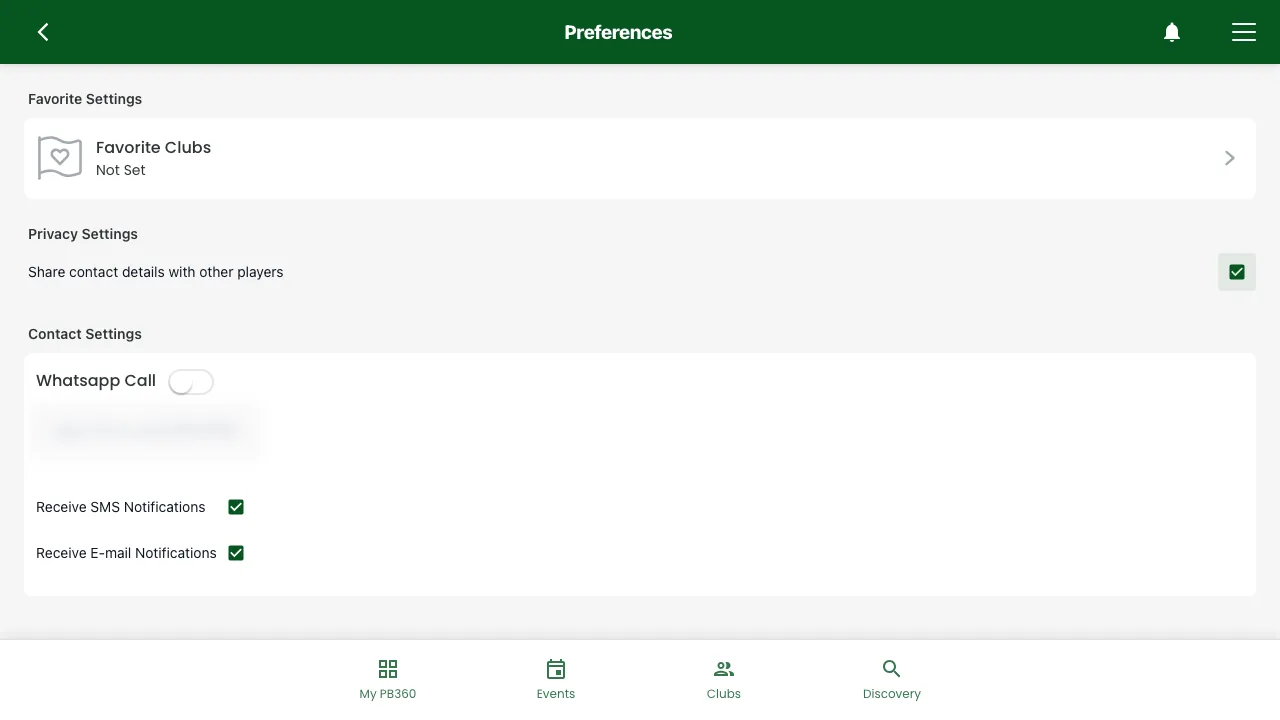
There is also a preference for whether to share your contact details with other players. Turn it on if you want partners to be able to reach you directly; leave it off if you would rather everything went through the event chat.
Date of birth and gender are not cosmetic
They decide which events will accept you. If you get "Your age doesn't match" or "This event is not eligible for female users" on an event you believe you qualify for, check your profile before you contact the club — nine times out of ten it is a wrong birth year.
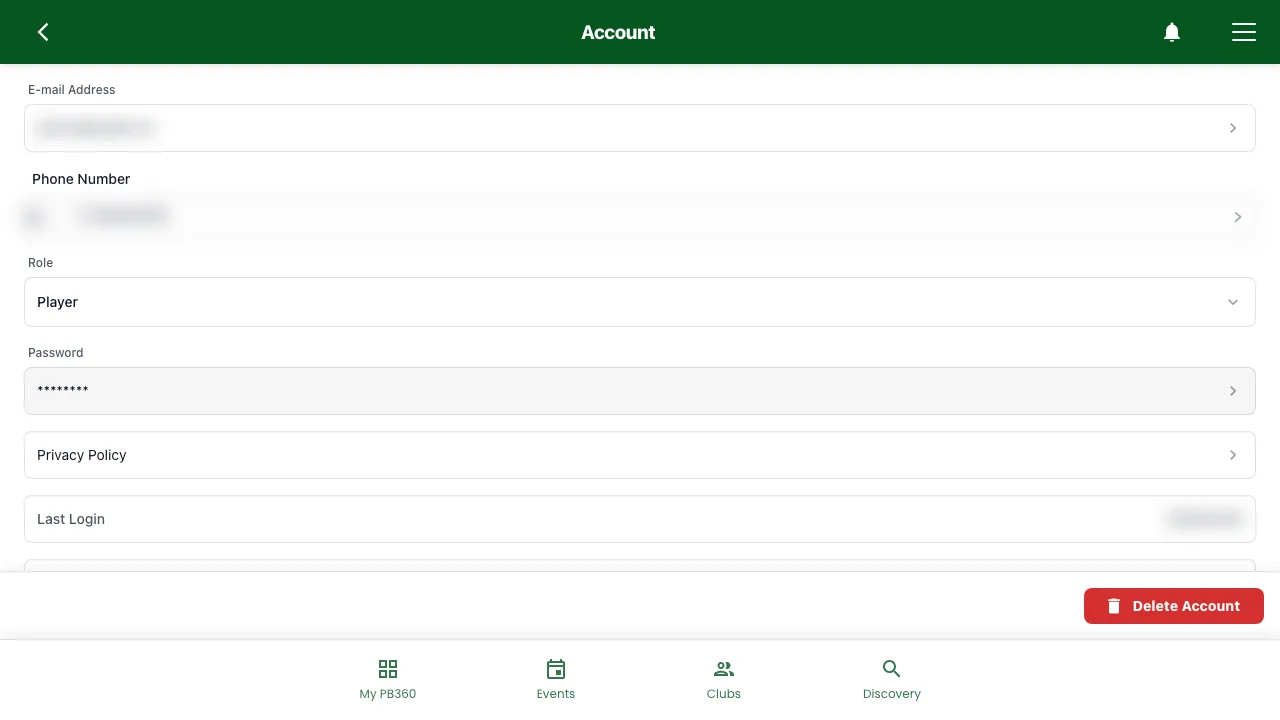
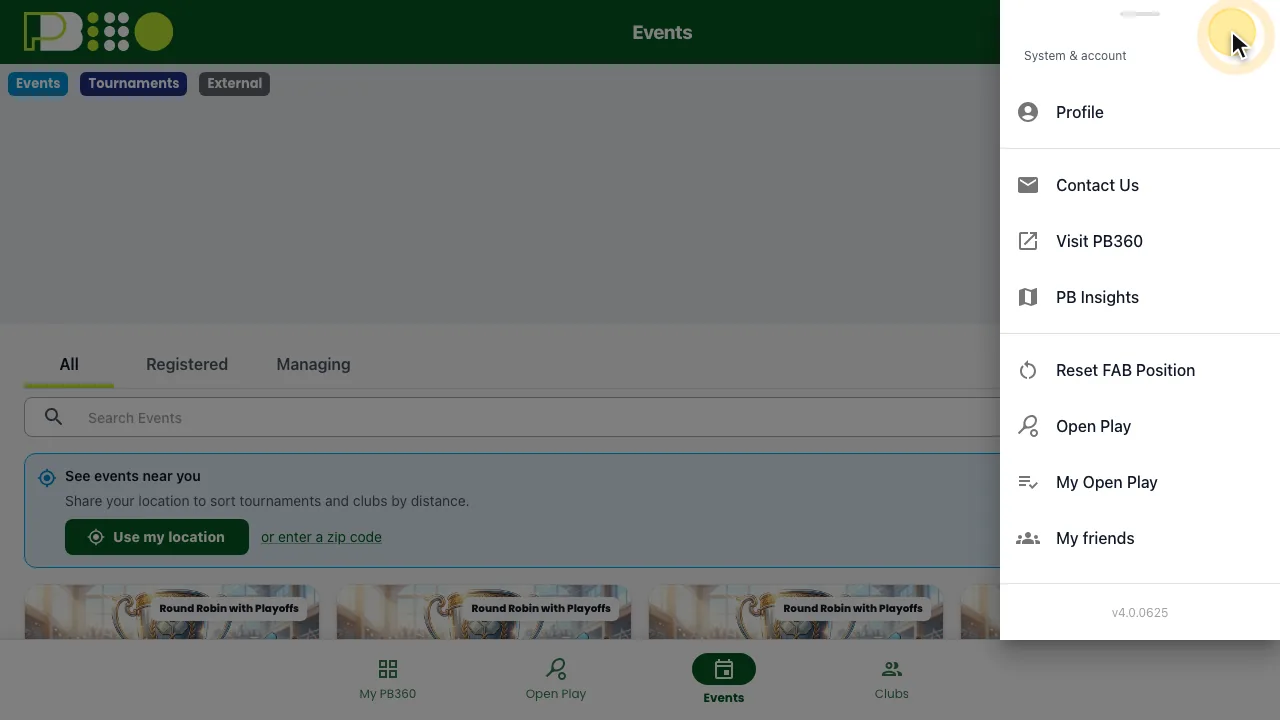
Editing your profile. Open the menu at the top right and choose Profile, then tap the pencil next to your name. Change what you need and tap Save changes. Contact sharing is a separate setting, under Profile → Preferences.

2.6 Linking DUPR
DUPR is the global pickleball rating — one scale from 2.00 to 8.00 covering every player regardless of age, gender, or where they play. It is the closest thing the sport has to a universal handicap.
Link your DUPR account to your profile and two things happen. Your singles and doubles ratings show on your profile, and results from DUPR-rated events you play flow through to your DUPR record.
Not every event is rated. The event page tells you which — you will see whether results will be uploaded, and afterwards whether the upload succeeded. Socials and clinics are usually not rated, and matches that ended in a walkover are never sent, because a forfeit says nothing about how anyone played.
Many events set a skill range based on DUPR. Without a rating you may be excluded from events you would otherwise be fine for, so it is worth linking.
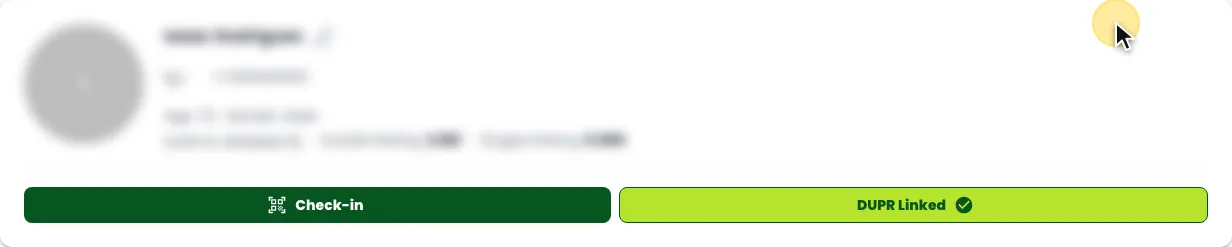
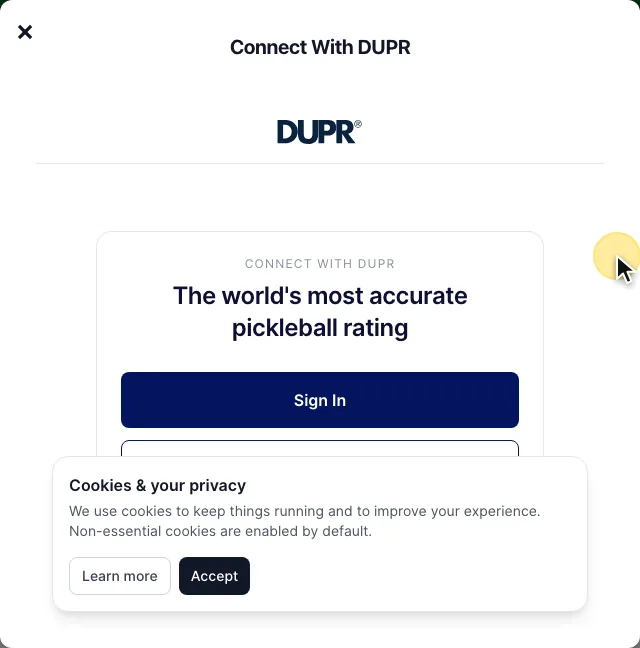
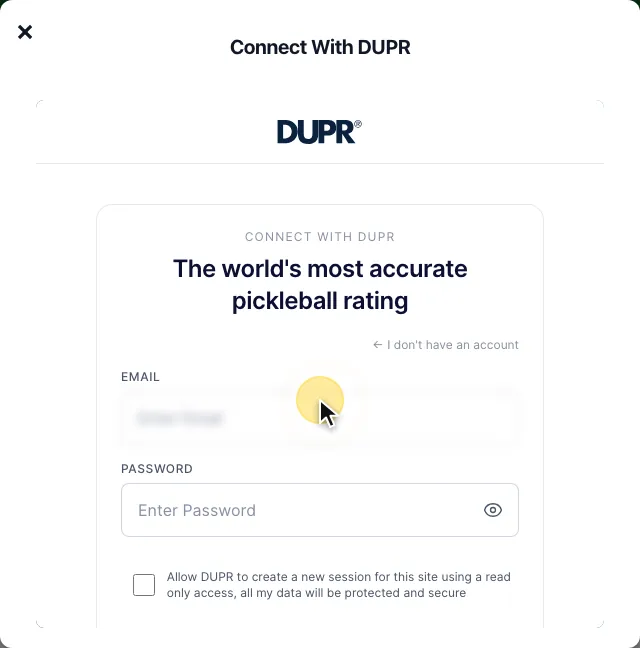
Linking your DUPR account. You link DUPR by signing in to your DUPR account from your PB360 profile. The same steps reconnect DUPR, or switch your profile to a different DUPR account.
2.7 Family accounts
If you sign up children, or manage bookings for a partner, a family group saves a lot of repetition.
Create a group from the Family screen, then add people to it two ways:
- Add a minor. A child under your guardianship, created with their name, birth date, and gender. They do not need their own email.
- Invite an adult. A partner or another adult gets an invitation by email, which they accept or decline from their own account. They keep their own login.
The useful part is acting as a minor. You switch into your child's account, register them for an event as though you were them, then switch back. No separate login for a nine-year-old, and their record stays theirs — their events, their stats, their history.
You can remove a member from the group at any time, and an adult can leave a group themselves.
2.8 Notifications, email, and unsubscribing
PB360 contacts you by email, text message, and in-app notifications. What you get depends on what you have signed up for: confirmations, reminders before an event, cancellations, and club announcements.
Under Preferences you can set your email preferences and pick favorite clubs so their events surface first.
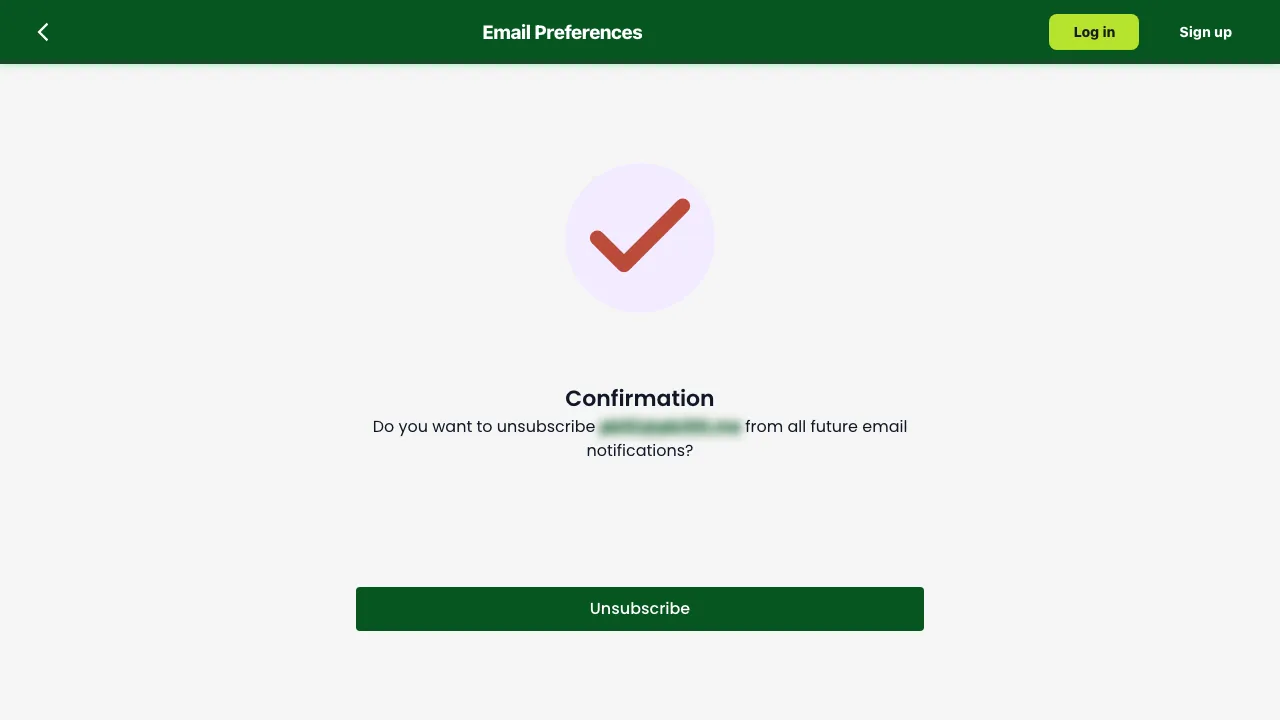
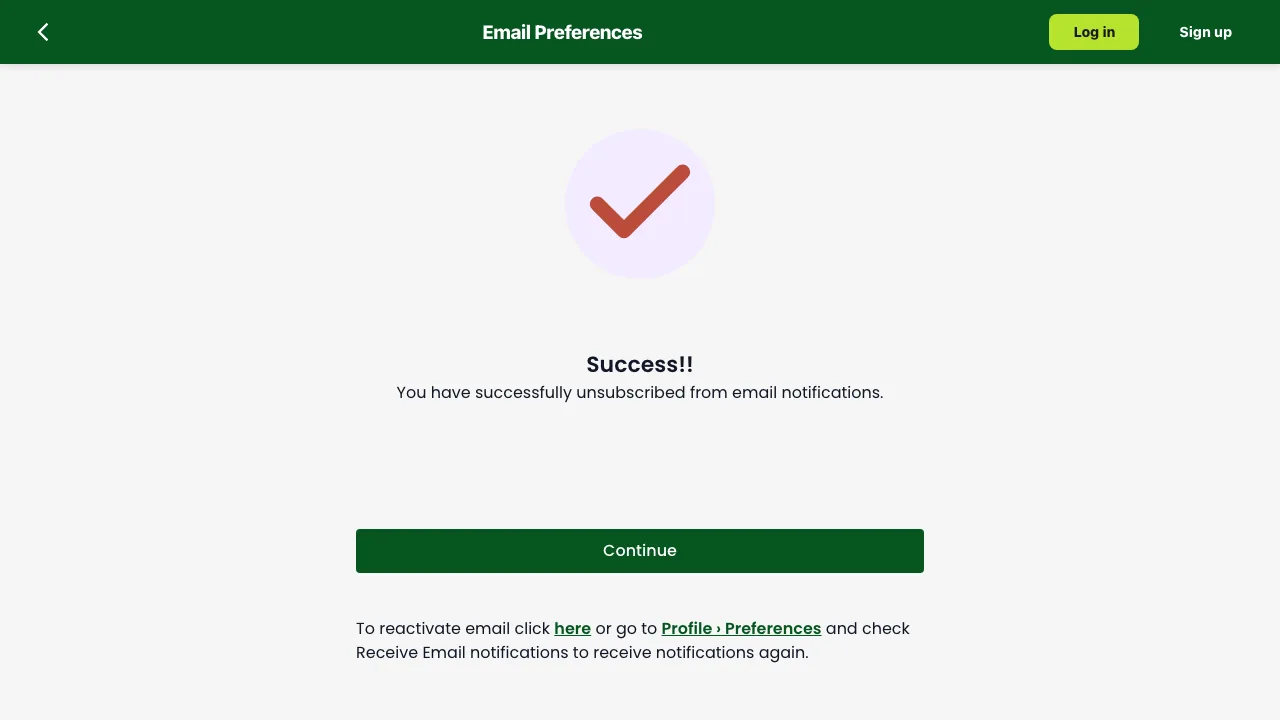
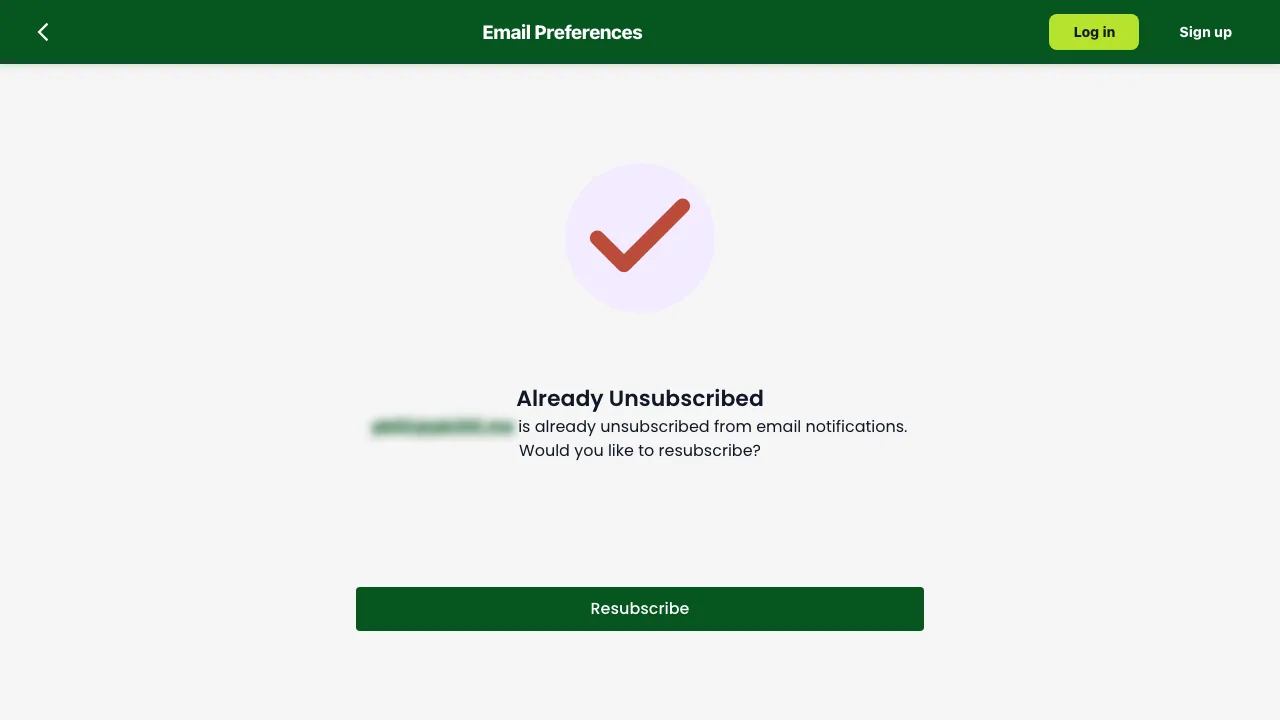
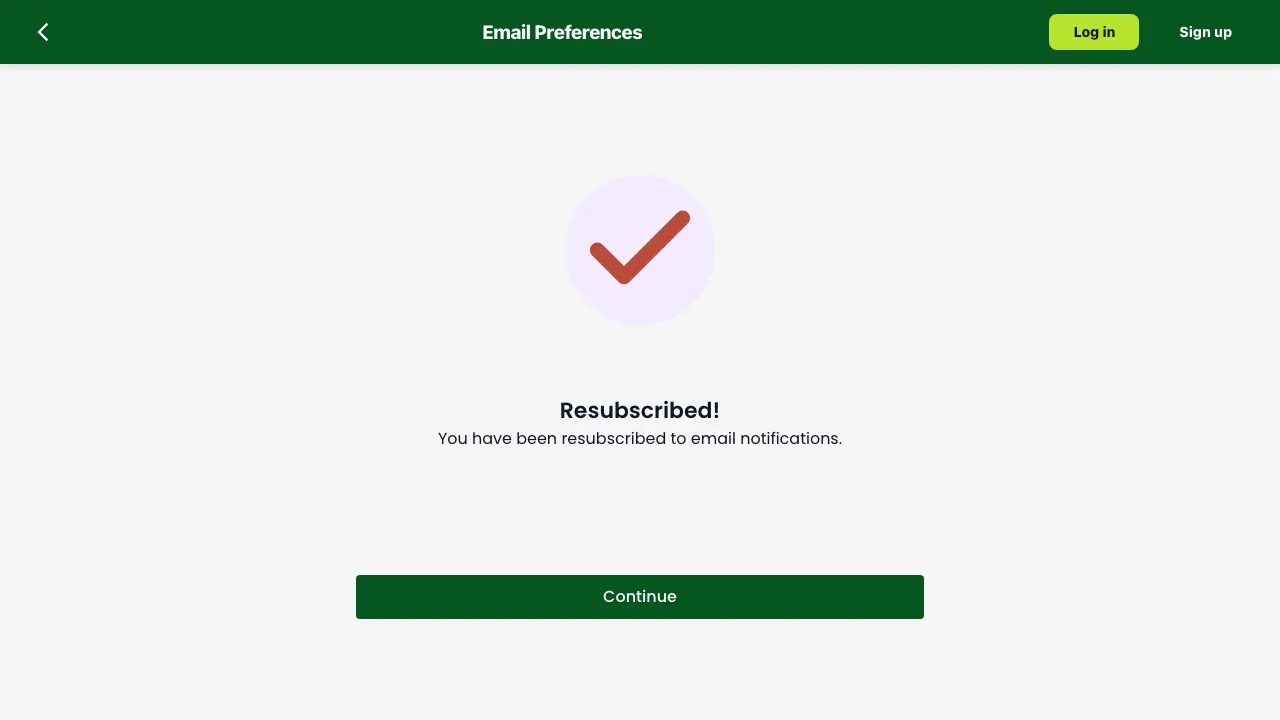
Every marketing email has an unsubscribe link. Using it stops email notifications, and you will see a confirmation that you have unsubscribed. If you change your mind, the same screen offers Resubscribe.
Unsubscribing is broader than people expect
Turning off email notifications turns off the useful ones too — event confirmations, reminders, and cancellation notices. If you unsubscribe and then miss a canceled Tuesday night, that is why. Consider leaving email on and muting individual event chats instead.
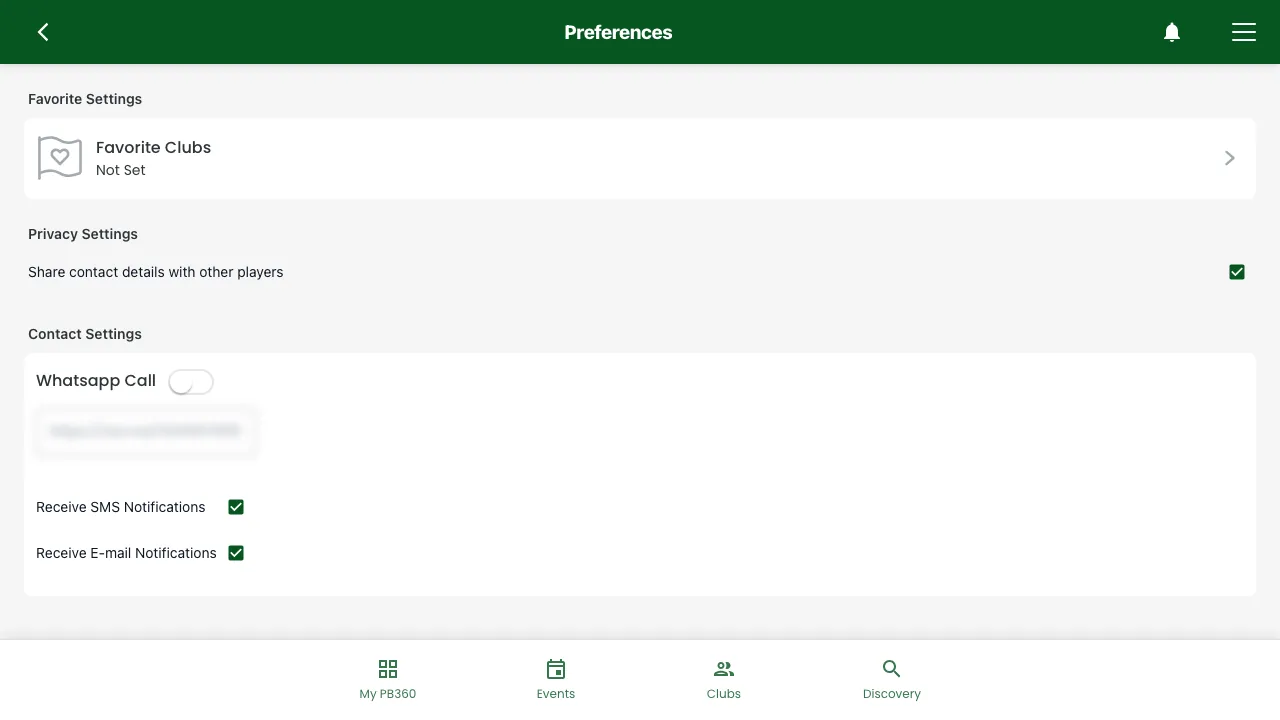
Your contact settings. Profile → Preferences has a box for text messages and a box for email. Uncheck one to stop that kind of message, and tap Save.
Unsubscribing, and changing your mind. The unsubscribe link in an email opens a page that asks you to confirm. Open the same link again later and it offers Resubscribe.
Part 3 — Finding events
3.1 Events near you
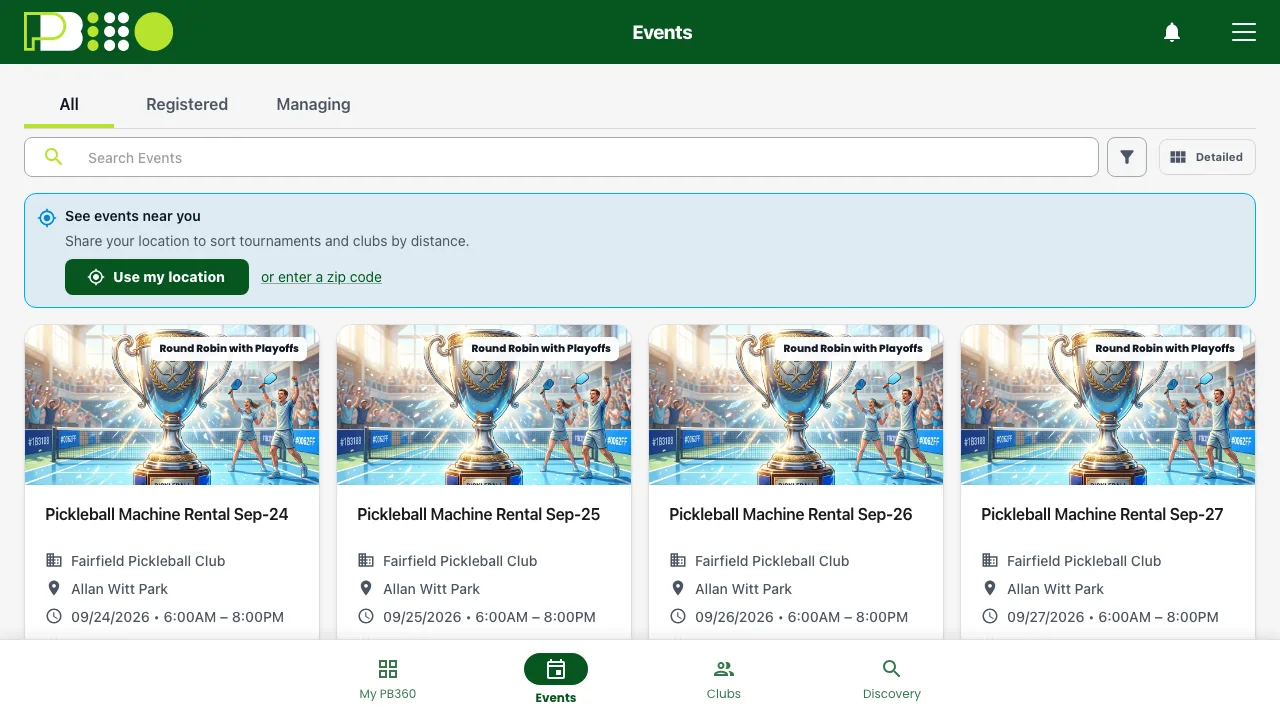
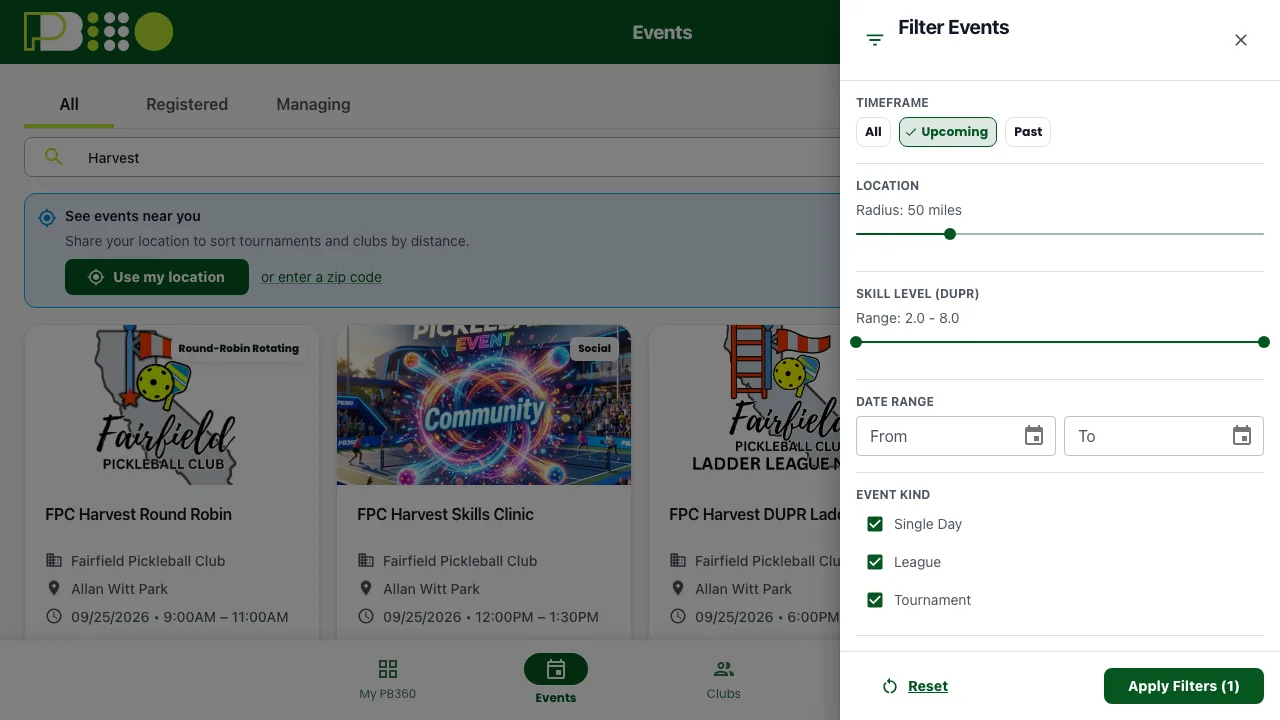
The Events page opens with a map. Allow location access and it shows what is on around you; decline and you can still search by area — tap Use my location, or enter a zip code instead.
If you see "Location access denied" or "Geolocation is not supported by your browser", nothing is broken — the app simply cannot see where you are. Search manually, or turn location on for PB360 in your phone's settings.
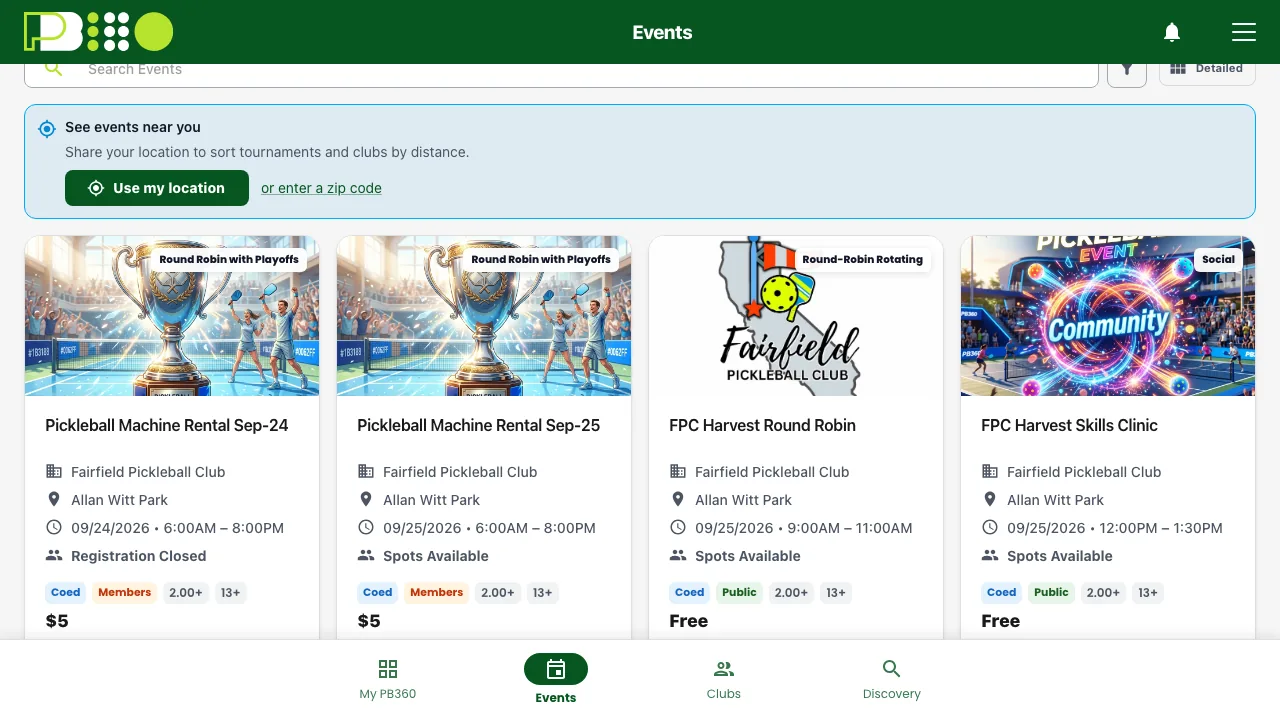
3.2 The events list
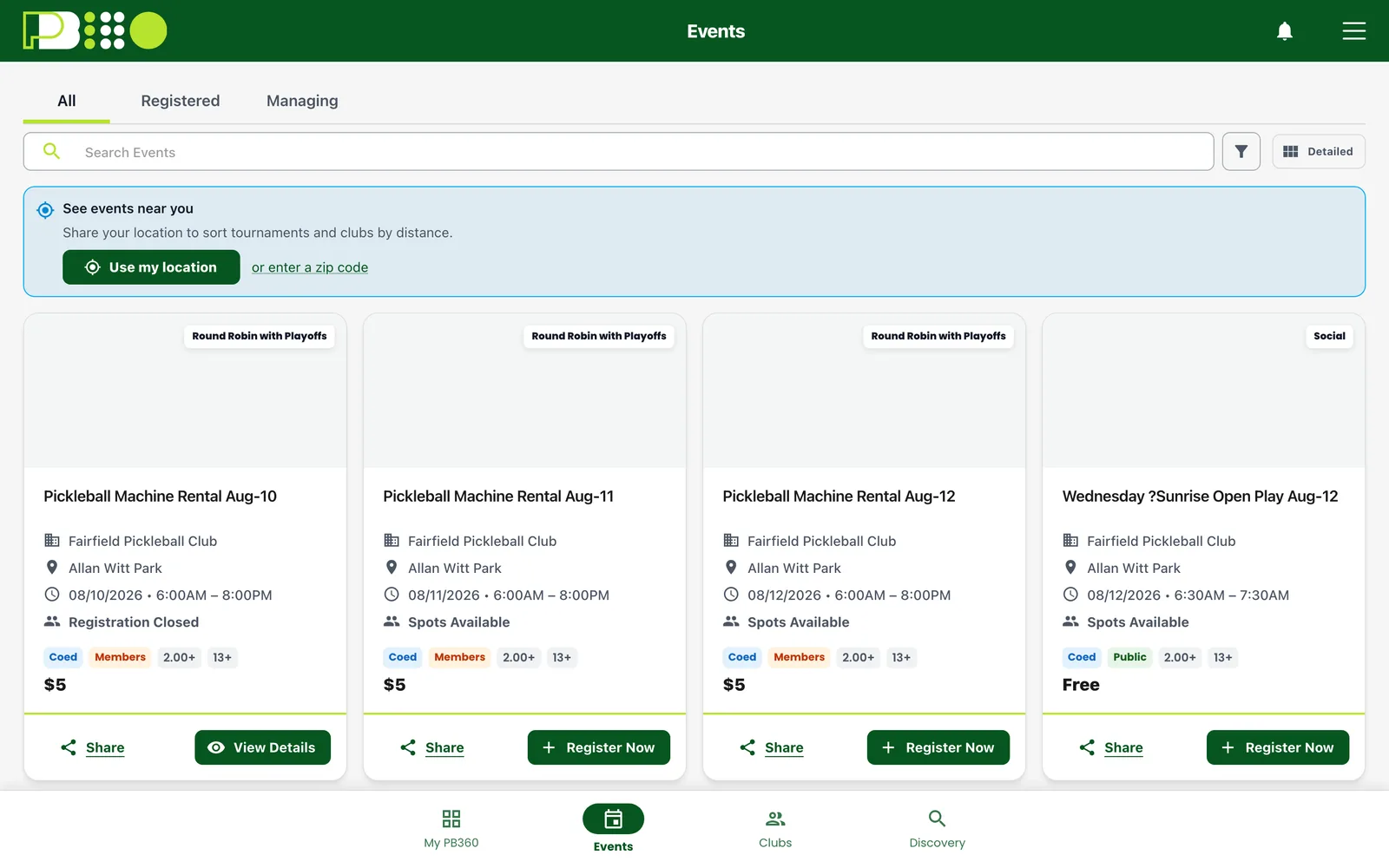
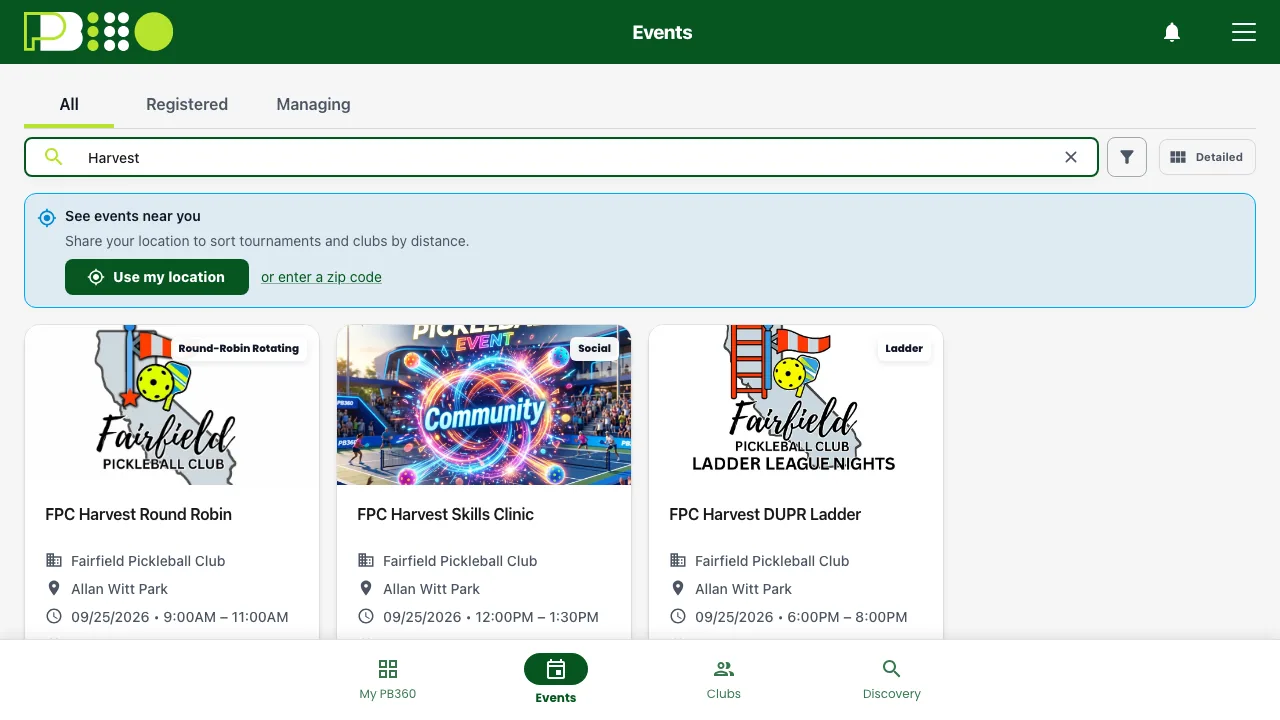
Below the map, the same events appear as a searchable list, which is better when you know roughly what you want. Search by name, and filter down to what suits you.
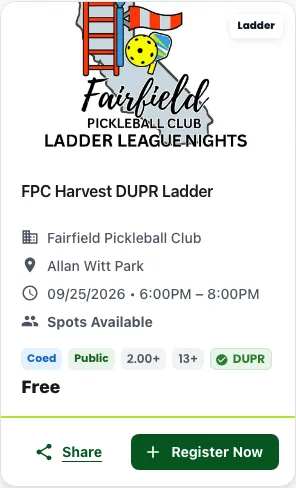
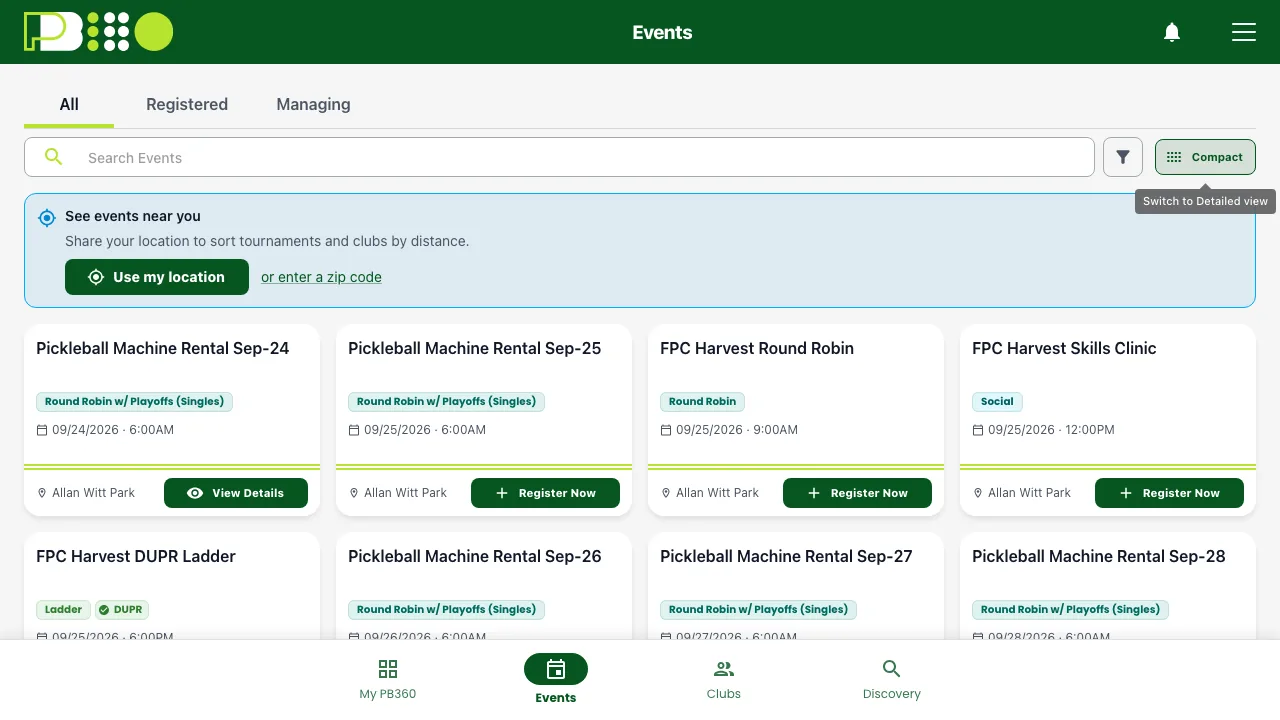
Each event card shows the essentials at a glance: the club, the date and time, the venue, the format, the skill and age range, the price, and how many spots are left. There are compact and detailed views — compact for scanning, detailed when you are comparing.
Events also show whether they are DUPR or No DUPR, which matters if you are chasing a rating.
3.3 Following clubs
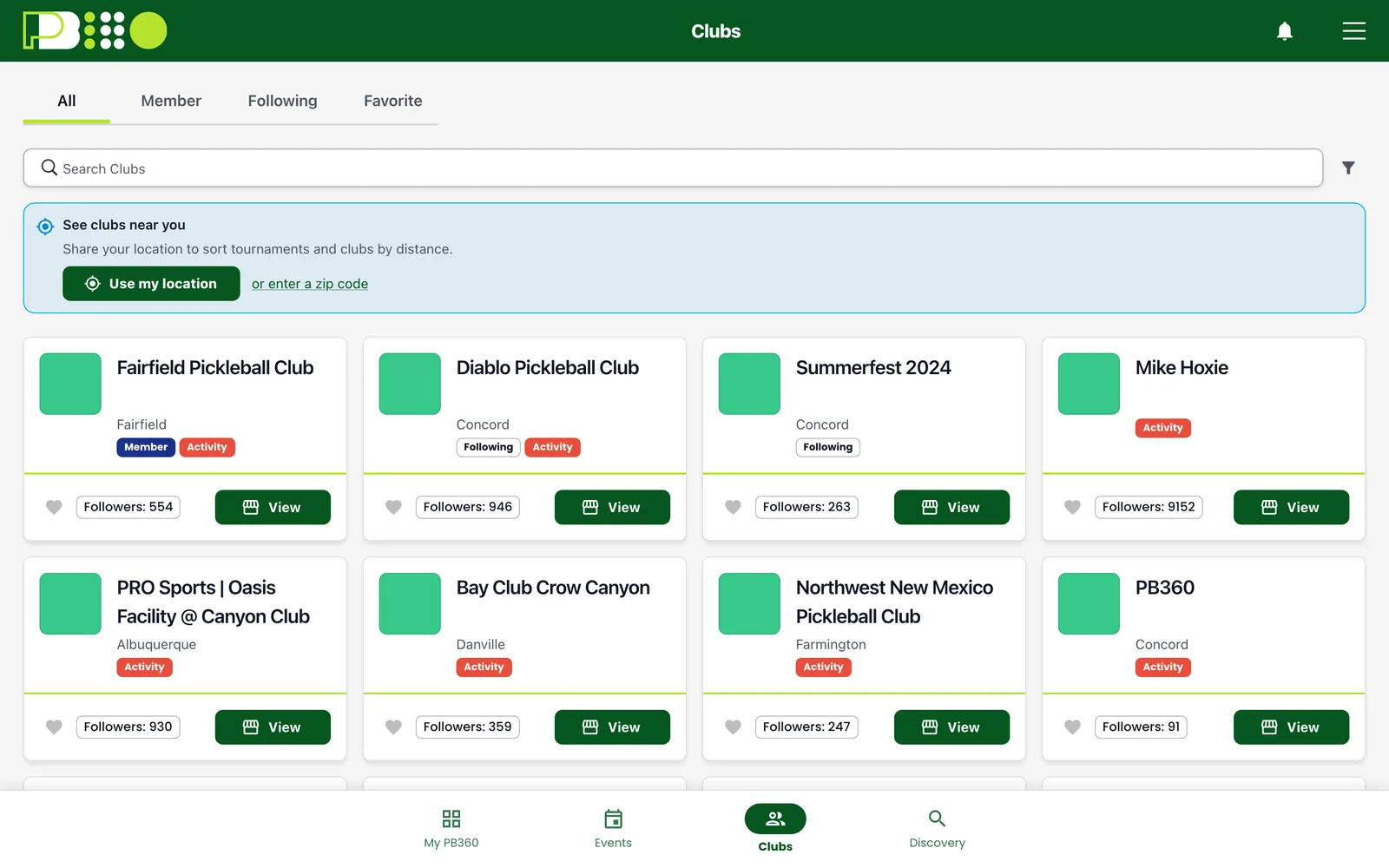
Follow a club and its events surface for you. It is free, instant, and carries no obligation — it is a bookmark, not a membership.
It is also occasionally required. Some events are limited to club followers, and you will see "This event is limited to active club followers" with a prompt to follow. Follow the club and the event opens up.
Being a member is different — that is a paid plan (see 5.6), and it typically gets you cheaper entry and access to member-only events.
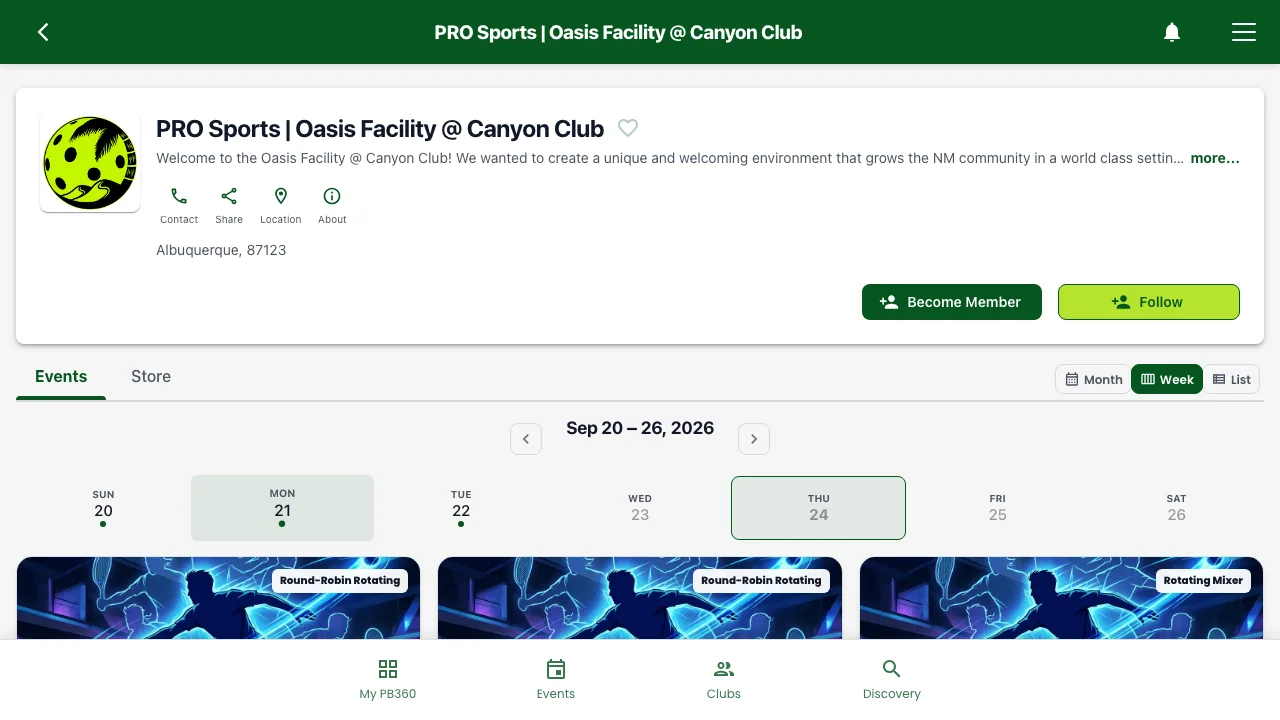
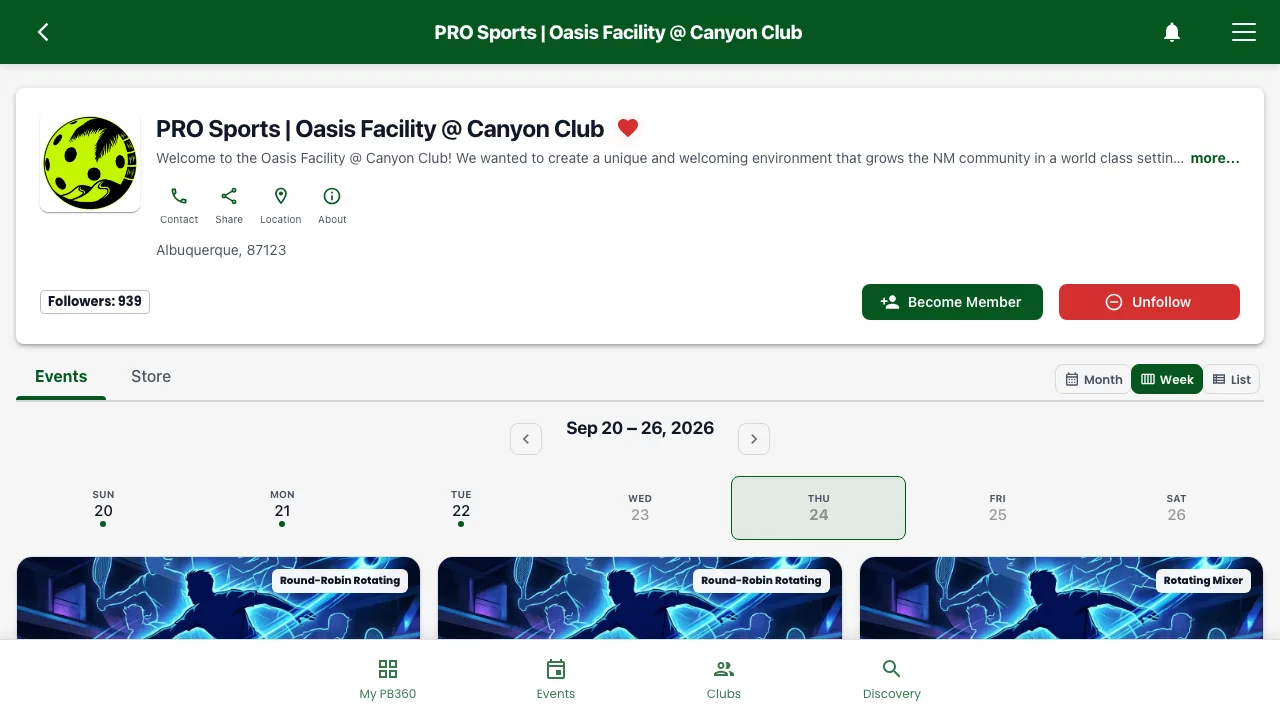
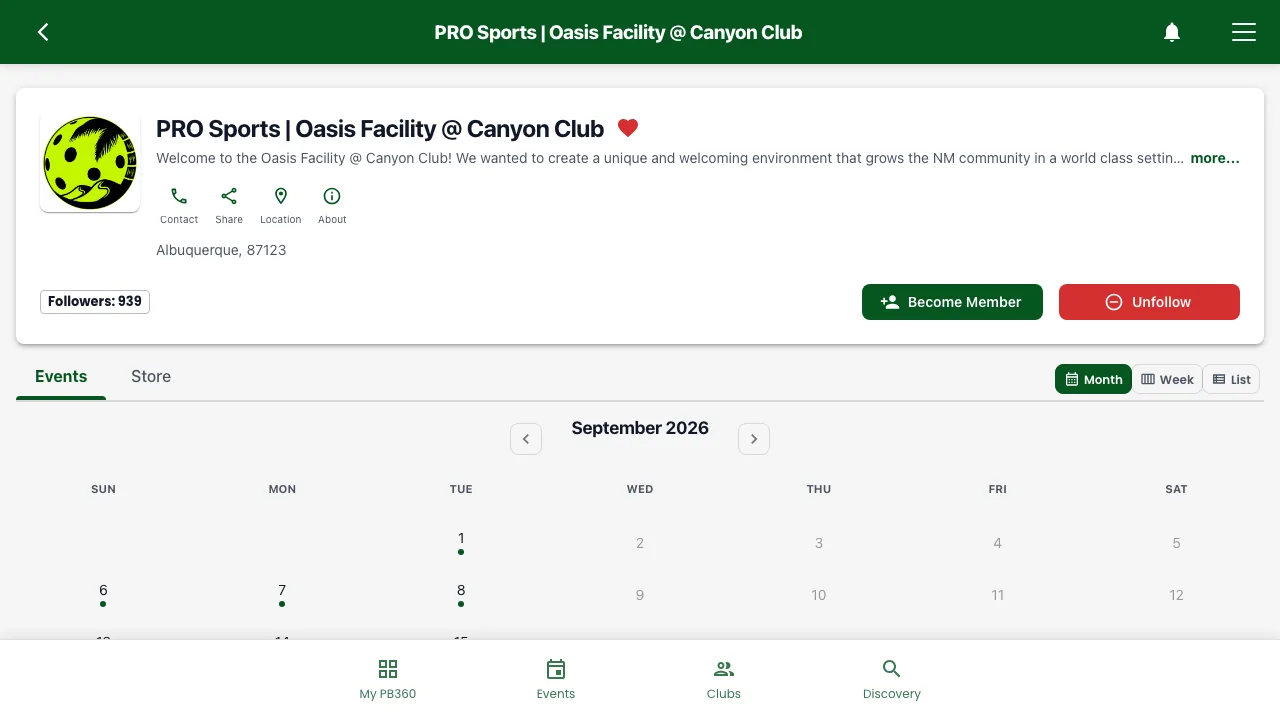
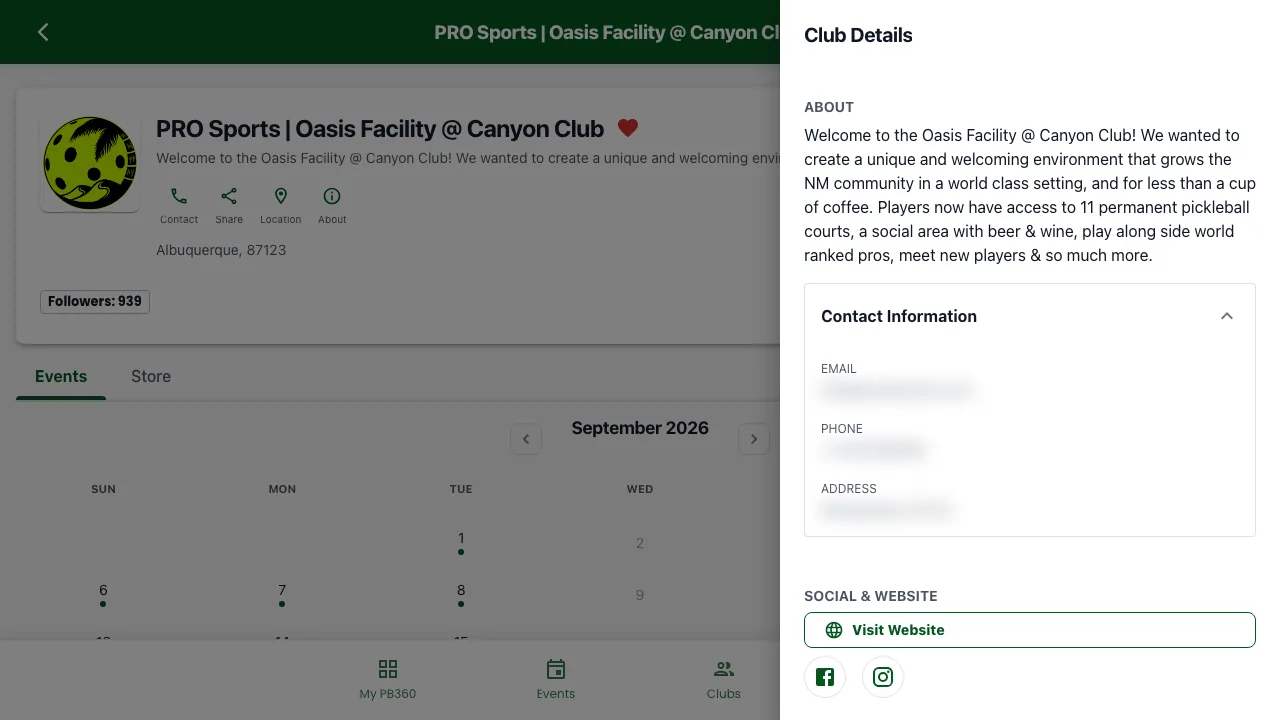
A club's page shows its events in list or calendar form, its location and contact details, and its social links. You can mark clubs as favorites so they sort to the top.
3.4 Reading an event page
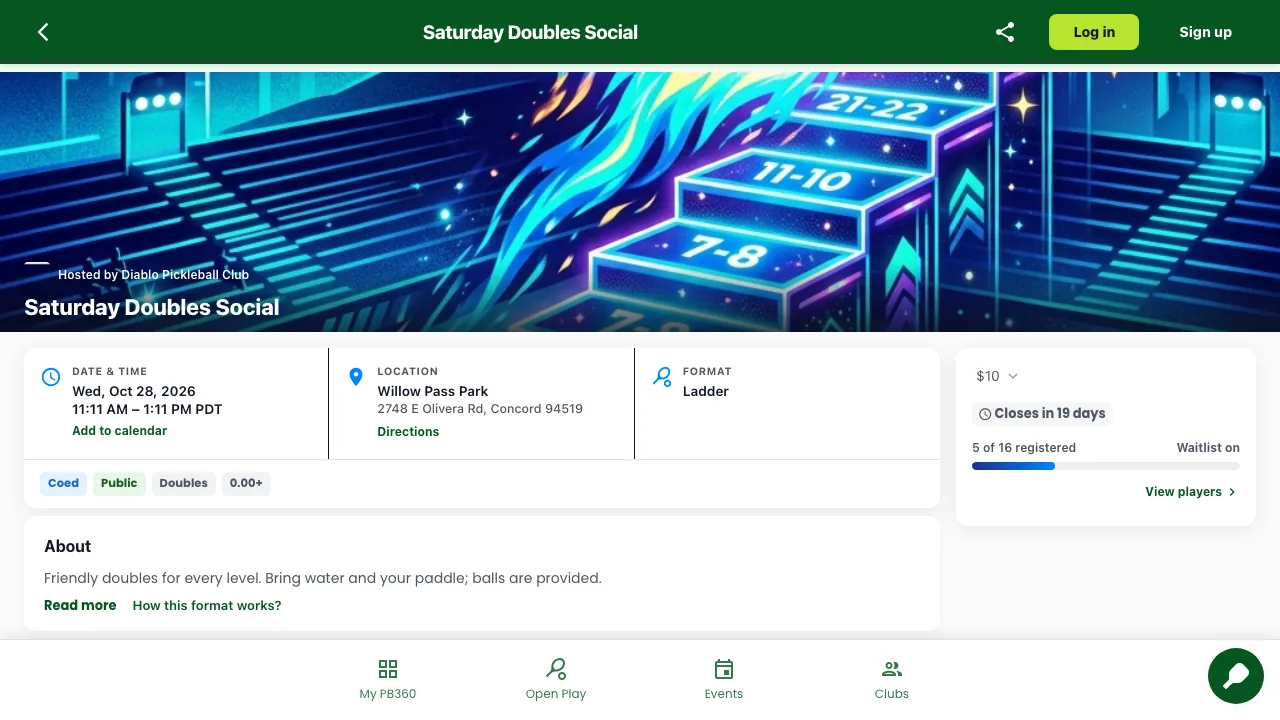
The event page is where you decide. It is long, but it is organized, and every section answers a question you would otherwise have to ask somebody.
Section | The question it answers |
|---|---|
Header | What is it, when, where, and am I already registered? |
Eligibility & Format | Can I play, and what will the play actually be like? |
How this format works | A plain explanation of the format — worth reading if it is new to you. |
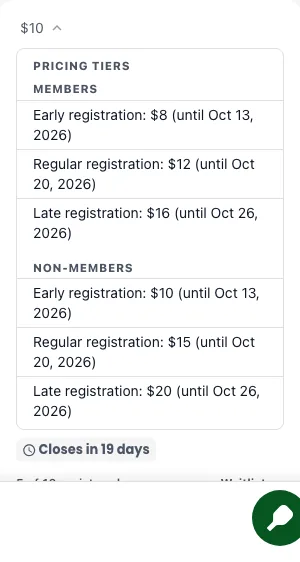
Registration pricing | What it costs now, and whether early pricing is about to end. |
Refund policy | What I get back if I pull out, and by when. |
Participants | Who else is playing. Searchable. |
Courts | Which courts are being used and, once assigned, which one you are on. |
Goodies & Givens | Anything included or on sale — a shirt, a goodie bag, extras. |
Contact organizer | Who to ask when the answer is not on the page. |
Useful details scattered around it: spots left, whether a waitlist is on, guaranteed matches for formats that promise a minimum, and a fee breakdown you can expand to see exactly what makes up the price.
There is a share button, so sending a game to a friend is one tap.
Opening an event link without signing in. Anyone can open a shared event link. Read the page, tap the price to see every fee, and when you are ready tap Register now. PB360 asks you to sign in or sign up, then brings you back to the event and on to checkout.
3.5 Private events and PINs
Some events are not public. If you have been given a PIN, enter it when prompted and the event opens. "Invalid event PIN" means the code is wrong or has changed — ask whoever invited you.
Other events are restricted rather than hidden: members only, followers only, or limited to particular membership plans. The event page tells you which and, where you can fix it yourself, offers the way in — usually Join as a follower or Join as a non-member.
3.6 "You are not eligible" — what it means
Clubs set rules about who can play so that games are competitive and fair. When you do not match, the app says so. The messages are specific, and each has a different answer.
What you see | What it means | What to do |
|---|---|---|
Your age doesn't match | The event has an age range you fall outside. | Check your date of birth in your profile first. If it is right, this event is not for you. |
This event is not eligible for female users (or male) | The event is single-gender. | Check your profile is correct. Otherwise look for the matching division — most clubs run both. |
Your skill rating is outside the range | The event has a DUPR band. | Link your DUPR if you have not (2.6). If your rating genuinely sits outside, ask the organizer — they can sometimes make an exception. |
This event is limited to active club followers | Followers only. | Follow the club. Takes one tap, and the event opens. |
Members only, or specific plans only | The event needs a membership. | The page lists the eligible plans. Buy one, or find a public event instead. |
Registration closed | The deadline has passed. | Ask the organizer — they can often still add you by hand. |
The event is full | No spots left. | Join the waitlist if there is one. People drop out more often than you would think. |
Deadlines run on the venue's clock
Registration closes according to the time zone of the venue, not yours. If you are signing up for an event in another state, the deadline you see has already been converted for you — but it is worth not leaving it to the last ten minutes.
Part 4 — Signing up
4.1 The basic flow
Every registration follows the same five steps, whatever the event.
- Tap Join Event (or Register now) on the event page.
- Eligibility is checked. If you do not qualify you are told why — see 3.6. If you do, you carry on.
- Sort out partners or teams if the event needs them. See 4.3 to 4.5.
- Agree to the waiver and participation policy if the club has attached them. You will need to check a box to confirm you have read them.
- Pay, if there is anything to pay. Part 5 covers this in detail.
You then get a confirmation and the event page changes to show You're registered. The event appears in My PB360 under Registered.
Free events still go through checkout
A free event still produces a receipt with a zero total. That is deliberate — it is how your place is recorded and how the club knows to expect you. Do not stop halfway because there is nothing to pay; finish the flow or you are not actually signed up.
4.2 Playing alone, in a pair, or in a team
How you sign up depends on the format, and the event page tells you which applies.
Event type | How you register |
|---|---|
Rotating partners (ladder, king & queen, mixers, most club nights) | Sign up alone. The system pairs you with different partners each round. Nothing else to do. |
Singles | Sign up alone. You play as an individual throughout. |
Set partners (fixed doubles) | You need a partner. Either invite one (4.3) or join the need-a-partner list (4.5). |
Large teams (Team Challenge, Inter-Clubs) | You need a team. Someone creates it and invites the rest (4.4). |
If you are new and not sure, a rotating-partner event is the easiest possible start: show up alone, play with everybody, no arrangements to make.
4.3 Inviting a partner
For fixed-pair events, use Invite a player. Search for them by name, or send the invite to an email address or phone number if they are not on PB360 yet.
They get a notification and can Accept or Decline. Until they accept, your registration is not complete as a pair — check the invite status rather than assuming.
Invites live under Invites in My PB360, both the ones you sent and the ones you received. An invite can be accepted, declined, canceled, or countered.
An unaccepted invite is not a partner
The commonest registration mishap is inviting somebody, assuming it is done, and discovering on the day that they never opened the message. If the event is close and your invite is still pending, chase them or move to the need-a-partner list.
4.4 Teams and captains
Large-team events work through a team, not individuals.
- Create Team and give it a name — it defaults to something sensible if you leave it blank.
- Invite players to it. Each accepts or declines.
- The team has a captain, who manages the roster and can remove a player from the team. To make somebody else captain, ask the organizer — see 5.1 in the Club Administrator Guide.
- Any player can leave the team. If you were the last one, the team is dissolved and you will be told so.
You can see and manage all of this from the event page under Manage Team and Your Team.
Note that guests cannot create teams — team events need a full account. See 2.3.
Captaining a team league. In a team league, each match between two teams is a set of games. The captain runs it in the app: when and where you play, who plays each game, and the result. Agreeing a time and venue and calling up a substitute are available in Flex League events only.
Agree a time and venue. Tap the match time on your match, then Propose. Pick a date, a time and a venue, and send it. When the other captain accepts, the match shows the agreed time and place. Everyone on both rosters can say whether they can make it.
Flip the coin. Before the match, expand it and tap Coin Flip. After the flip, choose which team is home and which serves first, then confirm. Both teams see the result on the match.
Choose your players. Tap the button that selects the teams for the first two games — for example Select Doubles 1 & 2 Teams — drag two players into each game, and tap Confirm. The other captain picks their own players.
Call up a substitute. If a player cannot play, tap Call up a substitute, pick who is coming out and who is coming in, and confirm. The substitute takes over that player’s unplayed games and is marked Sub.
Enter a score. After a game, the captain or a player on the court types both scores, taps Submit, checks them and taps Confirm. The match score updates for everyone. See 7.3 for what the confirmation window checks.
Check the standings. Tap Show standings for the team table, and switch to Player Standings for each player’s record.
Organizers choose captains and co-captains from the event roster — see 5.1 in the Club Administrator Guide.
4.5 Need a partner
You want to play a fixed-pair event and have nobody to play with. Register anyway and put yourself on the need a partner list.
You are then visible to the organizer and to other unpaired players, and you can be matched up before the event. Organizers actively work this list in the days beforehand — it is a normal way to enter, not a fallback.
You can also end up here without choosing to: if your partner withdraws, or if the club merges two divisions and your partner ends up elsewhere, you are moved to need-a-partner rather than being dropped.
The practical advice is to get on the list early. A week out there are usually several unpaired players; the morning of, there may be none.
4.6 The waitlist
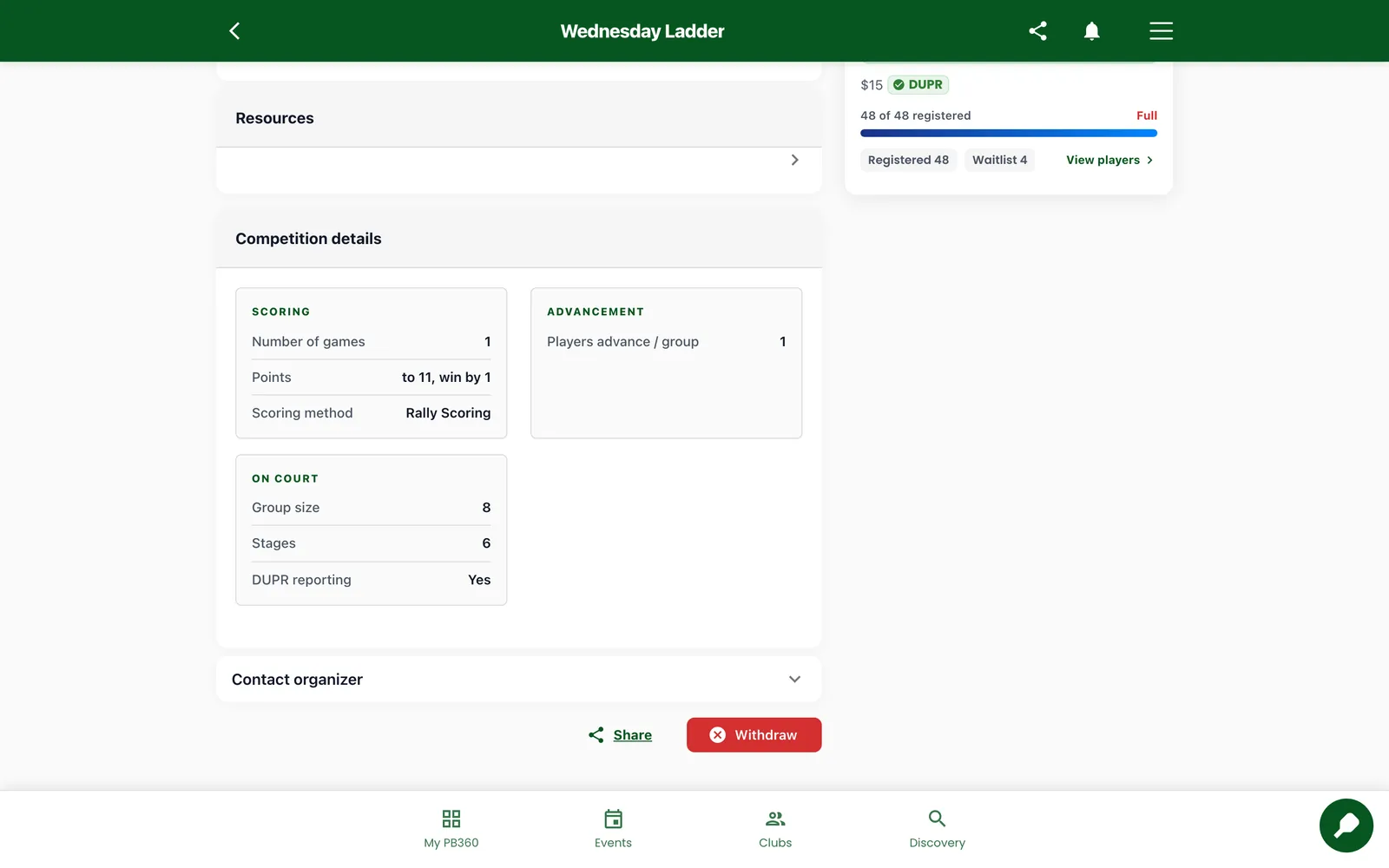
If an event is full and the club has a waitlist, you can join it. You are queued, and when somebody withdraws the next person moves up to the main list automatically — no action needed from you, and no need to keep checking.
You will be told when you are promoted. Until then you are not playing, so do not show up on the assumption that a spot will appear.
Withdrawals are common, especially in the last 48 hours. Joining a waitlist is usually worth it.
4.7 Tournaments and divisions
A tournament is a collection of divisions — "Men's 3.5", "Mixed Open", and so on. You register for a division, not for the tournament as a whole.
Divisions have their own format, their own price, and their own eligibility rules, so read each one. You can enter more than one, and there is a multi-join flow for signing up for several at once.
Two things about tournaments worth knowing in advance:
- The registration deadline comes from the tournament, not the individual division. All divisions close together.
- Divisions can be merged or split before play. If two divisions came in thin the club may combine them, or split an oversubscribed one. If that happens to yours you keep your place and your status — you will simply find yourself in a differently named event. It is normal, and it usually means better games.
4.8 Leagues and multi-session events
A league runs over several sessions with standings carried across them. You register once for the whole league rather than session by session.
The event page shows the league structure: how many sessions, how often they run, and how the season is organized. Where a league has a regular season and playoffs, that is set out too.
You can usually withdraw from a single session without leaving the league — useful when you are away for one week. The app will ask which you mean, so read the prompt: withdrawing from the league is not the same as missing one night.
4.9 Signing up as a guest
If the event allows guests and you do not want an account, choose the guest option and give your first name, last name, email, and phone number. You are registered, you pay as normal, and you get a receipt.
If you are told your email or phone is already taken, you already have a PB360 account — sign in instead. There is an option on that screen to have a claim link sent to you if you cannot get in.
Everything a guest can and cannot do is in 2.3, and upgrading later is covered in 2.4. Nothing is lost by starting as a guest.
Part 5 — Paying
5.1 What you are charged
The event page shows the price before you commit, and you can expand a fee breakdown to see exactly what makes it up — the entry fee, any platform fee or tax, and anything you have added.
Prices are not always fixed. Many events use tiered pricing — early, regular, and late — where the price rises as the date approaches. The event page shows which tier is running and the price you will actually pay. If you are going to enter, entering early is often cheaper.
5.2 How you can pay
Method | Notes |
|---|---|
Card | Processed by Stripe. The usual option. |
PayPal | You are handed to PayPal to approve and returned afterwards. |
Venmo | Available where the club has enabled it. |
Play Pass | Prepaid credit you already hold. See 5.4. |
Event Pack | A prepaid block of entries. See 5.5. |
Which of these you see depends on what the club has set up. Not every club takes every method.
5.3 Promo codes
If you have a code, look for Have a promo code? at checkout and enter it. The discount is applied straight away and shown on the total.
"Invalid promo code" means one of a few things: it is mistyped, it has expired, it has been switched off, or it does not apply to this particular event. Codes are often restricted to specific events. Check with whoever gave it to you.
One firm rule: promo codes cannot be used with Event Packs. You will be told so if you try.
5.4 Play Passes
A Play Pass is prepaid credit you buy from a club. It holds a number of credits, each worth a set amount of money, and you spend them against entry fees.
Buy one from the club's page or the wallet, and it appears in your digital wallet. At checkout you choose to pay with it and pick how many credits to use.
Passes can carry an expiry — a fixed date, a number of days after purchase, or never. The pass details show which.
There is a second use. Some clubs let you show your pass QR at the desk for drop-in play — staff scan it, a credit is redeemed, and you are on. No event registration involved. Your QR lives in My PB360.
5.5 Event Packs
An Event Pack is a block of entries bought up front — "ten events for $150". Each time you register for a qualifying event, one entry is used and the event costs you nothing more.
You will see "Event Pack covers the full cost" at checkout when one applies.
An Event Pack cannot be combined with anything
If you pay with an Event Pack, any promo code and any Play Pass are ignored — not stacked, not partly applied. The pack covers the whole entry and that is the transaction.
So if you have a generous promo code, check whether paying by card with the code is better value than burning a pack entry. Sometimes it is.
5.6 Memberships
A membership is an ongoing relationship with a club — monthly, annual, or lifetime. It usually gets you cheaper entry, access to member-only events, and whatever else that club includes.
Browse plans from the club's page, choose one, and confirm. You manage it afterwards from Manage membership, where you can see what you are on and what it costs.
Whether a membership is worth it is arithmetic: compare the member and non-member price on the events you actually attend, times how often you go. For a weekly regular it usually pays; for an occasional visitor it usually does not.
Memberships need a full account — guests cannot buy them.
5.7 Your digital wallet
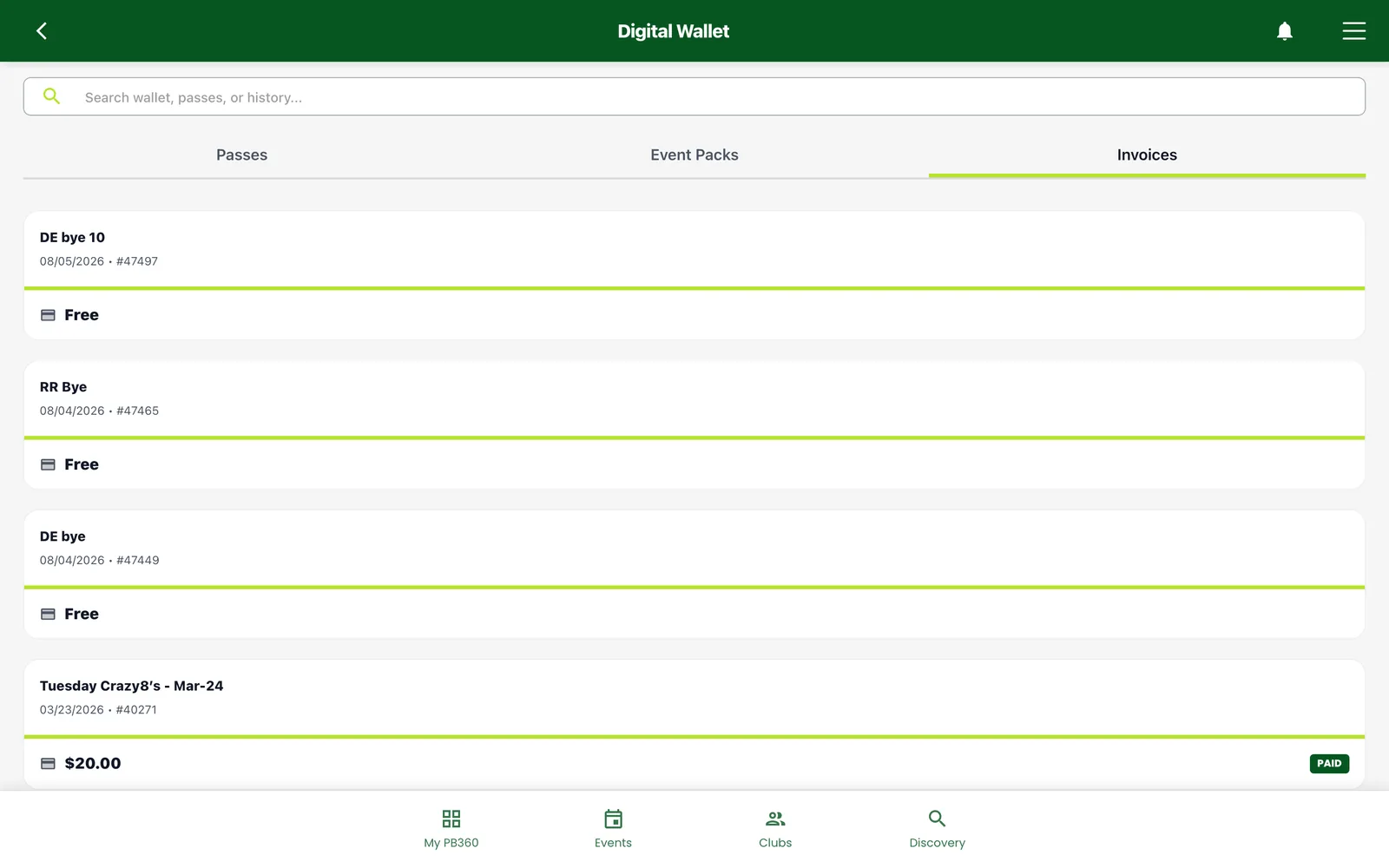
The wallet, in My PB360, is where everything you have bought lives:
- Play Passes — how many credits are left, and when they expire.
- Event Packs — how many entries remain.
- Club member passes — your membership.
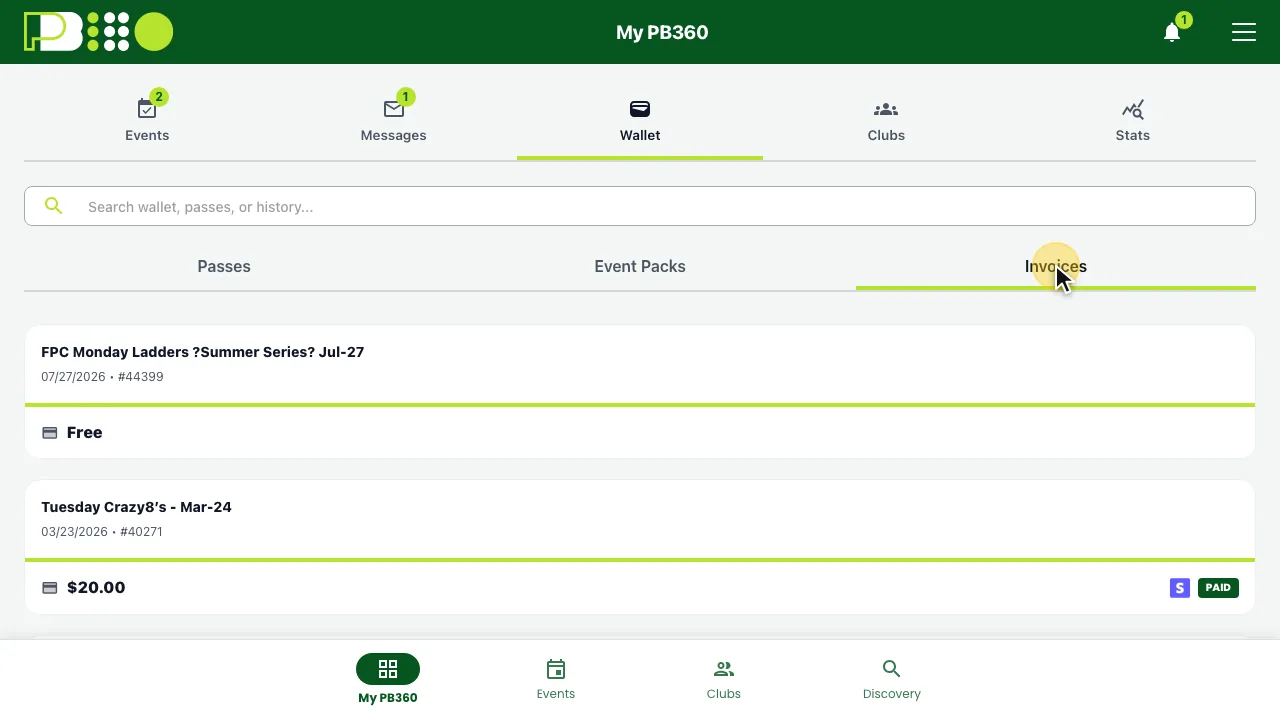
- Invoices — every receipt, viewable and downloadable.
Check the wallet before an event if you think you have credit. It saves discovering at checkout that a pass expired last month.
5.8 How discounts stack
When you have more than one thing to spend, they are applied in a set order: promo code first, then Play Pass. Event Packs replace both.
Take a $100 event, a 50%-off promo code, and a Play Pass worth $20 a credit.
What you use | Working | You pay |
|---|---|---|
Promo only | $100 less 50% | $50 |
One Play Pass credit only | $100 less $20 | $80 |
Promo, then one credit | $100 less 50% = $50, then less $20 | $30 |
Promo, then two credits | $100 less 50% = $50, then less $40 | $10 |
Event Pack | Pack covers the entry outright | $0 |
Your credits are protected
If a promo code covers the whole cost by itself, the app removes the Play Pass rather than spending a credit on a bill that is already zero. Remove the promo and the original price comes back. You will not lose credits for nothing.
5.9 Extras and donations
Some events sell add-ons alongside entry — a shirt with a size and style to pick, a goodie bag, or similar. They are added to the same payment and appear on the same receipt.
Some events also invite a donation. It is optional, you choose the amount, and "None / No thanks" is always available. Donations are generally non-refundable, so treat them as given rather than parked.
5.10 When a payment fails
Card declines are common and almost never mean anything is wrong with PB360. The message usually tells you which of these it is.
Message | What to do |
|---|---|
Your card was declined | Your bank refused it. Try another card, or call your bank — international or unfamiliar merchants are often blocked by default. |
Your card has expired | Use a different card. |
Payment setup failed / configuration error | A club-side problem, not yours. Contact the organizer. |
Payment capture failed | The payment started but did not complete. Check your wallet before retrying — if an invoice shows paid, do not pay again. |
Duplicate invoice | You already have a payment in progress for this event. Check the wallet rather than starting again. |
Before you retry a failed payment
Open My PB360 and look at your invoices. If a payment went through and only the confirmation failed, retrying will charge you twice, and getting a duplicate refunded takes days. Ten seconds of checking is worth it.
Part 6 — Before you play
6.1 Withdrawing, and getting your money back
Plans change. Open the event and choose Withdraw. Your place is released immediately and, if there is a waitlist, the next person moves up.
Whether you get money back depends on the club's refund policy, which is shown on the event page before you ever register. Read it then, not now. There are two shapes:
- Fixed refund — one percentage whenever you withdraw. "80% back, always."
- Tiered refund — different percentages before different dates. Often full refund until a week out, part refund until a few days out, nothing after that. You will see labels like Early, Regular, and Late Refund.
There is also a force majeure case — if the club cancels for weather or a facility closure, a different (usually more generous) rule applies. That is the club canceling, not you withdrawing.
For leagues, withdrawing from one session is different from leaving the league. The app asks which you mean.
Refunds take days, not minutes
The money goes back through the same route it came — Stripe, PayPal, or Venmo — and card networks typically take five to ten business days. Your withdrawal is recorded instantly; the money moving is on your bank's schedule, not the club's.
If it has been longer than ten business days, contact the club with the invoice from your wallet.
6.2 Event chat
Most events have a chat channel for the people playing. It is where partners get found, rides get arranged, and last-minute changes get announced.
You need to be registered to post — you will see "Join the event to send a message" otherwise. Older messages load as you scroll back.
Some channels also carry announcements from the organizer, kept separate from general chat so important messages do not get buried.
If you take one habit from this guide: check the event chat the morning of the event. Weather calls and court changes go there first.
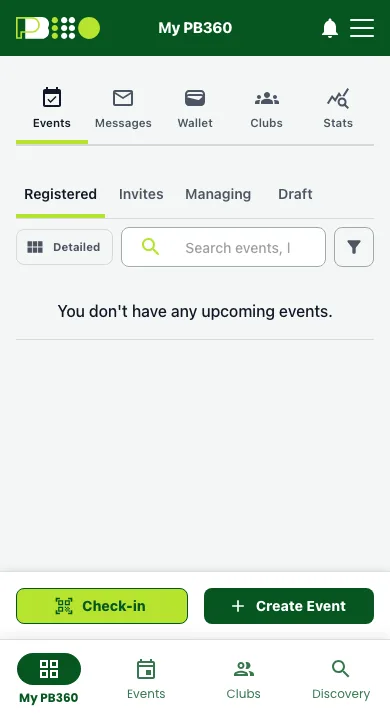
6.3 Your QR code
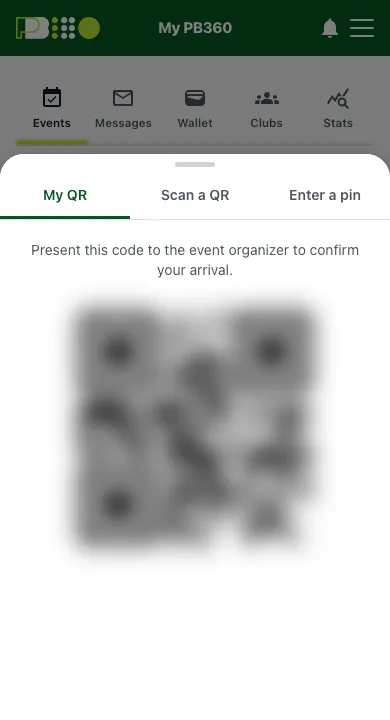
In My PB360 you have a personal QR code. It identifies you. Staff scan it to check you in, and it is how a Play Pass gets redeemed at the desk.
Find it in My PB360 before you are standing at the desk with a line behind you.
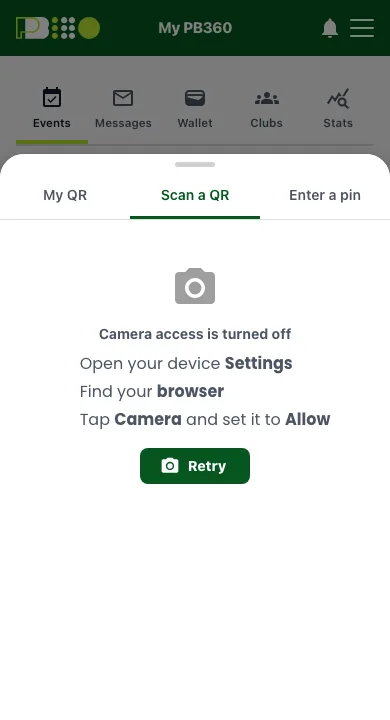
There is also a scanner on your side, so you can scan a code the club shows you rather than being scanned. Your phone will ask for camera permission the first time; if you decline it you can still check in by other means.
Take a screenshot
Venues have bad signal. A screenshot of your QR code works exactly as well as the live screen and does not depend on the network. Worth doing before you leave home.
6.4 Checking in
Checking in is confirming you have physically arrived. It is not the same as registering, and it matters more than most players realize: many formats only put checked-in players into matches. Register but never check in, and you can end up left out of the draw.
There are several ways it happens, and clubs use whichever suits their setup:
Way | What you do |
|---|---|
Staff scan your QR | Show your code from My PB360. Fastest option. |
Self check-in from a TV screen | The club has a screen showing a QR code and a PIN. Scan it with your phone, or type the PIN into the app. You check yourself in — no line. |
Staff do it manually | You give your name at the desk and they check you off. |
You scan a code the club shows | Use the scanner in My PB360. |
If a scan fails, the message tells you why. "You're not registered for this event" almost always means you registered for a different division of the same tournament — say so at the desk rather than walking away.
Arrive with enough time to check in. Fifteen minutes before the stated start is a reasonable habit; the draw is often generated right on time.
Part 7 — On court
7.1 Finding your court
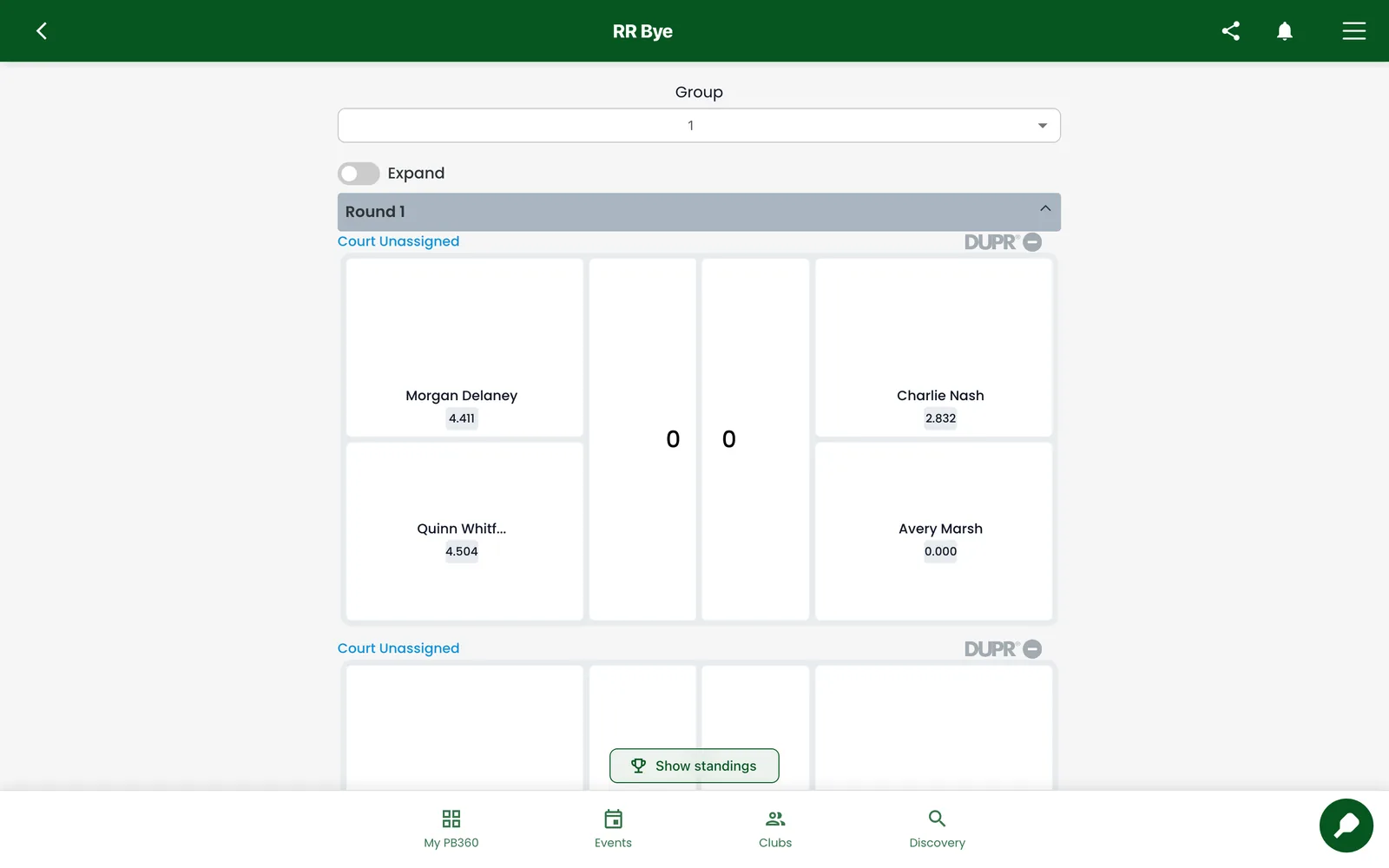
Once the event starts, the event page tells you where to go. Courts are shown by the names the club actually uses — "Court 1", "Main Hall", "Center" — and your match shows which one you are on.
Before the organizer has allocated anything you will see "Courts haven't been assigned yet". That is normal in the minutes before a start. It updates by itself; you do not need to refresh.
Where a club has a TV kiosk running, the same information is on the screen in the lobby, rotating through current matches and court assignments.
7.2 Reading the schedule
Your schedule shows your matches: who you are playing, which round, and which court. For rotating-partner formats it also shows who you are partnered with this round, which changes as you go.
In pool formats you are in a group, and the schedule shows your group's court. In knockout formats you see the bracket and where you sit in it.
A bye means you sit out that round. It is not a punishment and it does not count against you — it is simply what happens when the numbers do not divide evenly, and the system rotates it around so it is not always the same person.
7.3 Entering scores
Some clubs let players enter their own scores; others keep it to staff. If the buttons are there, you can enter; if they are not, give the score to an organizer.
The scoring rules were set by the club when the event was created — games to 11, 15, or 21, win by 1 or 2, and a single game or best of 3 or 5. The event page shows which.
Enter the score, confirm, and the standings update immediately.
Get it right the first time
A wrong score entered and left alone distorts the standings, and in formats where results decide the next round's pairings it distorts the rest of the event too. If you make a mistake, tell an organizer straight away — a correction is easy in the moment and awkward three rounds later.
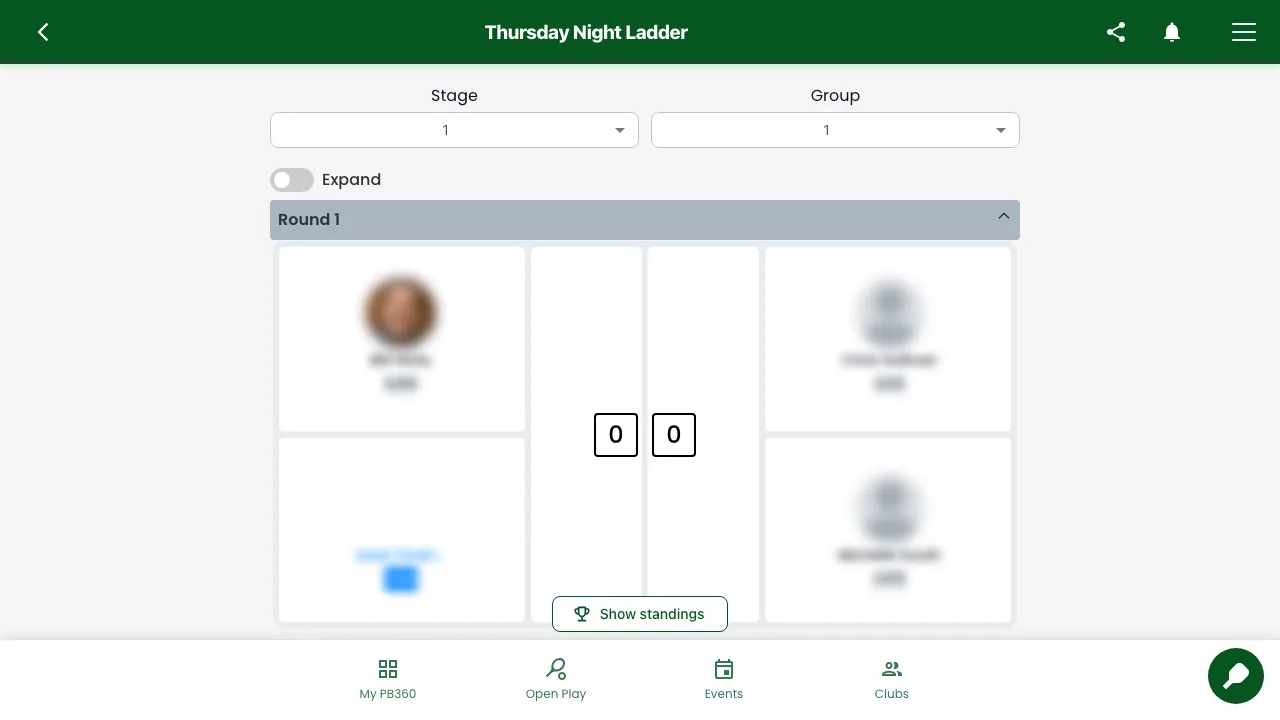
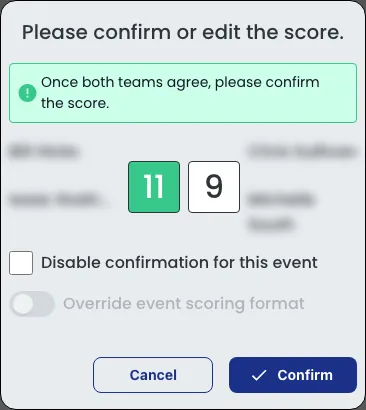
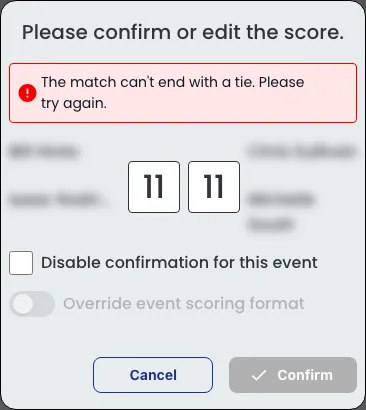
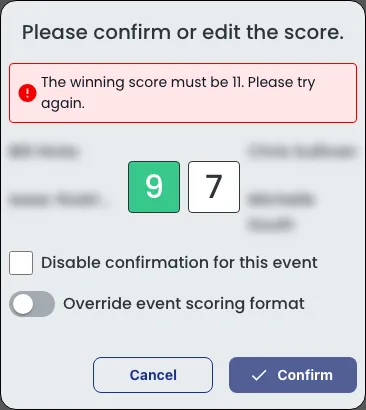
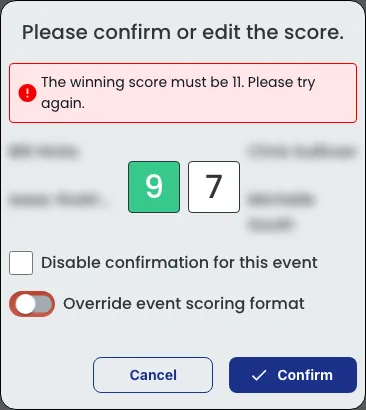
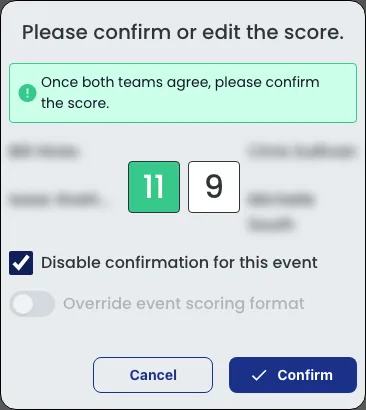
In a team league, entering a score works the same way — see 4.4 for the captain’s walkthrough.
7.4 Standings
Standings update live as scores come in. How they are worked out was decided by the club when the event was set up, from a ranked list of criteria applied in order until a tie is broken:
Criterion | What it counts |
|---|---|
Number of Wins | How many matches you won. Usually the first thing that counts. |
Point Differential | Points you scored minus points you conceded. Rewards winning well, not just winning. |
Total Points | Raw points scored. |
Head to Head | If two of you are still level, who beat whom. Only ever used as a tie-breaker. |
Most events use wins, then point differential, then total points. The practical consequence is worth knowing: in a close event, margin matters. Winning 11–3 is worth more than winning 11–9, so do not coast once a game is decided.
In formats with playoffs, the same order decides who advances out of the pool.
In a team league, reading the standings works the same way — see 4.4 for the captain’s walkthrough.
7.5 DUPR results
If the event was DUPR-rated, results are sent to DUPR after it finishes. The app tells you which state you are in: that results will be uploaded, that they have been, or that the upload failed.
Matches that ended in a walkover or forfeit are never sent — a match nobody played says nothing about how anyone plays.
Ratings do not move instantly. DUPR processes on its own schedule, so give it time before assuming something went wrong. If the app says the upload failed, tell the organizer — that is theirs to fix and they can retry it.
Part 8 — Your record, and getting help
8.1 My PB360
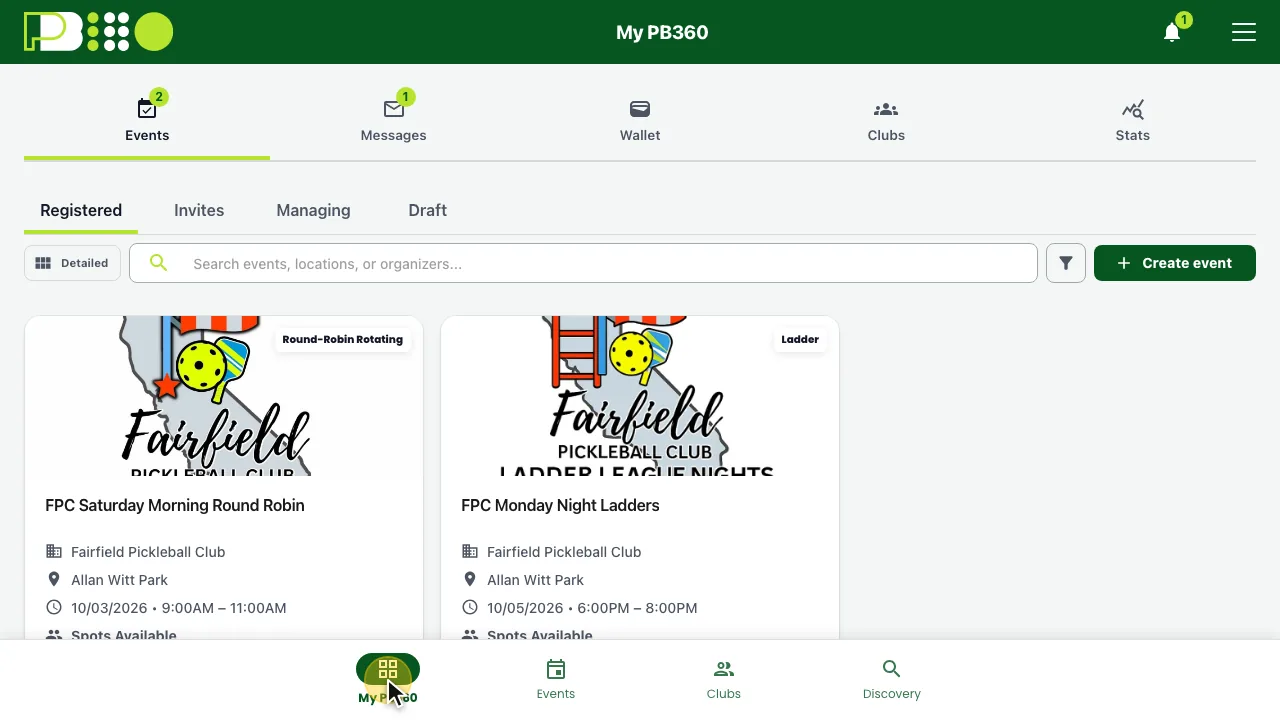
Your home base, organized into a handful of tabs.
Tab | What is in it |
|---|---|
Events | Events you are part of, under Registered, Invites, Managing (if you run events) and Draft. |
Messages | Inbox for messages from organizers, Invites for partner, team and club invitations you received or sent, and Emails & Texts for everything PB360 has sent you. |
Wallet | Passes, Event Packs and Invoices. See 5.7 and 8.3. |
Clubs | Clubs you are a Member of, are Following, or marked Favorite. |
Stats | Your playing record and your club's leaderboard. See 8.2. |
Your QR code for check-in also lives here, and there are compact and detailed views for the event lists.
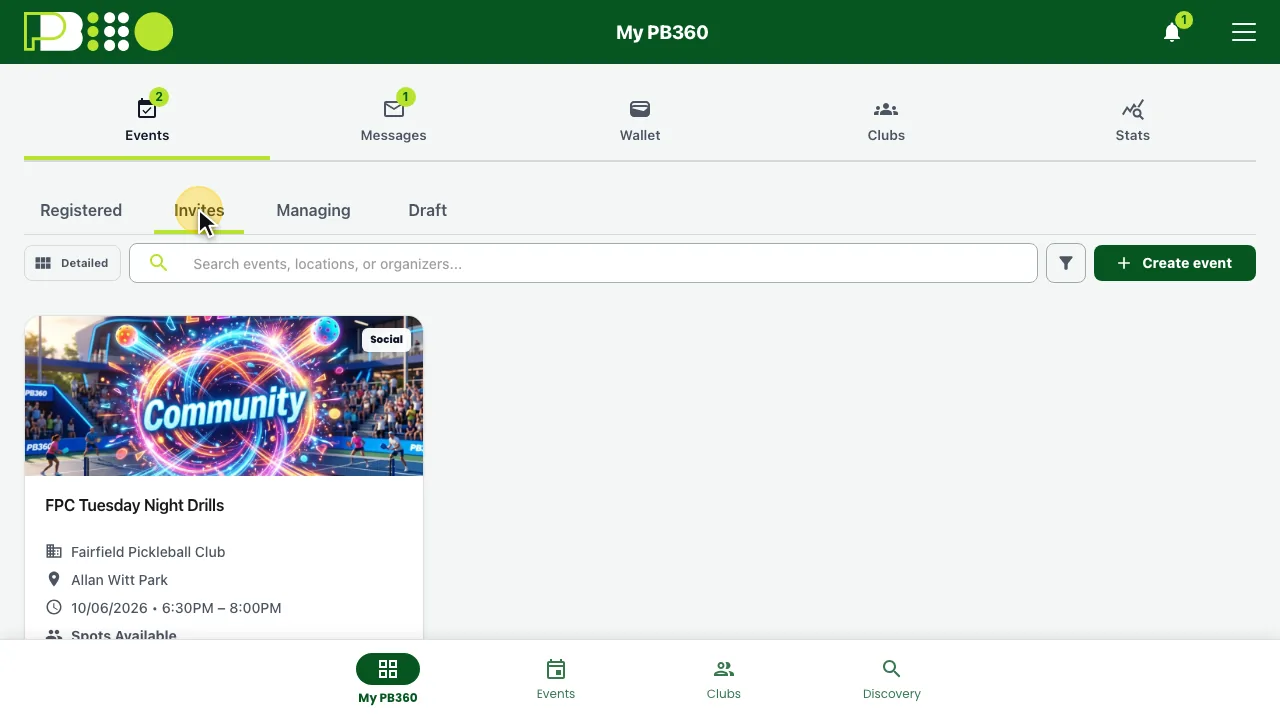
Events. Registered lists the upcoming events you signed up for — tap a card to open the event. Invites lists events someone invited you to. Managing lists events you organize, and Draft the ones you started creating but have not published; for most players both are empty.
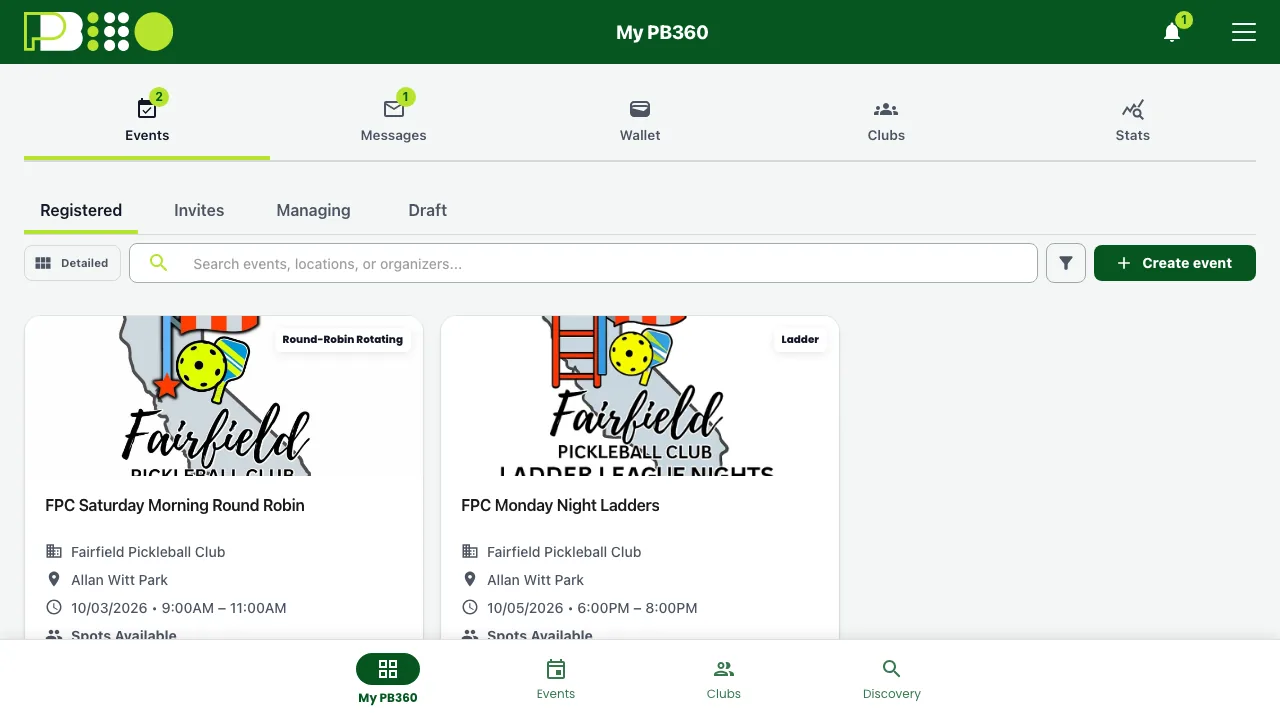
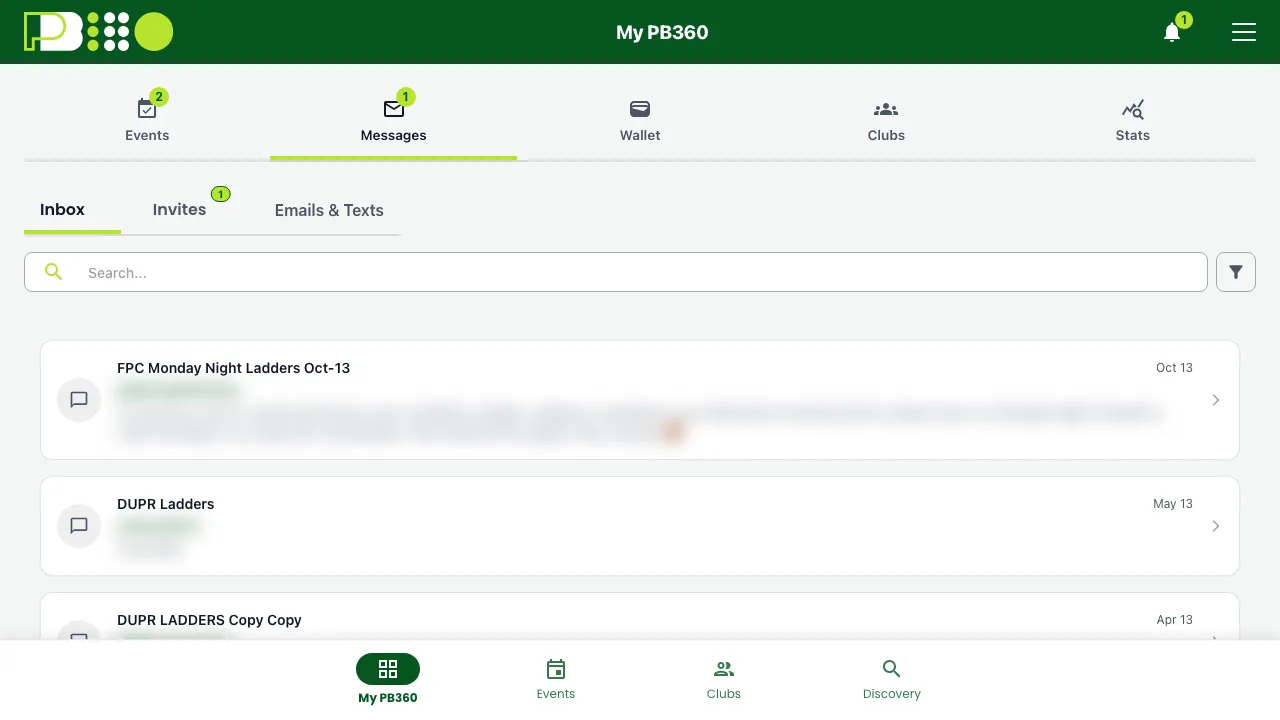
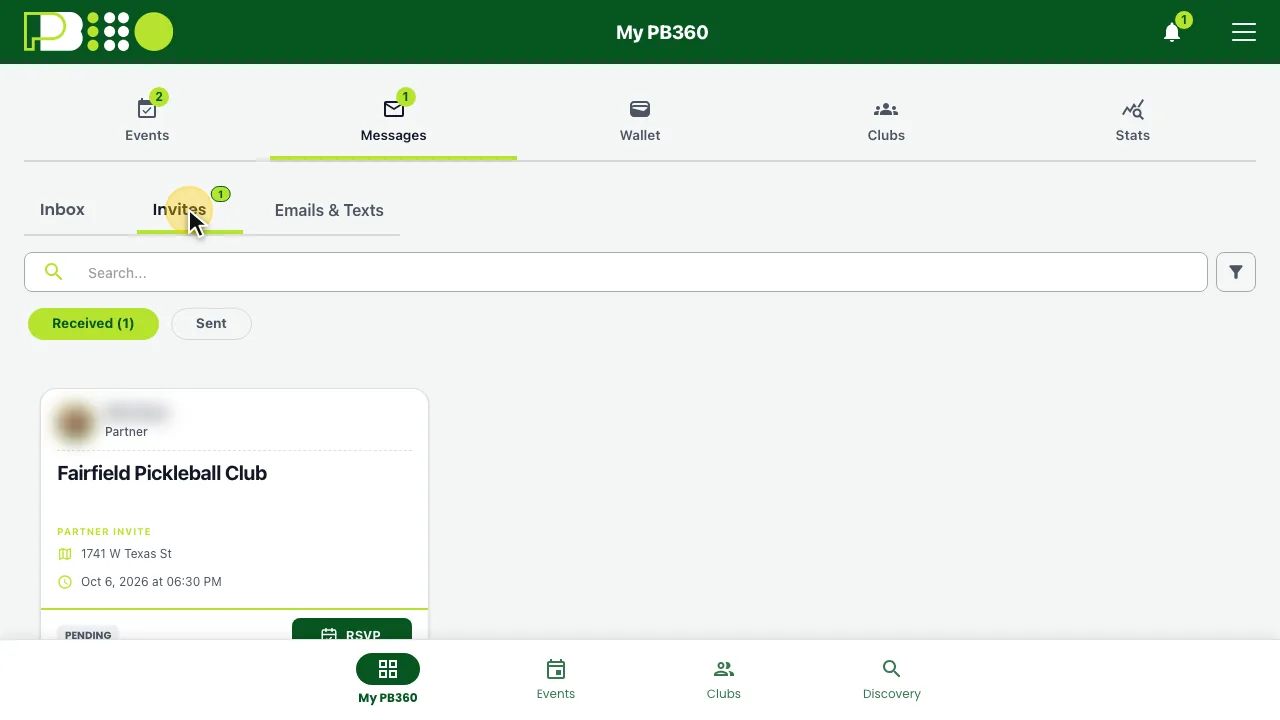
Messages. Inbox collects the messages event organizers send — weather calls, schedule changes, reminders. Invites holds invitations: Received for the ones waiting on your answer, Sent for the ones you sent. Emails & Texts lists every email and text PB360 has sent you, so you can find a confirmation or a link again.
Wallet. Passes shows your play passes and the credits left on each — tap one to show its check-in code. Event Packs are events you paid for in advance. Invoices is your payment history (see 8.3). Wallet opens on the first of the three that has something in it.
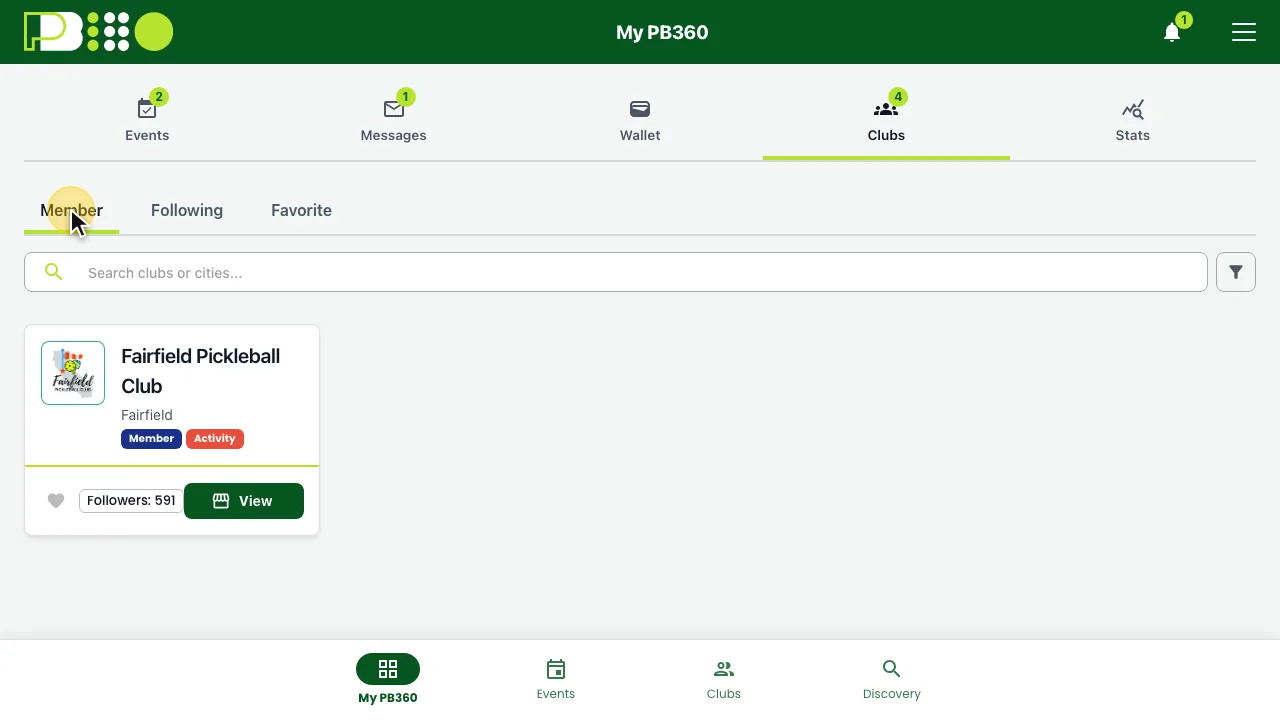
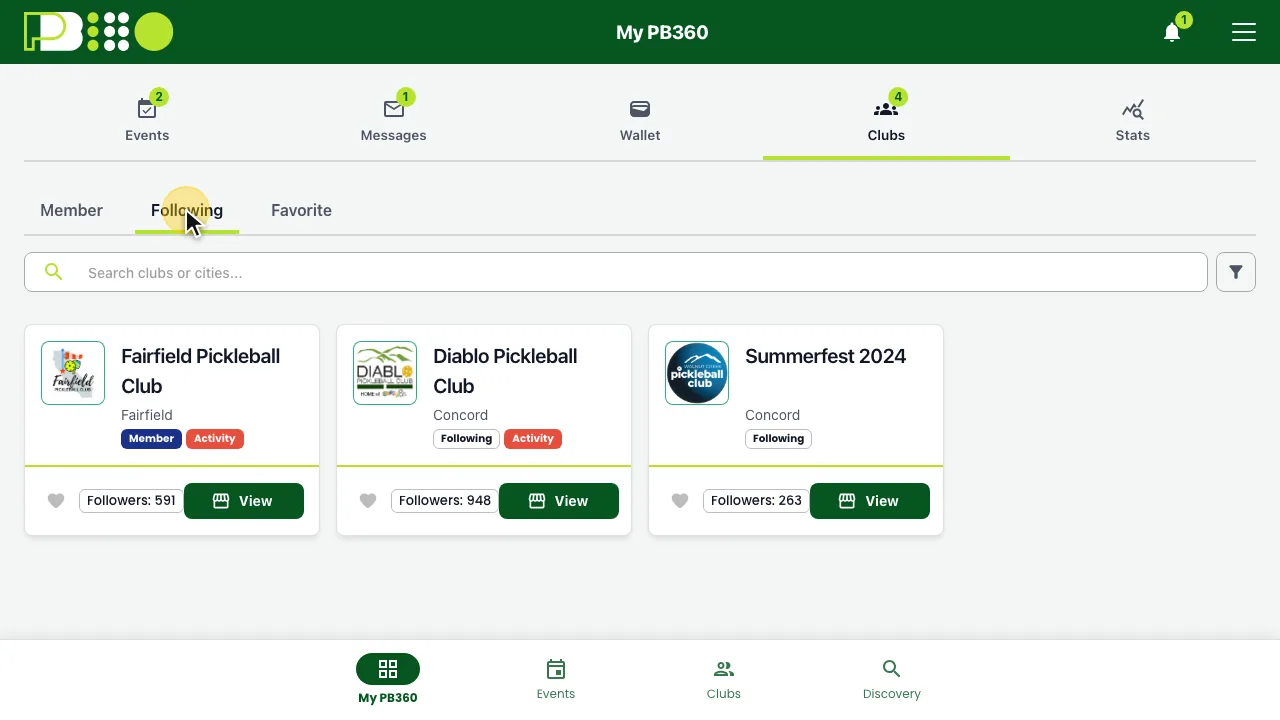
Clubs. Member lists the clubs you belong to, Following the ones you follow to hear about their events, and Favorite the ones you starred with the heart on a club card. Tap View to open a club's page.
8.2 Your stats
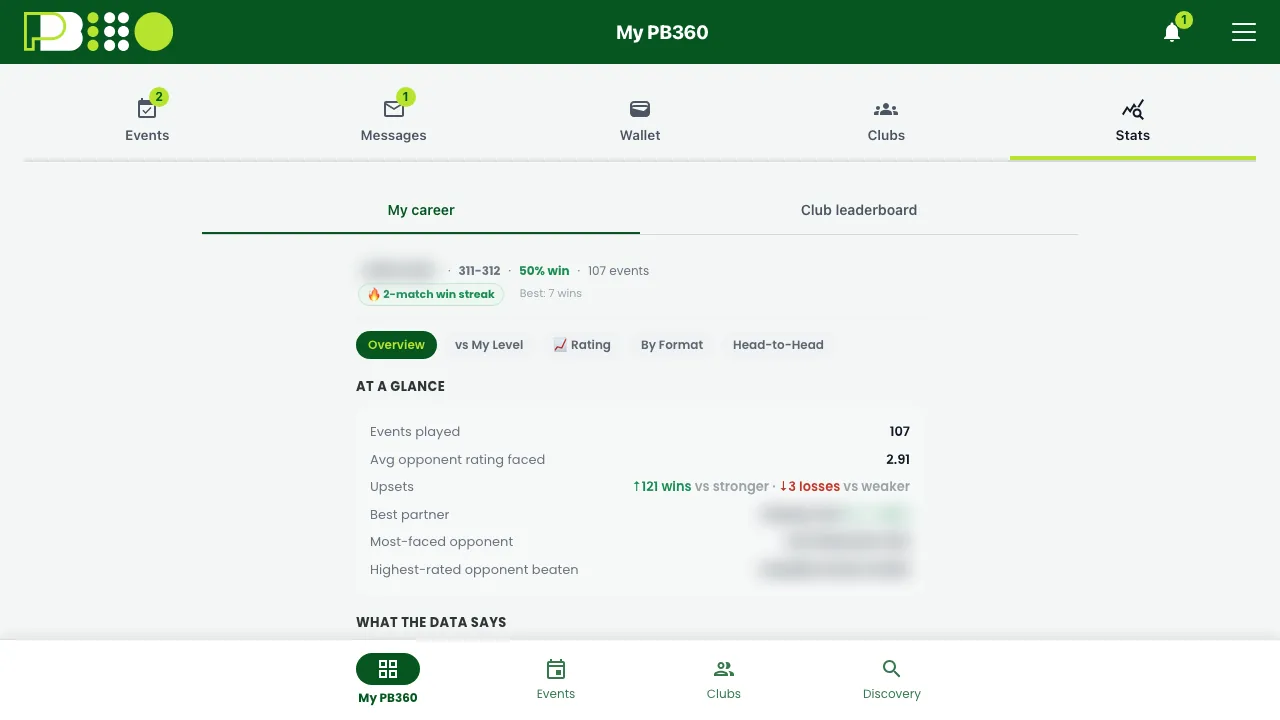
The stats view shows the events you have played and how you did. Where events were DUPR-rated, your singles and doubles ratings appear on your profile too.
It is worth glancing at every so often. Players consistently misremember their own level, and the record is a better guide to which skill band to enter than a feeling is.
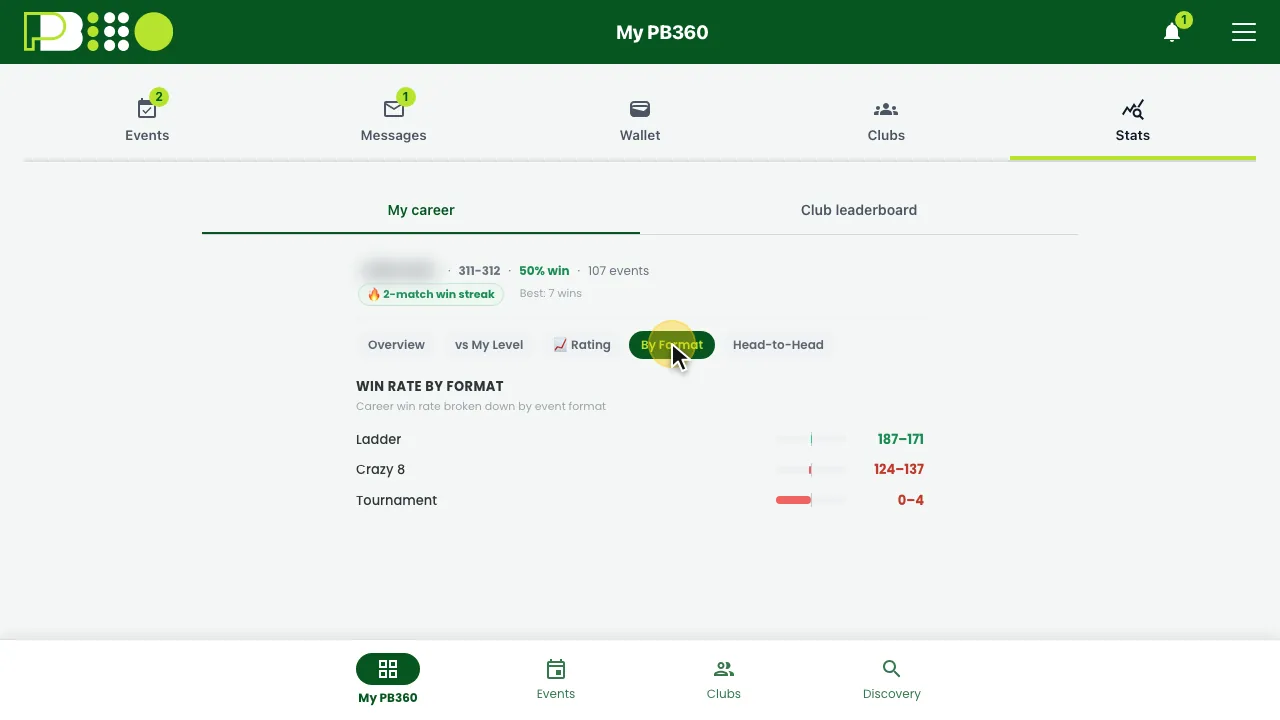
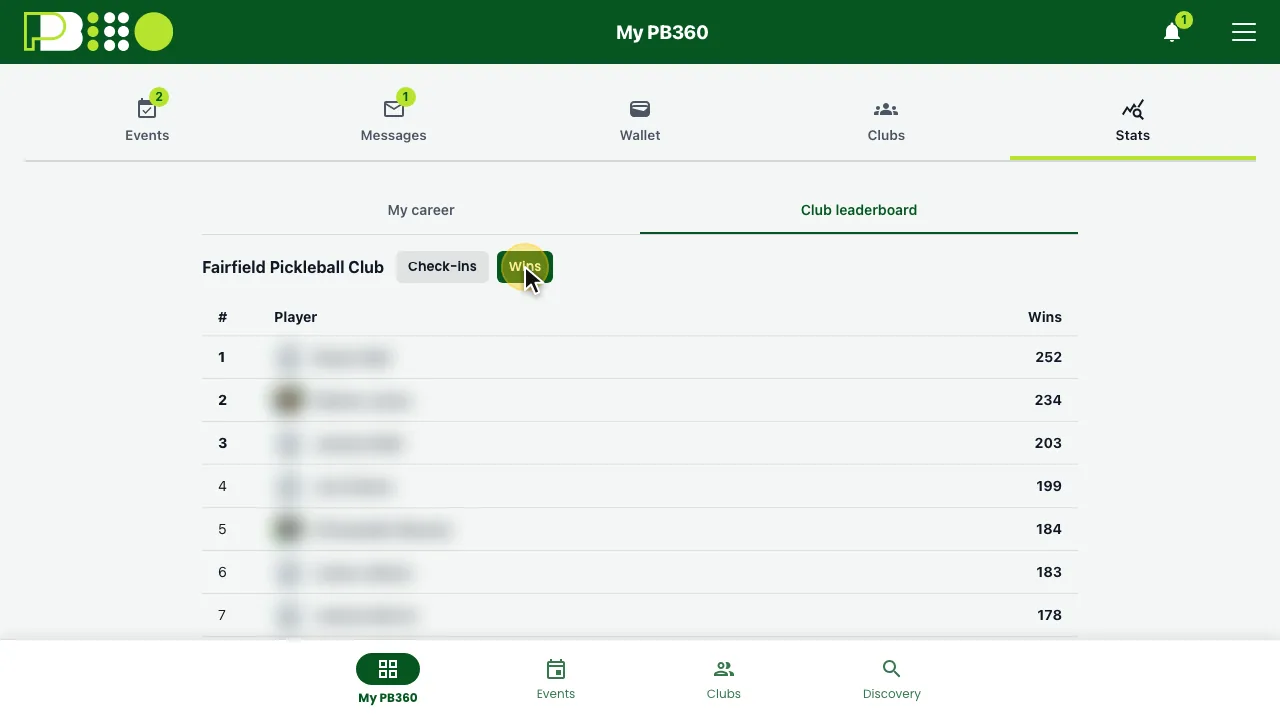
Where to find it. Open My PB360 and tap Stats. My career sums up your record — wins and losses, win rate, events played and your current streak — and the pills underneath switch views: vs My Level, Rating, By Format and Head-to-Head. Club leaderboard ranks your club's members by check-ins or wins.
8.3 Invoices and receipts
Every payment produces an invoice, including free events, which produce one with a zero total. They are all in your wallet and each can be viewed and kept.
The invoice shows what you paid, what discounts applied, which promo code you used, the payment method, and the date. If a refund was issued, it shows against the original invoice.
This is what to send if you ever need to query a charge. "I think I paid twice in June" is hard for a club to chase; an invoice number is easy.
8.4 Common problems
What happened | Why | What to do |
|---|---|---|
The sign-in link did not work. | Magic links expire and are single use. | Request a fresh one. If you are told to wait, that is a spam limit — try again shortly. |
The verification email never arrived. | Spam filter, or a typo in your address. | Check spam, then resend. If it still fails the address may be wrong — check your profile. |
"You are not eligible to join this event." | Age, gender, skill, or membership rules. | See 3.6 — it lists each message and the fix. Check your profile before contacting the club. |
The event says registration closed but the date has not passed. | Deadlines run on the venue's time zone. | Ask the organizer. They can usually still add you by hand. |
I registered but I am not in any match. | You were never checked in. Most formats only draw from checked-in players. | Find an organizer. It takes seconds to fix on the day. |
My partner never accepted the invite. | They did not see the notification. | Check the invite status in My PB360. Chase them, or move to the need-a-partner list. |
The event I signed up for changed name. | The club merged or split divisions before play. | Normal and usually good news. Your place and status carried over. |
My promo code was rejected. | Expired, disabled, mistyped, not valid for this event, or you are paying with an Event Pack. | Check with whoever gave it to you. Packs never combine with codes. |
My Play Pass credit was not used. | A promo code already covered the whole amount, so the credit was deliberately kept. | Nothing is wrong. You still have the credit. |
My card was declined. | Your bank refused it — often a block on unfamiliar merchants. | Try another card or call your bank. See 5.10. |
I might have paid twice. | A payment succeeded but the confirmation failed. | Check your invoices in the wallet before retrying. If two show as paid, contact the club. |
My refund has not arrived. | Card networks take five to ten business days. | Check the withdrawal is recorded, then wait. Contact the club after ten business days. |
I have stopped getting event emails. | You unsubscribed — which also stops confirmations and cancellations. | Resubscribe from the preferences screen. See 2.8. |
My DUPR rating has not moved. | DUPR processes on its own schedule, and unrated or forfeited matches never count. | Give it time. If the app says the upload failed, tell the organizer. |
8.5 Getting help
Work through it in this order — it is fastest, and most things stop at the first step.
- Check your own profile. Wrong date of birth or gender causes most eligibility problems, and you can fix it yourself in a minute.
- Check the event chat. Anything affecting everybody — weather, a court change, a delayed start — is usually already answered there.
- Contact the organizer. Their details are on the event page under Contact organizer. They can add you by hand, fix a check-in, correct a score, and process a refund. Almost everything you will need is theirs to do, not PB360's.
- Have the details ready. The event name, the date, and — for anything about money — the invoice from your wallet. It turns a long exchange into a short one.
8.6 Ten things worth knowing
- Use the magic link to sign in. No password to forget.
- Fill in your date of birth and gender properly. They decide which events will take you.
- Link your DUPR. Without it you are excluded from events you would otherwise qualify for.
- Register early. Prices often rise as the date approaches, and popular events fill.
- Join the waitlist. People drop out more often than you would expect.
- Read the refund policy before you pay, not when you need it.
- Do not assume an invite was accepted. Check it.
- Screenshot your QR code before you leave home.
- Check in when you arrive. Registering is not the same thing.
- Check your invoices before retrying a failed payment. It is the difference between one charge and two.